Setting your markup
Updated Oct 9, 2026
What it's for. Your markup turns job cost into price. Job cost is only what the job itself costs: labor at your loaded rate, materials, subs, permits, dumpsters. It carries no overhead and no profit. The markup covers both: job cost × markup = price. Clamp keeps three markups (normal work, high-risk work and change orders) and prices every estimate from them.
Where to find it
Settings › Pricing, under YOUR MARKUP, below Overhead and Profit goal. The Set your markup card in Getting started opens the same place. Pricing is for the owner and admins.
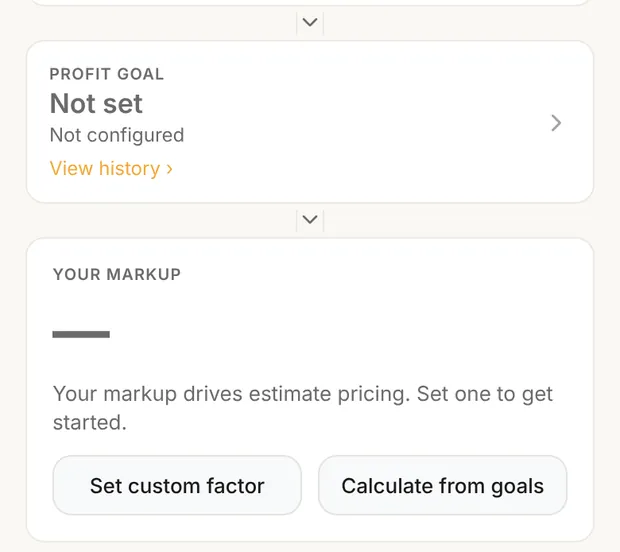
Until you set one, the card shows a dash and two buttons:
- Calculate from goals (recommended): Clamp works out the markup from your revenue goal, your overhead and the profit you want.
- Set custom factor: type a markup you already use.
Set your overhead first, so the markup has real numbers behind it. See Setting your overhead.
Calculate from goals
Calculate from goals opens Profit Goal. You can also tap PROFIT GOAL on Pricing.
- Annual Revenue Goal. What you expect to sell this year. It fills in from Overhead if you entered it there. From day 60 of the year, Clamp also shows Your pace this year: what you've signed so far and where that puts you by year-end, with a button to use that number.
- Annual Overhead. Read from your saved overhead. Tap it to go to Overhead.
- NET PROFIT TARGETS, the profit you want to keep after overhead:
- Normal, for standard jobs. Enter a percent from 0 to 50.
- High-risk, Normal plus 5 points by default.
- Change order, Normal plus 10 points by default.
You can change the points (0 to 50). The column on the right shows each target, such as 15% and 20%.
As you type, the large number at the top shows the normal markup, marked NOT SAVED YET. Produces lists all three markups, and HOW IT'S CALCULATED shows the math:
For example, a $500,000 goal with $90,000 overhead and 10% net profit leaves $360,000 of job costs. $500,000 ÷ $360,000 = 1.39 normal. At 15% and 20%, the same math gives 1.49 high-risk and 1.61 for change orders.
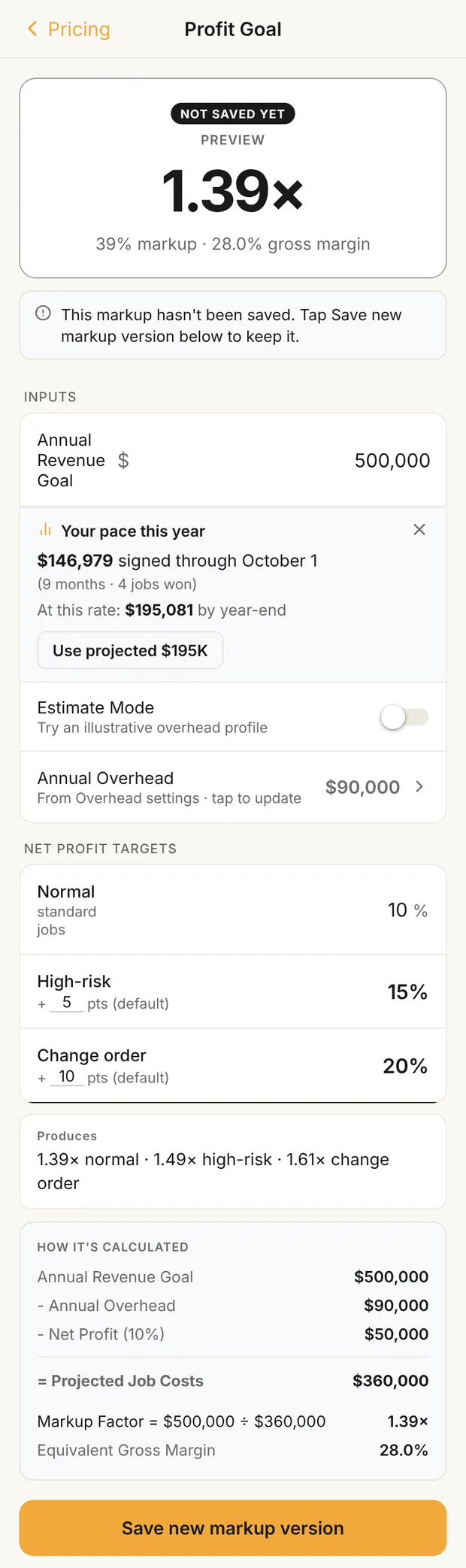
Tap Save new markup version at the bottom. It's the only Save on this screen. Each save is a new, dated markup version; the old ones stay in history. If overhead plus profit adds up to your revenue goal or more, there's nothing left for job costs, and Clamp says the revenue goal must exceed overhead plus profit.
No overhead saved yet? Clamp warns that the markup will use $0 a year of overhead, which prices too low. Set your overhead, or try Estimate Mode.
Try Estimate Mode
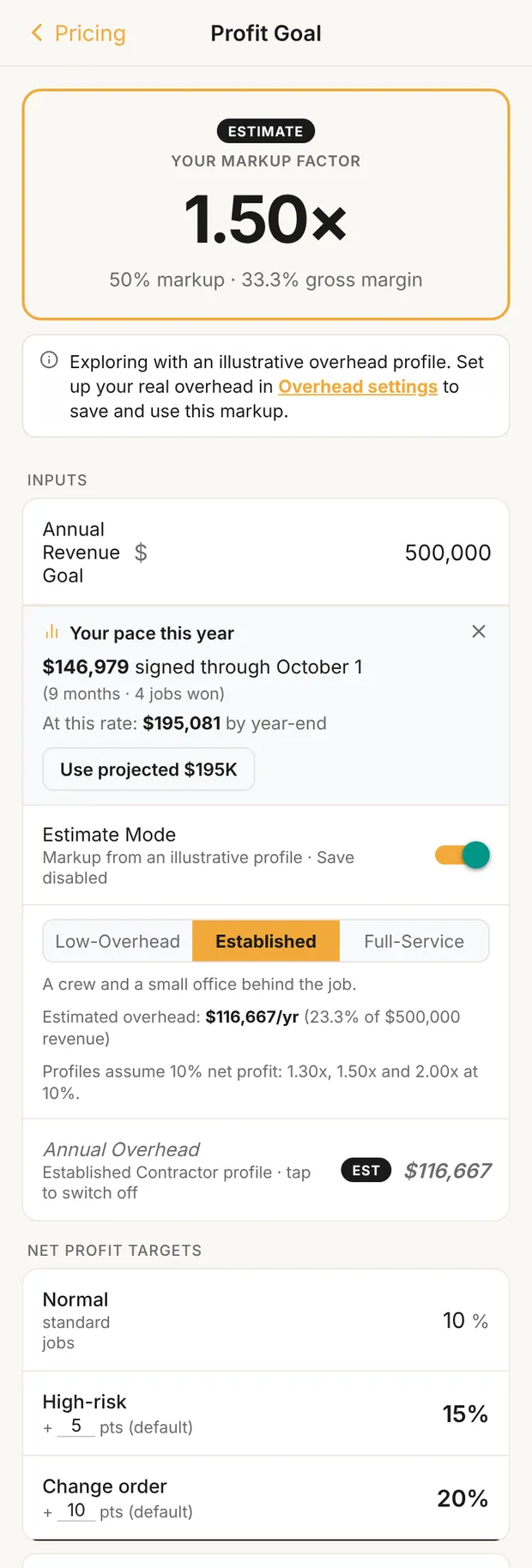
Turn on Estimate Mode to see a markup before you've added up your real overhead. Pick a profile and Clamp fills in an illustrative overhead for your revenue goal:
| Profile | Who it fits | Markup at 10% net profit |
|---|---|---|
| Low-Overhead | Owner-led and lean: one person or a small crew, no office. | 1.30 |
| Established | A crew and a small office behind the job. | 1.50 |
| Full-Service | Designers, salespeople and project managers whose time never reaches your line items. | 2.00 |
If you haven't saved a profit goal, Normal fills in at 10%. At other profit targets the markups move; at 15% they're 1.39, 1.62 and 2.22.
Estimate Mode is a preview. Saving is off while it's on ("Save disabled in Estimate Mode."), and nothing you try is kept. To use a markup, turn it off, set your real overhead and save.
Or set a custom factor
Set custom factor opens Custom Factor. Type the factor you charge over job cost, such as 1.50, and Clamp shows what that means: = 50% markup · 33.3% gross margin, and below it your other two markups, High-risk 1.62× · Change order 1.76×. It must be more than 1.00. Above 2.50, Clamp asks you to double-check. Tap Save markup.
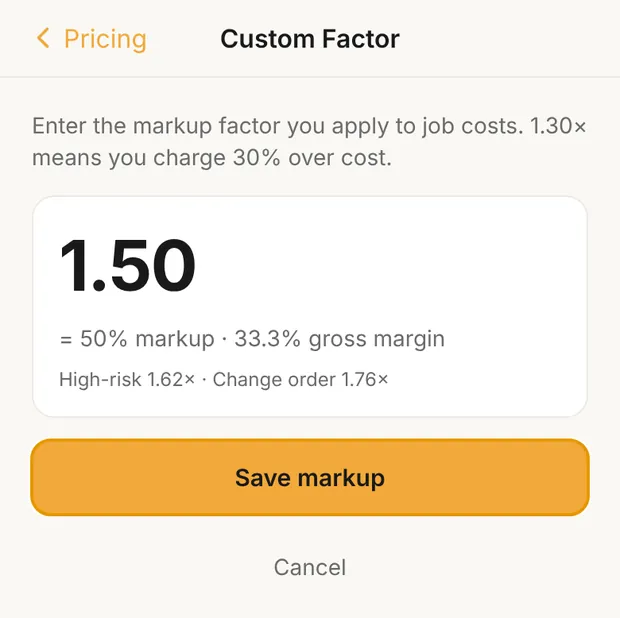
Your high-risk and change-order markups follow from the custom factor, with the same points as a calculated markup: 5 more points of net profit for high-risk work and 10 for change orders (or the points you saved on Profit Goal). A 1.50 markup leaves 66.7% of the price for job cost. High-risk takes 5 more points, leaving 61.7%, and 1 ÷ 0.617 = 1.62. Change order leaves 56.7%, which is 1.76.
If you've also saved overhead and a profit goal, Pricing shows Calculated from goals would be [markup]. Compare; tap it to open Profit Goal. To change a custom factor later, tap Change custom factor › on YOUR MARKUP. If your markup is calculated, the same spot reads Use a custom factor instead ›.
Markup isn't margin: a 1.50 markup is a 33.3% gross margin, not 50%. See markup vs margin.
Read your markup on Pricing
Once a markup is saved, YOUR MARKUP shows:
- the factor, such as 1.39×, with the markup and gross margin it equals;
- where it came from: computed from your overhead and goal on a date, or Custom · set by you;
- your high-risk and change-order markups, such as High-risk 1.49× · CO 1.61× (a custom factor of 1.50 shows High-risk 1.62× · CO 1.76×);
- Change custom factor › or Use a custom factor instead ›, to type a factor;
- View history ›, every markup, overhead and goal version, with the dates each was active.
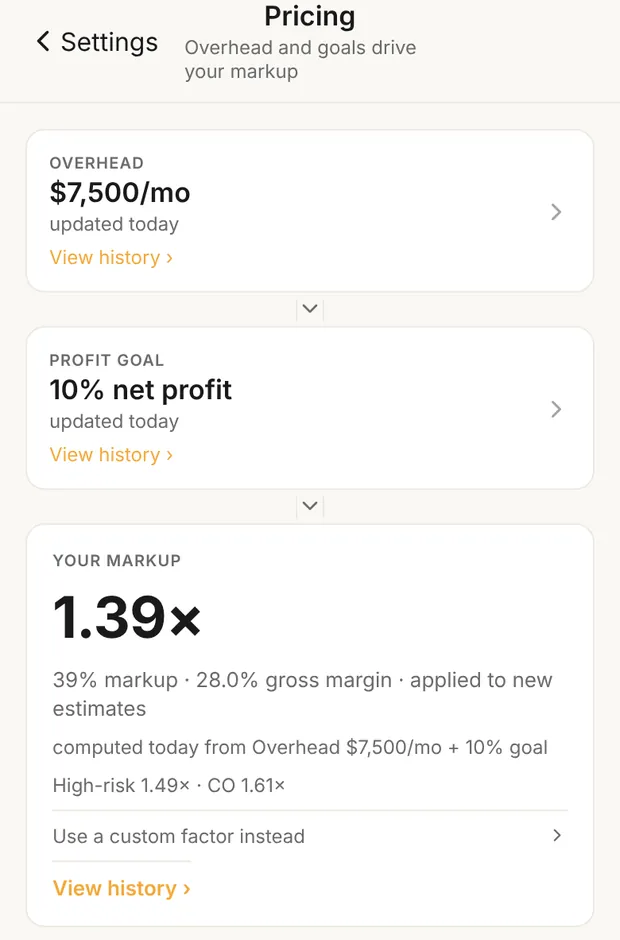
When you change your overhead, a calculated markup dims and Pricing offers Update to [new markup]. Tap it to save a new version at the new overhead.
Where each markup is applied
Markup is applied on the estimate. Proposals and change orders take their price from the estimate they're linked to.
- Estimates. In the estimate builder, the totals box has a Markup row (marked INTERNAL; your customer sees prices, not the markup). Tap it to choose the type: Normal, High-risk, Change order or Custom. New estimates start at Normal. If your markup isn't set, the builder uses 1.00× and links to Pricing settings.
- High-risk work. Pick High-risk for jobs with more unknowns: old houses, hidden conditions, tight schedules. Why it's priced higher is in three markups, one job cost.
- Change orders. When you link a draft estimate to a change order, Clamp switches its markup to Change order. You can still change it. Clamp leaves it alone if you already picked High-risk or Custom, or if the estimate's price is locked because it was sent.
- Proposals. A proposal option linked to an estimate is priced from that estimate, at the estimate's markup.
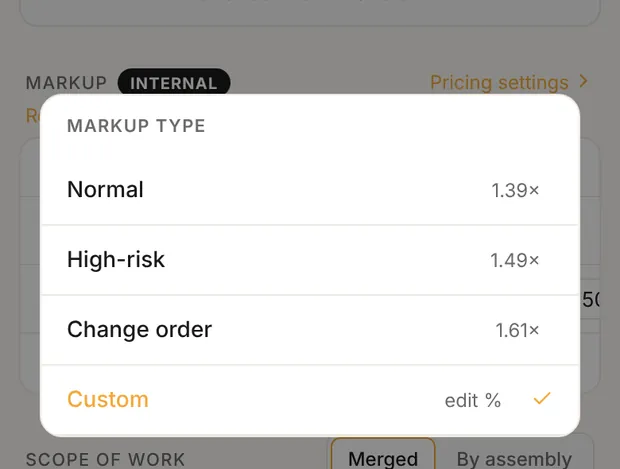
A different markup for one job
Pick Custom on the estimate and type the markup as a percent: 50 means 1.50. Restore default goes back to your Settings markup. This changes only that estimate.
Sent estimates keep their markup
Draft estimates follow your current markup. Once an estimate is sent, or prices a proposal or change order that's been sent, Clamp locks the markup it had at that moment. Saving a new markup later changes new work, not what your customer already has.
What this changes
- Every estimate's price, and through it every proposal and change order.
- Break-even on Home. The Overhead pace card turns your markup's gross margin into the monthly revenue you need to cover overhead. See what it takes to break even.
- Job profit. Gross profit on each job is price minus job cost, so the markup is what pays your overhead and leaves your profit.