Setting labor costs
Updated Oct 9, 2026
What it's for. Labor is usually the biggest cost on a job you can't see on a receipt. Clamp turns every hour logged on a job into dollars at a loaded rate: the wage plus what that hour really costs you in payroll taxes, workers' comp and benefits. Set the rates once and every job's labor cost fills in as hours come in, whether you track them automatically or log them by hand.
Where to find it
Labor rates live in three places. All three are for the owner and admins; anyone else who opens them sees Owner and admins only. An admin sees Labor Costs read-only (see Who sees dollar amounts).
- Settings › Pricing, under More:
- Labor Costs, the rates for each role on your crew;
- Owner Labor, your own rate;
- Saved Rates, unit prices you saved from estimates (see the end of this page).
- Settings › Time on Site, under Labor: the same Owner Labor screen, plus the Hours-only view switch.
- Settings › Team (Teams plan): who sees rates, which roles each person works, and Time to review.
1. Pick your trades
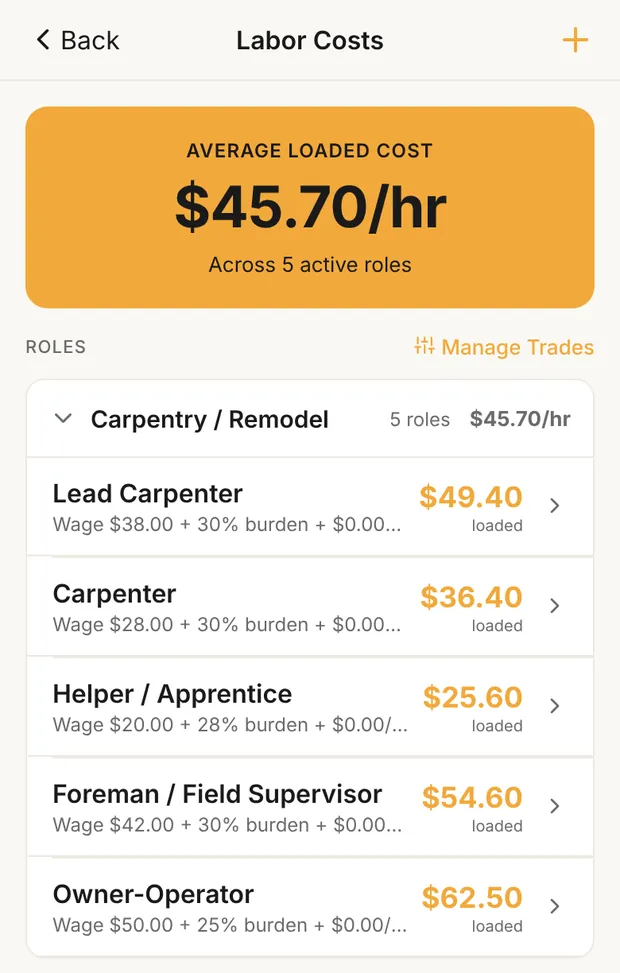
The first time you open Labor Costs, Clamp asks What's Your Trade? Tick every trade you work in and tap Save & Continue. Clamp adds a starter set of roles for each one, such as Lead Carpenter, Carpenter and Helper / Apprentice for Carpentry / Remodel. Other / Skip gives you a generic Crew Lead, Crew Member and Owner-Operator. You can also skip the picker and add your own roles.
The starter wages are placeholders. Each starter role carries the note "Edit these rates before relying on pricing recommendations." Change them to what you pay. Starter roles load at wage plus burden only, with no allocations: a Lead Carpenter at $38 with 30% burden is $49.40 loaded.
Only the owner picks trades. To change them later, tap Manage Trades, then Update Trades. Your own roles are never touched. If you remove a trade whose roles you've edited, Clamp asks which of them to keep.
2. Set each role's loaded cost
Tap a role to open Edit Role, or tap + for a New Role.
| Field | What to enter |
|---|---|
| Role Name | The job title you use, such as Lead Carpenter. |
| Wage ($/hour) | What you pay per hour. Required. |
| Burden | Payroll taxes, workers' comp and benefits, as a percent of wage. New roles start at 30.0%. Tap Itemize to enter each part separately. |
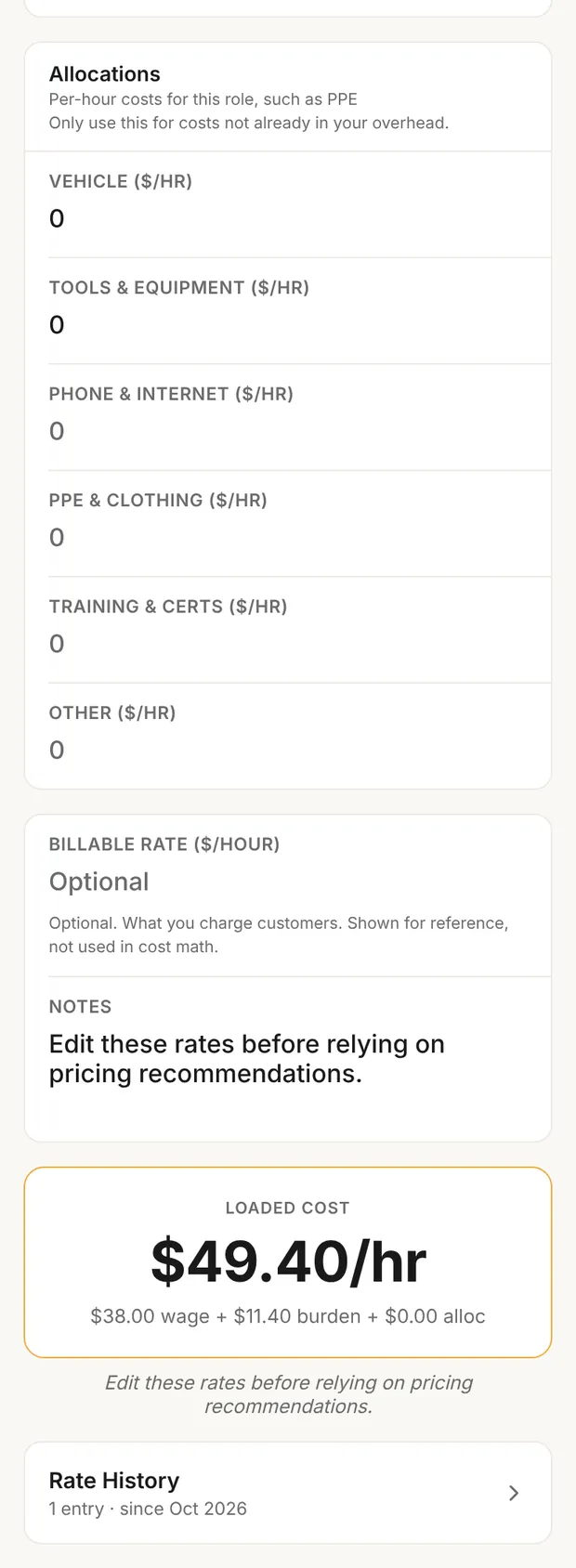
| Allocations | Per-hour costs for this role, such as PPE. A $/hr amount per item. See below. |
| Billable Rate ($/hour) | Optional. What you charge. Clamp shows it but never uses it in cost math. |
The LOADED COST box at the bottom updates as you type: wage, plus wage × burden, plus allocations, shown as "$30.00 wage + $9.00 burden + $0.00 alloc". A $30 wage with 30.0% burden is $30 + $9 = $39/hr loaded.
Allocations. The form says it: Only use this for costs not already in your overhead. Your truck, tools and phone are overhead, and your markup already pays for them. Counting them again here puts overhead into job cost and prices it twice. Starter roles come with none. Roles added from a trade in an older version of Clamp may still carry a vehicle and tools allocation, so check those. Why job cost stays free of overhead is in what job cost is.
When you save a change to a role, Clamp asks What changed? Type a reason, such as an annual raise, or tap Skip. Rate History on the role lists every rate and when it started. Archive Role hides a role you no longer use; its history stays.
At the bottom of Labor Costs, the ALLOCATIONS and BURDEN lists are the items the role form offers. Tap … to rename or archive one, or add your own.
How to work out burden for your own crew is in the loaded labor rate.
3. Set your own rate
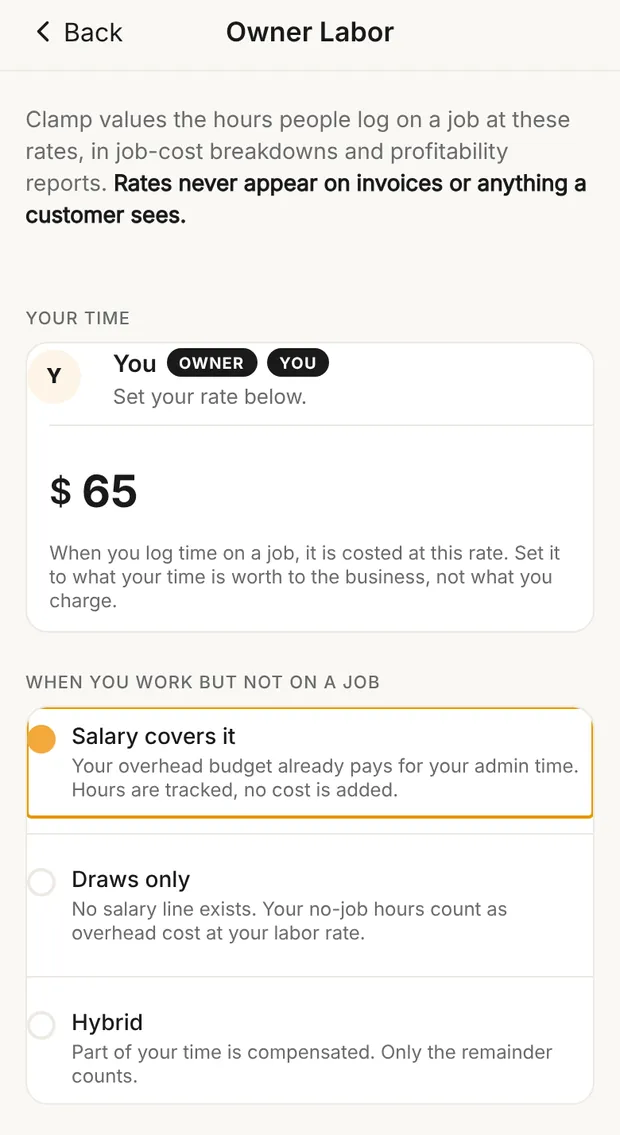
Tap Owner Labor on Pricing. Under Your time, enter what an hour of your time costs the business. Owner Labor saves as you go: the rate when you leave the field, the switch and the choices below when you tap them. There's no Save button. As the screen says, set it to what your time is worth to the business, not what you charge. Until you set it, your hours carry no cost, so jobs you work yourself look cheaper than they are.
Below it, When you work but not on a job decides what happens to hours you log as business time:
- Salary covers it. Your overhead already pays you for admin time. The hours are tracked; no cost is added.
- Draws only. You have no salary line, so these hours count as overhead at your rate.
- Hybrid. Enter the Compensated %; only the rest counts.
Office and project management time is overhead, not job cost. Log it as business time, not on a job. How to set the number itself is in your hourly rate as a solo contractor.
4. Rates for your team
On the Teams plan, Owner Labor also lists Team members who log time. Tap a person to open Rate for a team member. Pick their ROLE to fill in the wage, burden and allocations from that role, adjust for this person, and tap Save rate. Until a person has a rate, their hours show as unpriced. A role you create here with + New role shows on Labor Costs as Needs a rate until you set its rate.
If an admin opens Owner Labor, Your time is labeled Admin, and the rates they set there cost hours on their phone only. The owner's phone holds the rates the company uses.
In Settings › Team, open a person to set Roles they work. Tap a role to add or remove it; long-press one to make it their usual role, which Log Hours starts on. With Can log other roles off, they pick only from these.
How hours become job cost
Each hour is priced in this order:
- The role it was logged under. Plumbing hours cost the plumbing rate, whoever did them. A role with no rate shows "No rate" and adds no cost.
- No role on the entry: the person's own rate. Your hours use your rate; a teammate's use theirs.
Clamp uses net hours (time on site less breaks) and the rate in effect on the work date. A rate change counts from the day you save it; hours already logged keep the old rate. The first rate you give a new role also covers hours already logged under it.
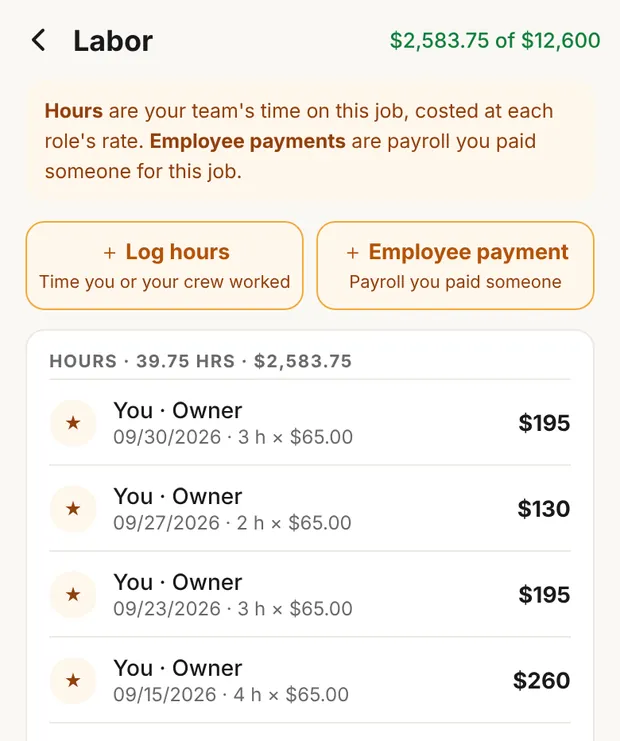
On a job, Job costs › Labor lists each entry as hours × rate. Hours with no rate show "no rate set" and add nothing to the total, so fix them before you trust the job's numbers. The link next to it names the fix and opens it: Set the Tile Setter rate opens that role, Set Sam's rate opens Sam's rate sheet, Set your rate opens Owner Labor. How labor fits with receipts and bills is in job costing.
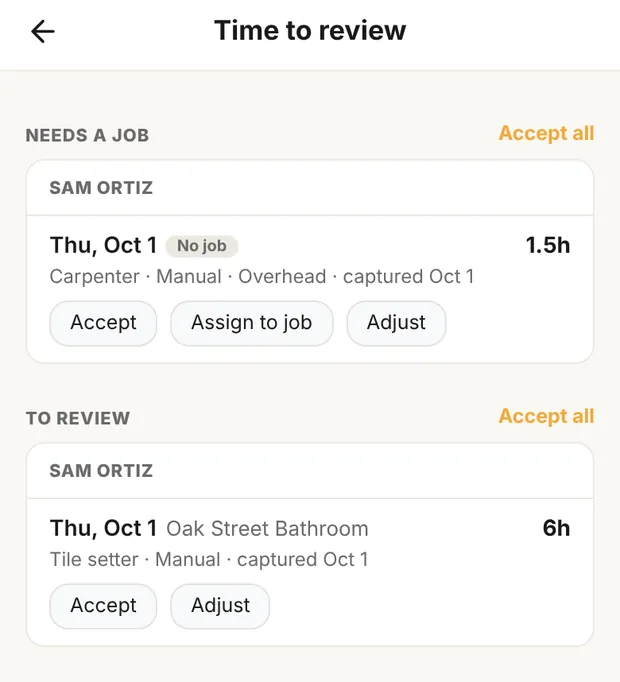
Review your team's time
When teammates log time, Time to review appears in Settings › Team with a count.
- Needs a job. Time logged with no job. Assign to job moves it onto one. Accept keeps it as overhead and asks for a category, or skip.
- To review. Time on a job. Accept it, or Adjust it.
A role outside the person's roles is flagged, for example "Not one of Sam's roles (Carpenter, Helper). Costed as Tile setter until you change it." This screen shows hours only, never dollars. Accepted business time counts toward overhead at the person's wage plus burden, without allocations.
Who sees dollar amounts
| Who | Rates and labor dollars |
|---|---|
| Owner and admins | Always. |
| Staff, contributors, viewers | Only if you turn their seat on in Settings › Team › Labor rates. Off, they see role names and hours. |
| Customers | Never. Rates don't appear on invoices or anything a customer sees. |
The owner's phone holds the company's roles and rates. An admin sees Labor Costs read-only, with the roles your phone sent, and a note that only the owner changes them. An admin can add a role name (from a teammate's roles or from Log Hours), and it shows on your Labor Costs as Needs a rate until you fill it in.
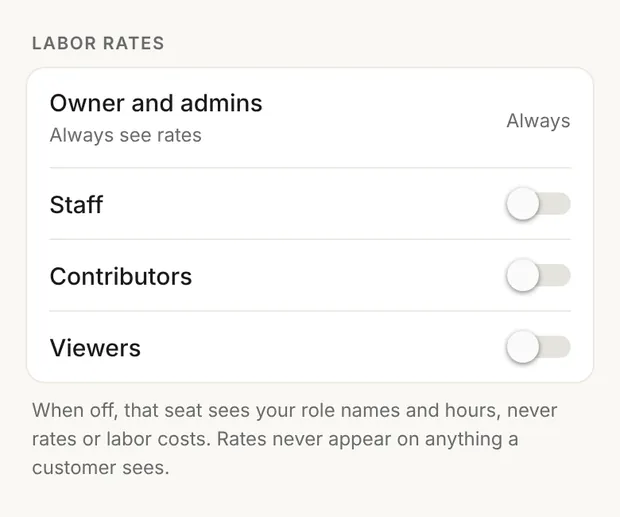
Hours-only view. On Owner Labor (under Records) or on Time on Site, this switch hides labor dollar amounts on screens and in the Timesheet PDF, so you can share hours without costs. A teammate whose seat can't see rates is always in this view.
Saved Rates
Saved Rates is not labor. It holds unit prices you saved while editing an estimate, which Clamp then uses on future estimates. Tap one to Edit rate or Reset to baseline. More in how to write an estimate.
What this changes
- Role rates and your rate price every hour on every job, in Job costs and the job's profit.
- Allocations add to that cost per hour. Keep overhead out of them.
- Your no-job choice decides whether your office hours add to overhead.
- Rate visibility decides who on your team sees dollars.