Setting your overhead
Updated Oct 9, 2026
What it's for. Overhead is what it costs to keep your business open whether or not a job is running: insurance, the truck, the phone, software, the office, your bookkeeper, and the time you and your staff spend running the business instead of building. Clamp divides your overhead into your revenue goal to work out your markup, so every estimate carries its share. Job costs stay out of it: a cost that belongs to one job goes on that job.
Where to find it
Settings › Pricing, then tap OVERHEAD at the top. Pricing reads top to bottom: Overhead, then Profit goal, then Your markup. The Set your overhead card in Getting started opens the same place.
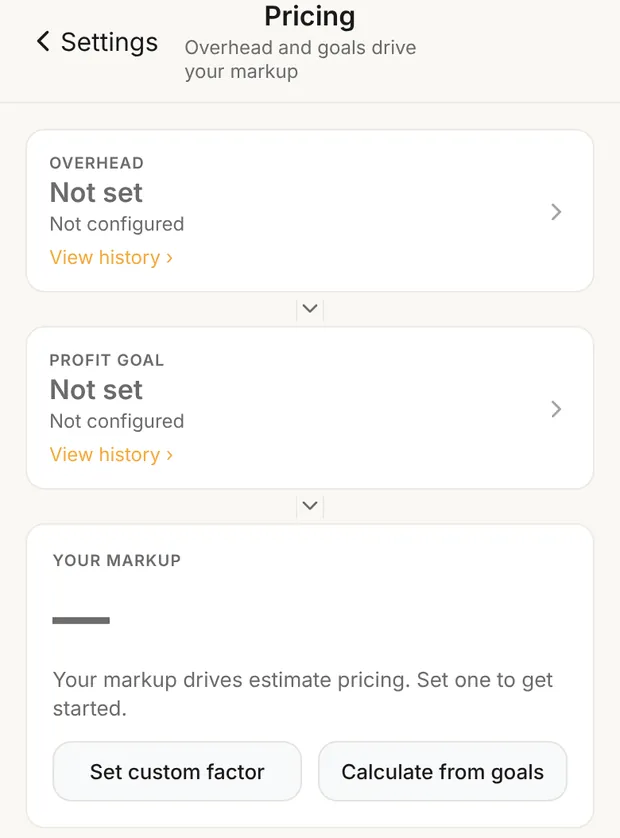
Pricing and Overhead are for the owner and admins, even when Overhead is opened from Home. Staff, contributors and viewers see Owner and admins only.
Enter your revenue goal first
At the top of Overhead, type your ANNUAL REVENUE GOAL: what you expect to sell in a year. It saves when you leave the field, and the Profit Goal screen uses the same number.
With a goal in, the screen can show you more:
- TOTAL ANNUAL OVERHEAD shows overhead as a percent of your goal (for example, 18.0% of $500,000).
- Each category and each starter line shows a typical range for a business your size.
- Overhead profiles shows what the three markup profiles (1.30, 1.50 and 2.00) would carry in overhead at your goal. It's an illustration, not your number.
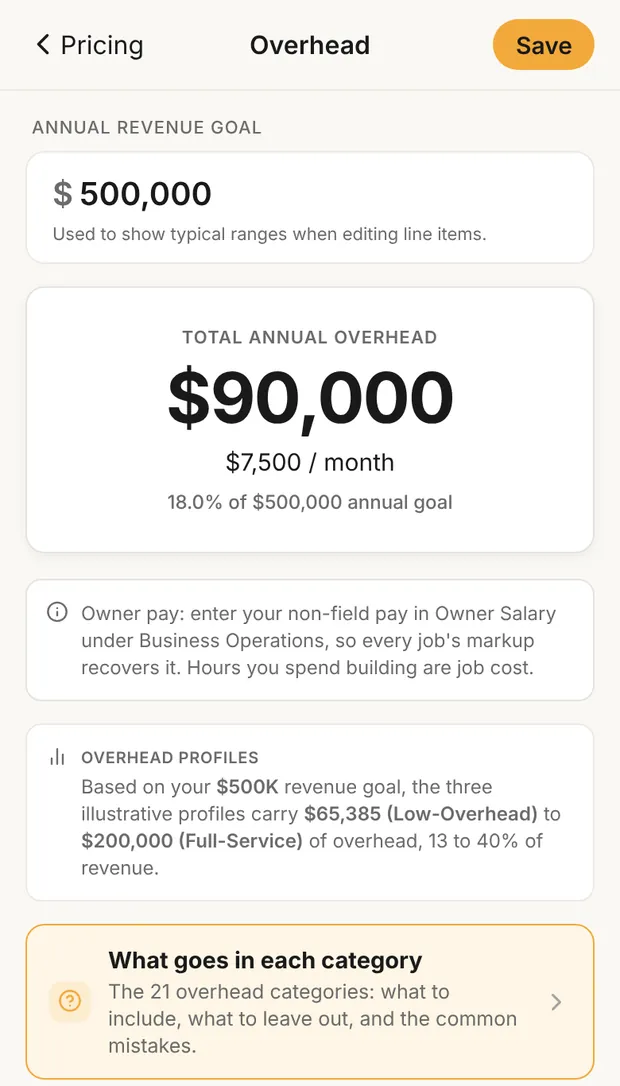
Not sure what goes where? Tap What goes in each category for the 21 overhead categories.
Fill in the categories
The first time you open Overhead, Clamp loads 21 overhead categories at $0, in four groups:
- Business Operations: owner salary (non-field labor), office wages, project management, estimating, design, accounting, financial reporting, core software, training.
- Sales, Marketing & Advertising: sales base pay, marketing, website.
- Physical Assets & Infrastructure: rent and utilities, showroom or warehouse, vehicles and fuel, tools and equipment that aren't for one job.
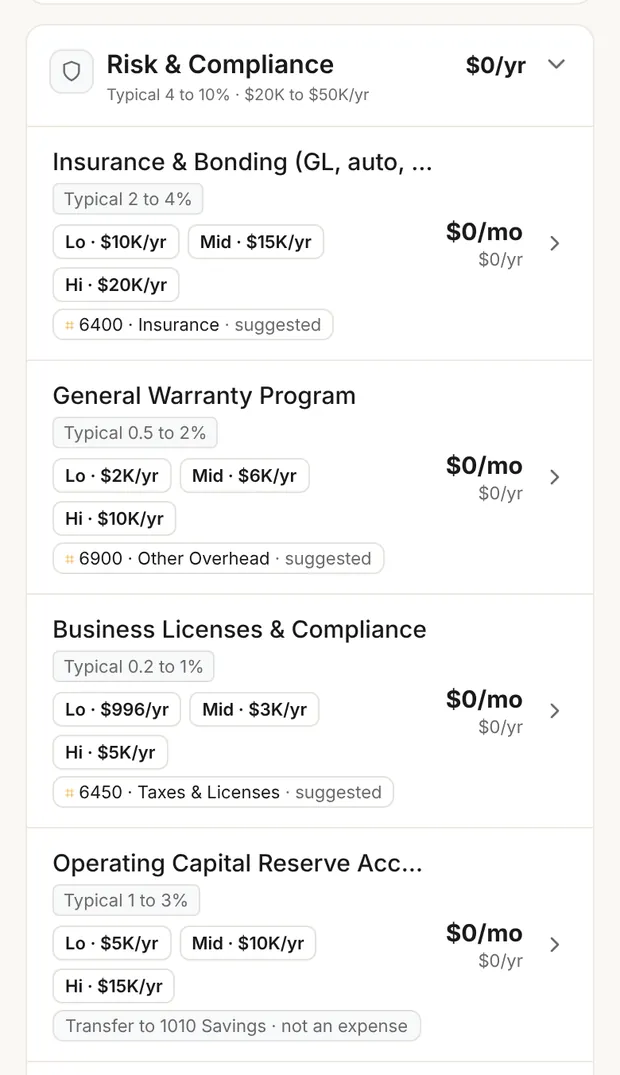
- Risk & Compliance: insurance and bonding, warranty, licenses, Operating Capital Reserve, financing and bank fees.
Each group starts closed and shows its yearly total. Tap it to open.
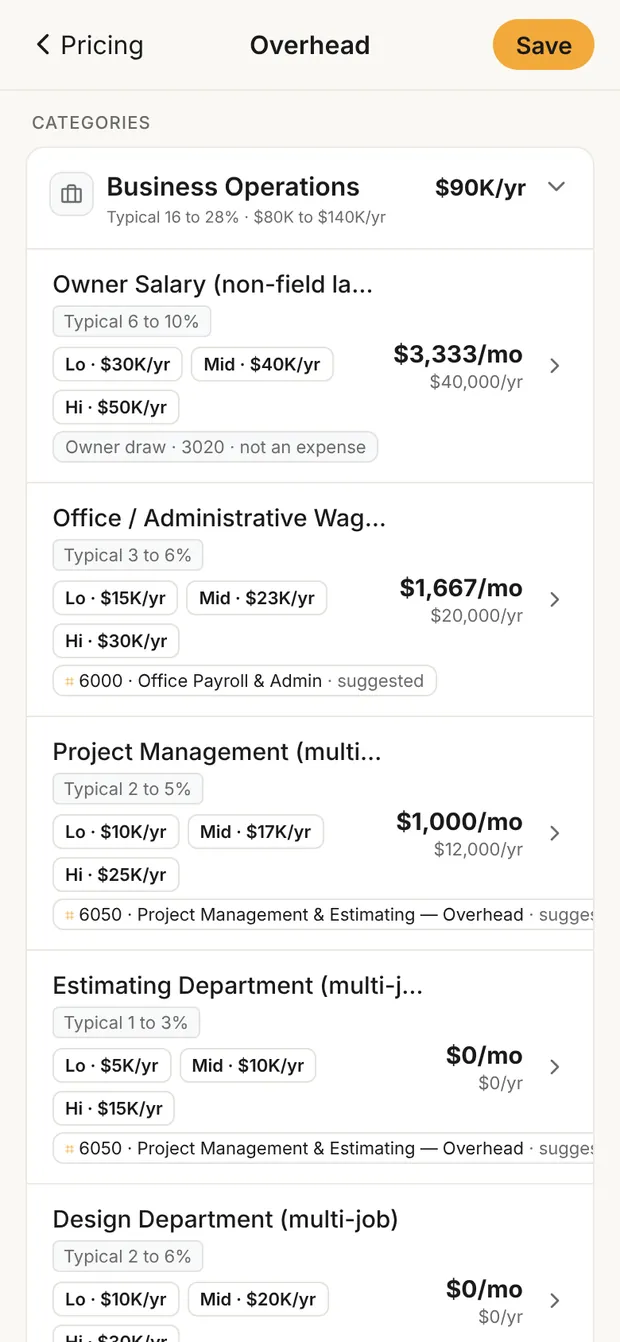
For each line, either:
- Tap Lo, Mid or Hi to fill in the typical amount for your revenue goal. Tap the same chip again to clear it. (The chips need a revenue goal.)
- Tap the line to open Edit Line Item and type your real number. Switch Monthly / Annual to enter it whichever way your bills come; Clamp shows the other. A line you entered as a yearly amount reopens in Annual, so $40,000 a year stays $40,000. You can rename it, move it to another group, add notes, or tap Remove Line Item.
To add a cost Clamp didn't list, open a group and tap + Add Line Item.
Use your real numbers where you have them. The typical amounts are a starting point, and the chips are only a quick way in.
Two lines need care:
- Owner Salary (non-field labor) is your pay for running the business: selling, estimating, managing. Hours you spend building are job cost, priced at your loaded labor rate.
- Project Management and office wages belong here, not on the job.
Check the account for each line
Under each line, an account chip shows where that cost goes in your books, such as 6400 · Insurance · suggested. Tap it to choose a different account. The account only labels the cost for your bookkeeper. It does not change your markup.
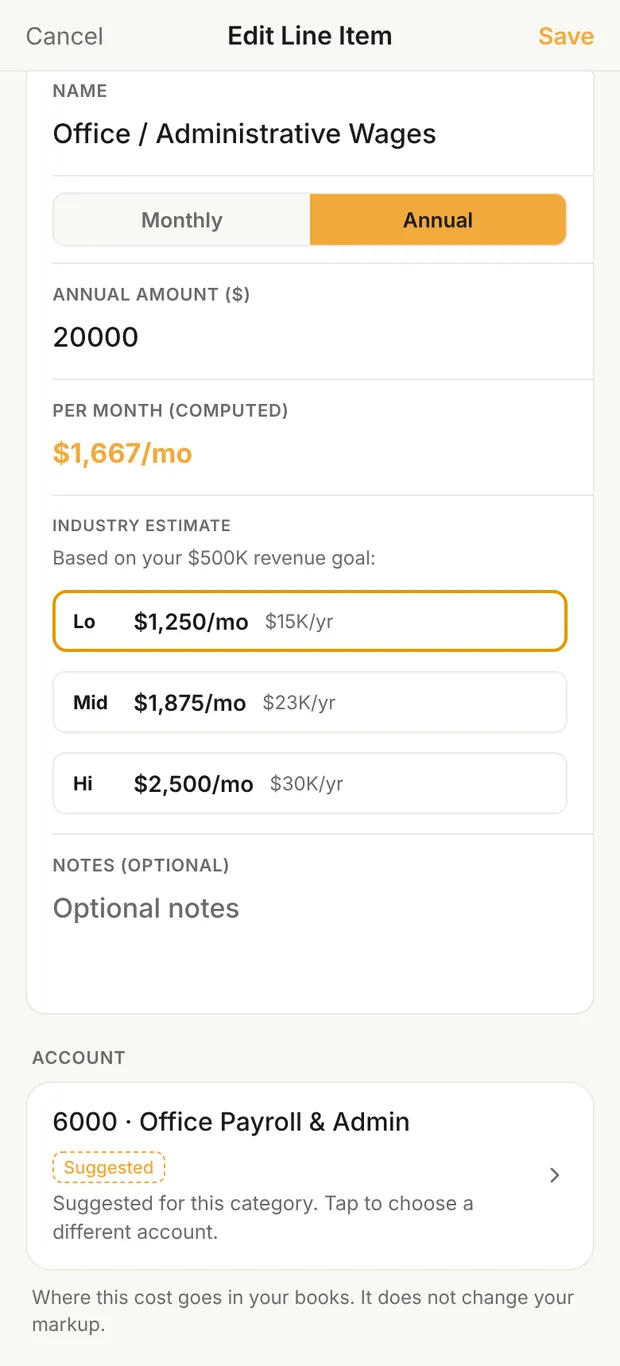
Two lines are special, because they're priced into your markup but aren't expenses:
- Owner Salary depends on how your business is taxed (set in Settings › Business & Documents › Business Details, How is your business taxed?). An S or C corporation gets a wage account (6010), a partnership 6015. A sole proprietor gets Owner draw · 3020 · not an expense. Until you answer, the chip reads Assign account · depends on how you're taxed.
- Operating Capital Reserve Account is money you set aside, not money you spend. Its chip is fixed: Transfer to 1010 Savings · not an expense, and it can't be changed.
Save a snapshot
Tap Save at the top right. Nothing is kept until you do. If you try to leave with unsaved changes, Clamp asks Save your overhead? with Save, Discard and Keep editing. In a web browser, OK discards your changes and Cancel keeps you on Overhead.
Each save is a dated snapshot. Overhead then shows Snapshot active since [date], and Pricing shows your overhead per month and when you updated it. To see earlier snapshots, tap View history › under Overhead on Pricing, or next to the snapshot date on Overhead. Both open Pricing's History on the Overhead tab. Each entry shows the monthly and yearly total, how many lines it had, and how long it was active.
Update overhead when something real changes: a new truck payment, a new hire in the office, an insurance renewal. Saving it again adds a new snapshot; the old ones stay in history.
Keep your markup in step
Saving overhead doesn't change your markup by itself. If your markup was calculated from your goals, Pricing flags it once overhead changes, including the first time you save overhead after calculating a markup without it: the markup dims and a banner says what it should be at the new overhead, with a button, Update to [new markup]. Tap it to save a new markup version from the new overhead and your current profit goal.
![Pricing, YOUR MARKUP with the Update to [new markup] banner](/assets/media/setup-overhead-06.webp?v=475f3fa5d1f4)
If you set a custom factor instead, there's no Update button. Pricing shows Calculated from goals would be [markup]. Compare so you can compare. See Setting your markup.
What this changes
- Your markup. Calculate from goals divides overhead into your revenue goal. More overhead means a higher markup.
- New estimates, proposals and change orders. They're priced at the markup, once you update it. Estimates you've already sent keep the markup they went out with.
- Overhead pace on Home. Once overhead is saved, Home compares this month's gross profit on won jobs and change orders with your monthly overhead, and shows the revenue you need to break even.
- Your accountant export. The accounts you pick label overhead for your bookkeeper. Clamp is not a general ledger.