Your contractor's customer portal: a guide for homeowners
Updated Oct 9, 2026
What it's for. Your contractor uses Clamp to run your job. The customer portal is your private web page for it: their documents, the payment schedule you agreed to, photos, and anything they need from you. You read, sign and pay there from your phone or computer. No app, no password.
The email you get
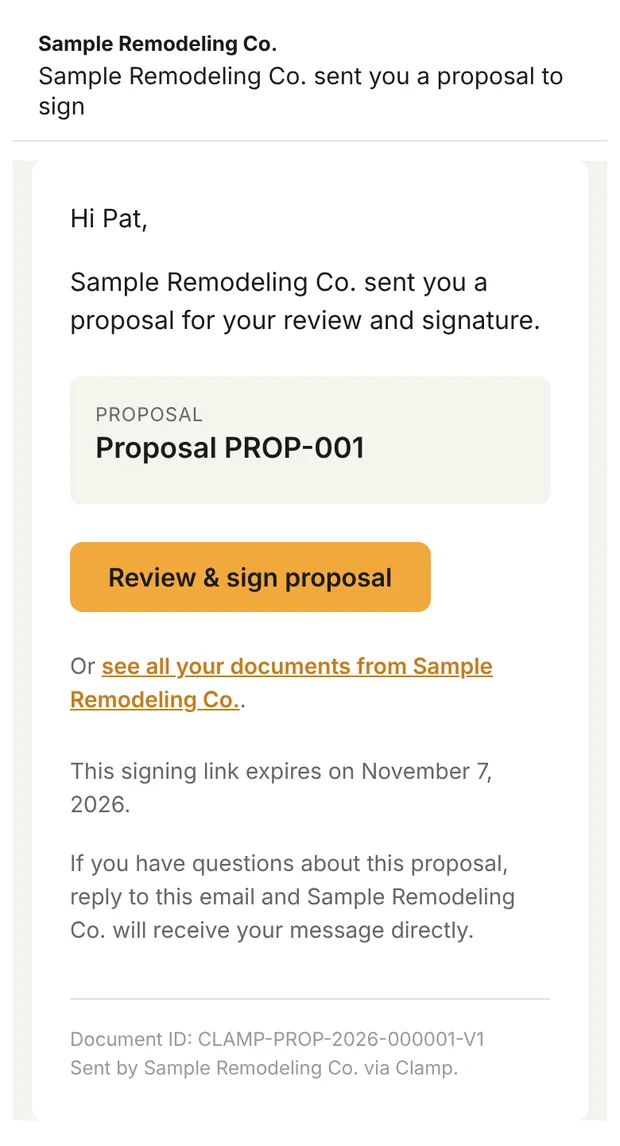
Everything starts with an email from your contractor's business name. The subject tells you what it is, for example:
- "[Business] sent you a proposal to sign", with a Review & sign proposal button;
- "[Business] sent you an invoice for your review", with a View invoice button;
- "Your sign-in link for [Business]", with a Sign in to your portal button.
The email names the document and, for a signature, the date the offer expires: the same date printed on the document. An invoice email has no expiration date. If you have a question, reply to it.
Signing in
Tap the button in the email. That signs you in on that phone or computer, and you stay signed in there for a long time. Next time, use the button in any of their emails.
At the bottom of your job page, and of a document you opened from your own email or your job page, you'll see Signed in as [your email] • [Business]. Every page has a Sign out button. Sign out on a shared computer.
Your job page
If you have one job with this contractor, you land on it. If you have several, Your projects lists them with View project →; finished ones are under Show archived.
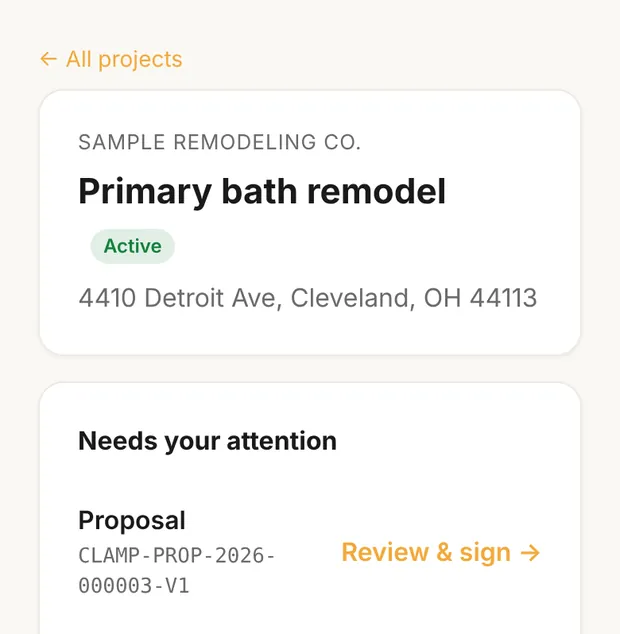
The job page has your contractor's name, the job, its address and a status (Active, Completed or Archived). Below that, you'll see only the sections that apply:
| Section | What's in it |
|---|---|
| Needs your attention | Documents waiting for your signature. Tap Review & sign →. |
| Waiting for other signers | Documents you've signed that someone else still needs to sign. |
| Signed documents | Every signed copy. Tap Open. |
| Your proposal (marked SIGNED) | Your payment schedule, stage by stage, as you signed it. |
| Project updates | Notes from your contractor. "Not part of your agreement." |
| Decisions needed | Questions your contractor needs answered, marked Waiting on you or Waiting on us. |
| Estimates | Estimates to download. |
| Past offers | Offers that expired before they were signed. |
| Payment history | Every invoice, its amount, its status and Pay invoice →. |
| Project photos and Shared files | Photos and files your contractor chose to share. |
Review and sign a document
Tap Review & sign →. The page shows the document's type and number, then Document preview: every page of it. If the preview doesn't load, use Open document in a new tab (PDF) →.
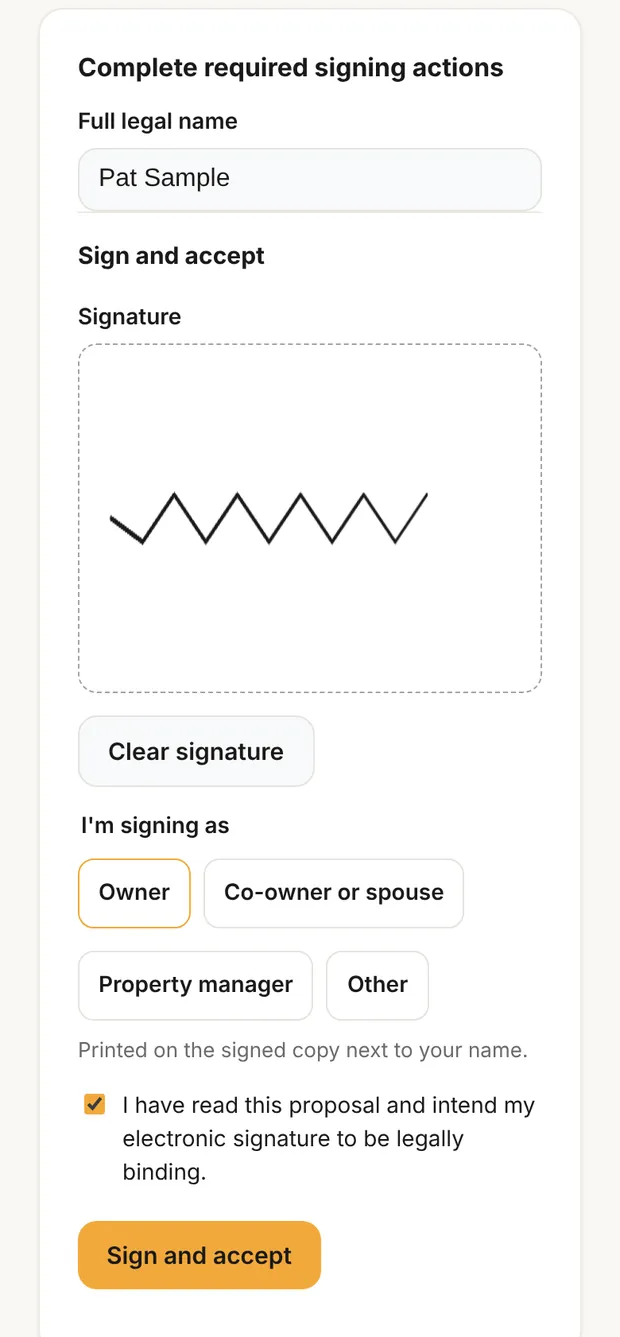
Read it all. Then fill in the signing form at the bottom:
- Type your Full legal name.
- Draw your signature in the box with your finger or mouse. Clear signature starts over.
- Under I'm signing as, pick Owner, Co-owner or spouse, Property manager or Other. It prints on the signed copy next to your name.
- Tick the box: "I have read this proposal and intend my electronic signature to be legally binding."
- Tap Sign and accept.
Some documents also ask for your initials on certain sections first. Type them under Your initials and tap Record initials for each one.
When you're done, the page says Signed and a signed copy is emailed to you. If someone else also has to sign, it says how many are still waiting, and you get the signed copy once everyone has.
Not the right person to sign? Below the form, Someone else signs for me › sends your spot to someone else, and + Add another signer asks for one more. Your contractor confirms a new signer before the link goes out.
Follow the job
Once you sign the proposal, its card on your job page (marked SIGNED with the date) shows each payment stage with its amount and status: Not started, In progress, Ready, Billed or Paid. Under "What your contractor reports" is their checklist for that stage, with a date beside each finished line and sometimes photos. These are your contractor's statements; Clamp records what they report and doesn't inspect the work.
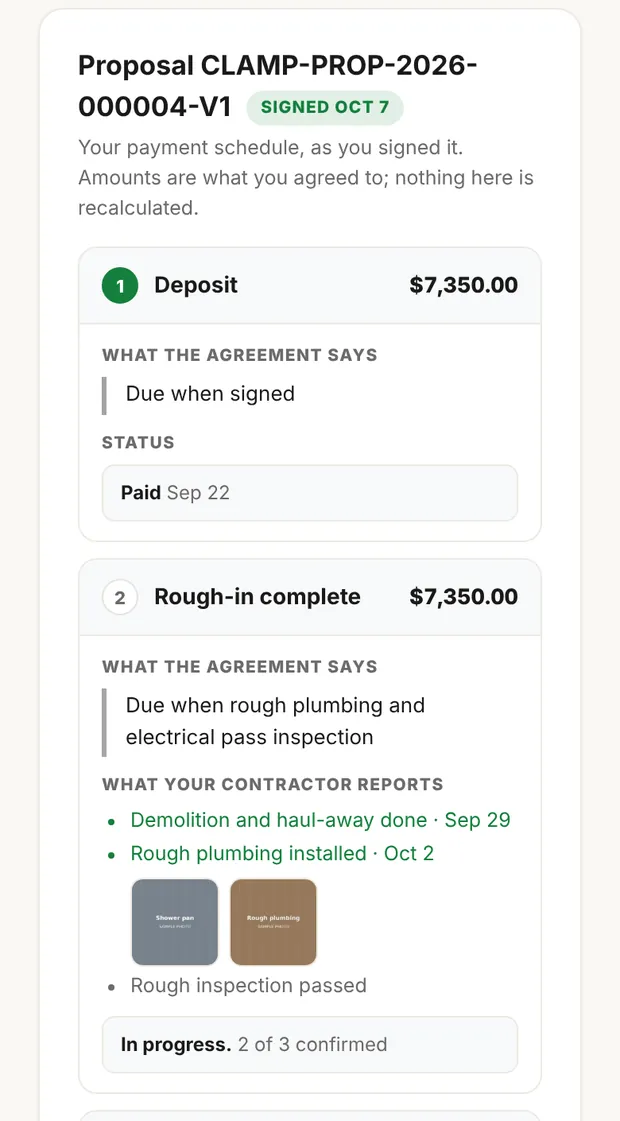
Change orders you signed are listed under the stages, with the contract total. Your contractor may also email you when they post an update, mark a stage ready, or need a decision.
Pay an invoice
Under Payment history, tap Pay invoice →. It takes you to your contractor's own payment page (a card or bank payment service they use). Clamp doesn't handle the money.
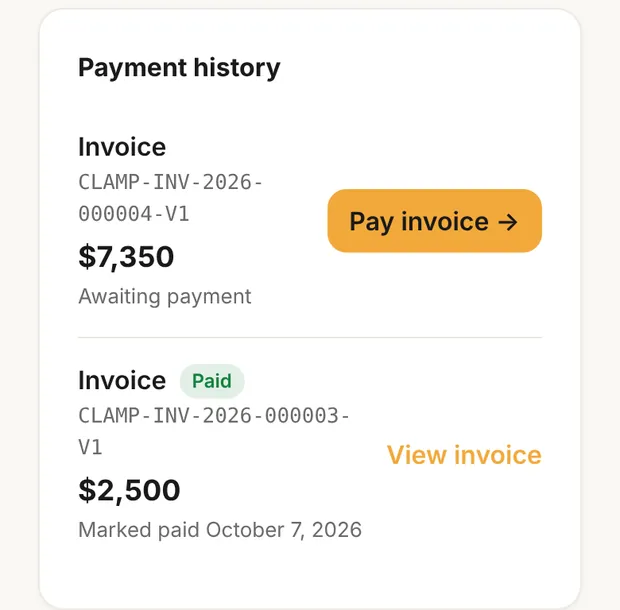
After your contractor records the payment, the invoice shows Paid, or Balance due with what's left if you paid part. If an invoice has no pay button, ask your contractor how they'd like to be paid.
If a link stops working
- The page says Expired. The offer ran out before it was signed, at the end of the expiration date printed on it. The page says why, and you can still read and download it. Contact your contractor for a new one.
- The page says Withdrawn. Your contractor took the document back. If they send a new version, you'll get a new link.
- The page says This link was replaced. Your signing spot went to someone else.
- The page says Portal access turned off. Your contractor turned off your portal. Contact them.
- The page says "This signing link has expired." Tap Get a new sign-in link below it, or ask your contractor for a new one.
- You've been signed out, or the page says Sign-in required. Tap Get a new sign-in link → (or go to docs.clamppro.com/portal/request), enter your email and tap Send sign-in link. If your contractor has your address, a link arrives shortly. It works for 7 days. You can ask 3 times an hour.
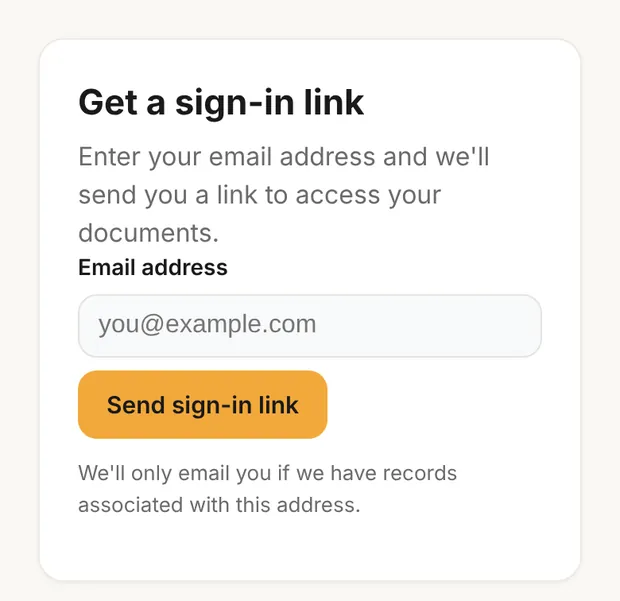
No email? Check spam, then contact your contractor. They may have a different address on file for you, or may have turned your portal access off.
Privacy
- Your page isn't listed on search engines, and each page needs your sign-in.
- A link is a key. Anyone with a sign-in link can open your portal, and a link from your contractor can let them sign and pay. Forward one only to someone you want in, such as a spouse.
- When you sign, the record keeps your typed name, who you're signing as, the time, and the internet address and browser you signed from. That's what makes an electronic signature hold up.
- Your contractor's records show when you opened a document and when you tapped a pay button.
- Photos and files appear only when your contractor chooses to share them.