Teams and sharing
Updated Oct 9, 2026
What it's for. Teams lets the people who work for you use Clamp under your business. They log their own time, mileage and receipts on your jobs, and you see it. Each person's role decides what they can see and change. Subs are different: independent businesses you invite to one job, free and without a seat.
Where to find it
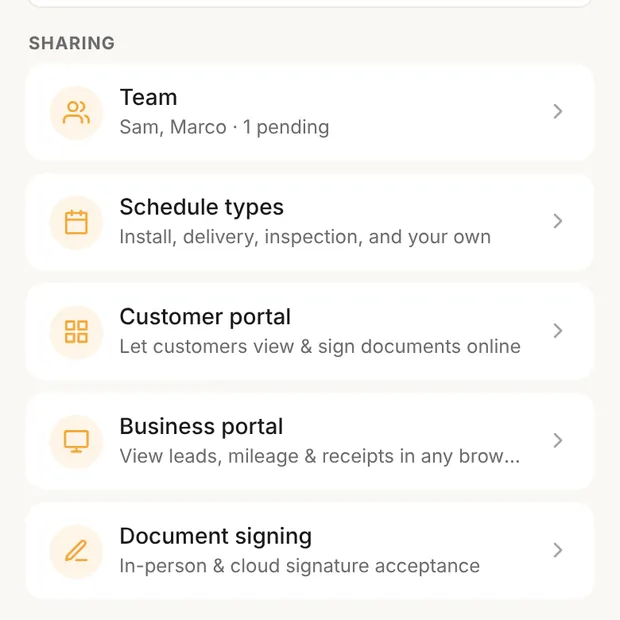
Settings › Sharing, which only the owner and admins see. Without Teams, the Team and Schedule types rows don't show; a Bring your team into Clamp card takes their place.
Teammates reach their own view of the Team screen from the Jobsites tab, with Manage your team.
The plan and seats
- Teams includes everything in Assistant and replaces your current plan. There's no free trial on Teams.
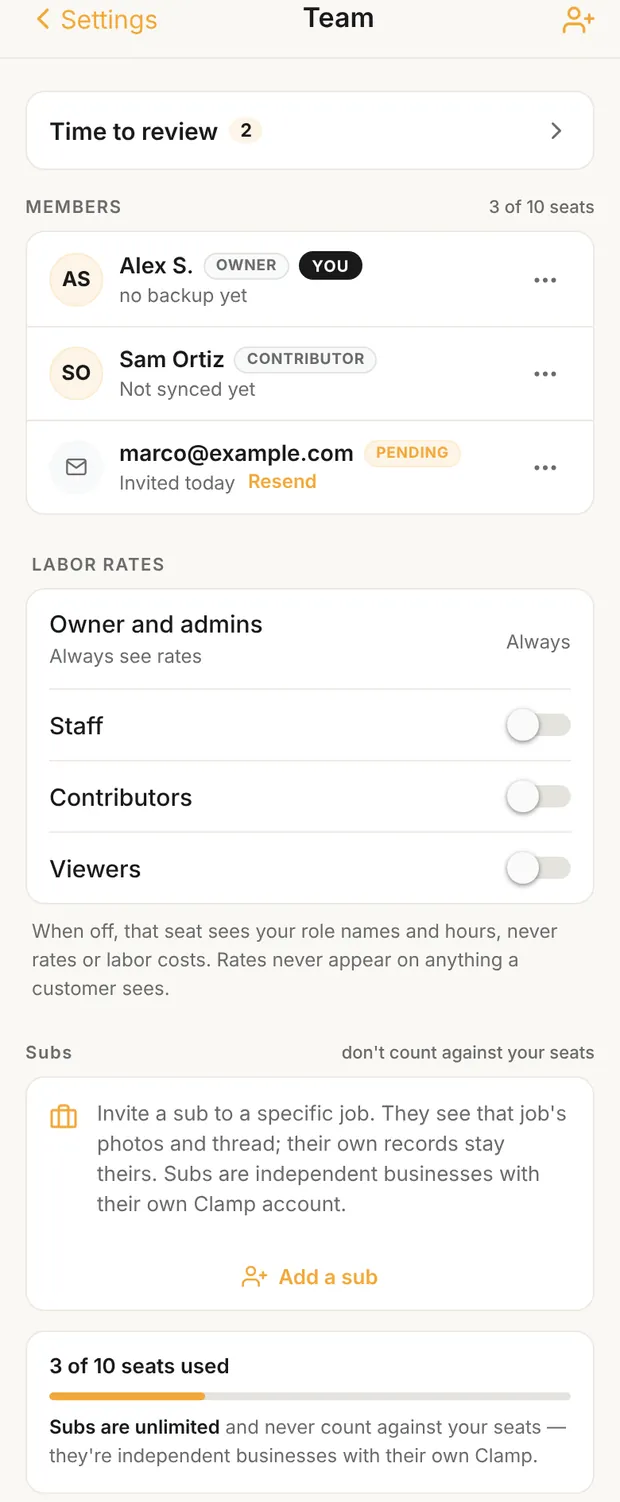
- Up to 10 users, including you. The Team screen shows "2 of 10 seats used".
- A pending invite takes a seat as soon as you send it. Revoking it, or letting it expire after 7 days, frees the seat.
- Subs never use a seat and are unlimited.
Invite a teammate
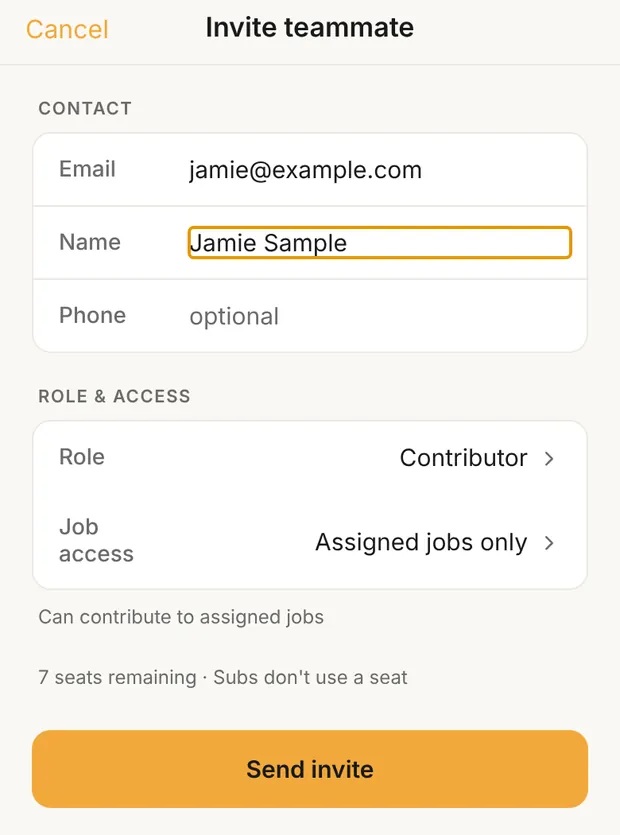
- Open Team and tap the person icon at the top right (or Add your crew if no one is added yet).
- Under CONTACT, enter their Email and Name. Phone is optional.
- Under ROLE & ACCESS, pick a Role; it starts on Contributor. For a contributor or viewer, also pick Job access: Assigned jobs only or All jobs. Contributors start on Assigned jobs only; viewers, staff and admins on All jobs.
- Tap Send invite.
The invite shows as PENDING. Tap Resend, or the ⋯ for Revoke invite. If no seats are left, the sheet says All seats used.
How they accept. The email comes from your business name and the link is good for 7 days. It opens a page that reads "Join [your business] as [role] on Clamp." They enter the email the invite went to, tap Continue, enter the 6-digit code Clamp emails them, and tap Join Team. The code goes only to the invited address; any other email is refused, so a forwarded link can't be used by someone else. Then they install Clamp and sign in with that same email. An old or revoked link says Invite expired.
The roles
| Owner | Admin | Staff | Contributor | Viewer | |
|---|---|---|---|---|---|
| Jobs they see | All | All | All | Assigned only, unless set to All jobs | All, unless set to Assigned jobs only |
| Change leads and jobs | All | All | Assigned to them or created by them | Assigned to them or created by them | No, read only |
| Log time, mileage, receipts | Yes | Yes | Yes | Yes | Read only |
| Dollar totals on the Workflow overview | Yes | Yes | No, a dash | No, a dash | No, a dash |
| Labor rates and labor costs | Yes | Yes | If you turn it on | If you turn it on | If you turn it on |
| Your business and Sharing in Settings | Yes | Yes | No | No | No |
| Invite, change roles, remove | Yes | Yes, except the owner | No | No | No |
| Post to a job's shared thread | Yes | Yes | Yes | Yes | No, can read |
- There's one owner. No one can change or remove the owner. An admin can do everything else you can.
- Labor rates are off for staff, contributors and viewers until you turn them on, on the Team screen under LABOR RATES. When off, that seat sees role names and hours, never rates or labor costs. Rates never appear on anything a customer sees.
- What the Team screen shows depends on the role. Owner and admins get the full screen. Staff get a list of the team with the owner's and admins' numbers to call. Contributors and viewers get their own card and a WHO TO CONTACT list. A contributor's card says what they can log; a viewer's says Access: Read only.
Manage a teammate
Tap a member's ⋯ for Change role, Change job access (contributors, viewers, and anyone still on Assigned jobs only), Edit phone or Remove from team.
Changing someone's role resets their job access to the new role's default (Assigned jobs only for a contributor, All jobs for the rest). Where the new role has a choice, Clamp then offers Change job access.
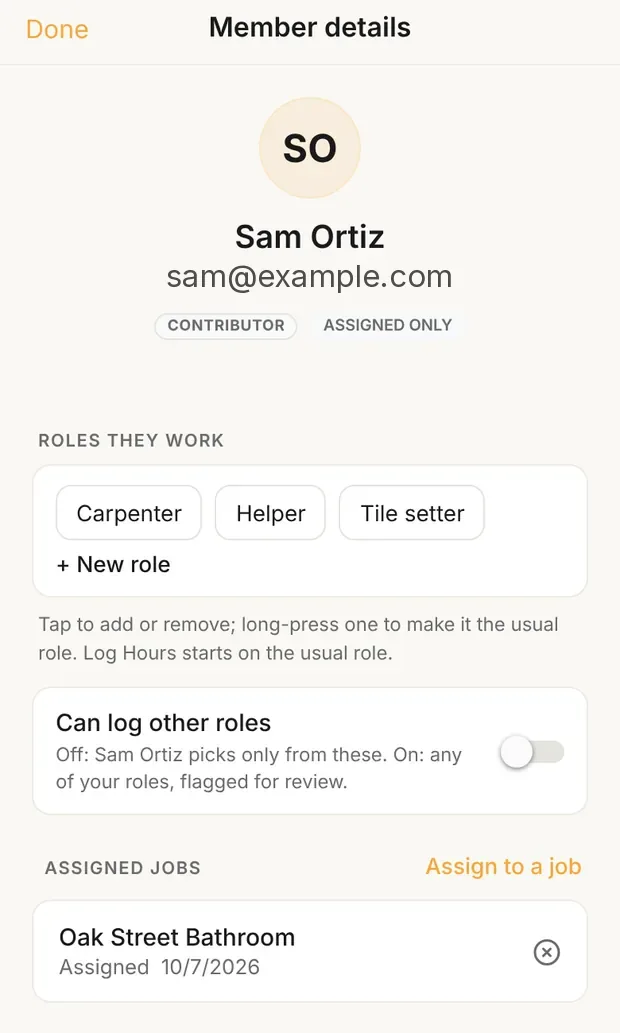
Tap the member's row for Member details. For someone on Assigned jobs only, tap Assign to a job to add one of your active jobs, or the × to take them off one. A contributor with no assigned jobs sees none of your business records. ROLES THEY WORK sets the labor roles they log hours under.
When teammates log hours you haven't checked, Time to review appears at the top of the Team screen, hours only, to Accept, Assign to job or Adjust.
Schedule types
Settings › Sharing › Schedule types (Teams) are the kinds of items on your Jobsites schedule, the same for your whole team. Only the owner or an admin can change them.
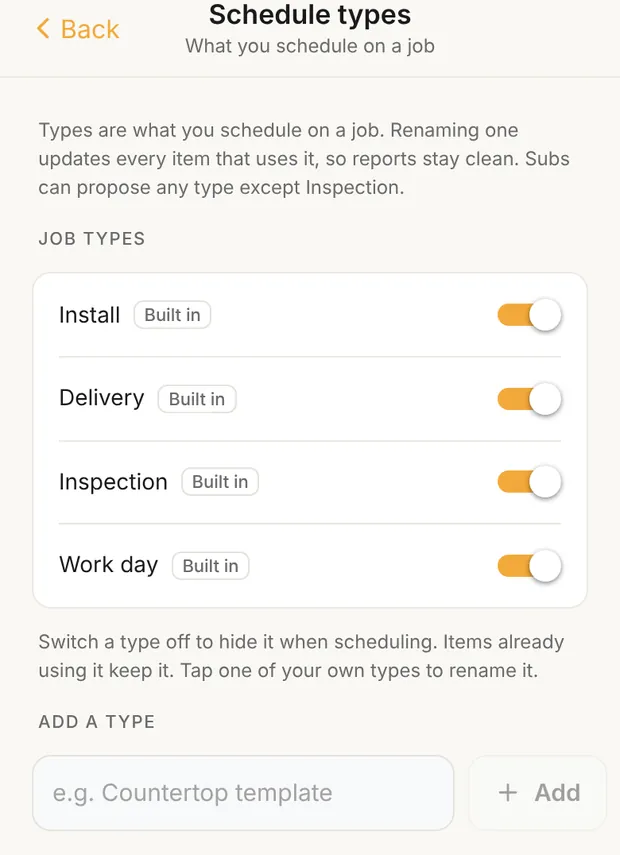
- Install, Delivery, Inspection and Work day are Built in and can't be renamed.
- Switch a type off to hide it when scheduling. Items already using it keep it.
- Under ADD A TYPE, enter a name of up to 40 characters, such as "Countertop template", and tap Add. Tap one of your types to rename it everywhere it's used.
- Subs can propose any type except Inspection.
The business portal
Settings › Sharing › Business portal (Assistant) puts your Clamp data in a web browser: leads, jobs, schedule, documents and reports. It shows your latest cloud backup, so cloud backup must be on with at least one backup run. The screen gives the Portal URL, your backup status, your team, and Open Business portal. You sign in there with your Clamp email and a code.
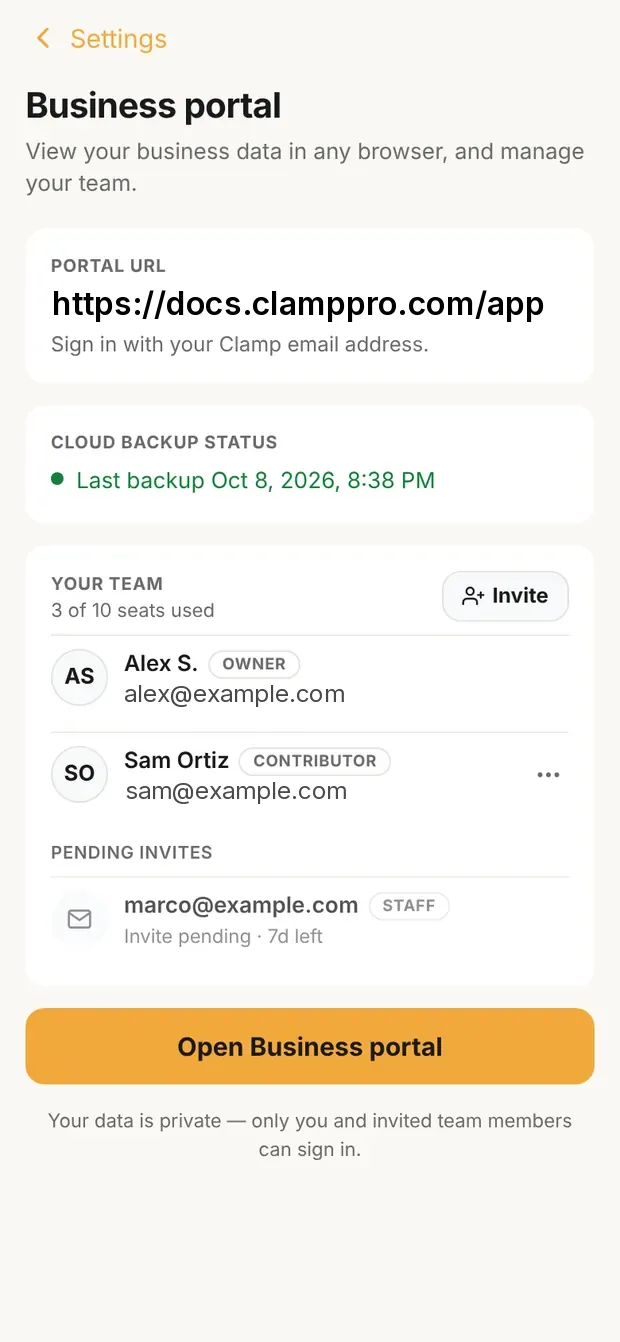
You and your teammates can open it, and everyone sees the business's backup, not their own. Only the owner and admins see Vendors & Bills, Time, Overhead, Stats, Team and job costs. Anyone on Assigned jobs only sees just their jobs.
Subs on your jobs
A sub, such as your electrician, joins one job with their own free Clamp account. On the Team screen, under Subs, tap Add a sub, enter their Email, pick an active Job, and tap Invite. You can also invite from the job's Jobsite Team section.
What a sub sees on that job:
- the job's name and address, your business name, and the lead's name, usually your customer's;
- one shared thread per job, the same for everyone on it, with their notes, your team's jobsite posts and schedule lines;
- the photos you share to the jobsite.
They never see your documents or any dollar amount. If your Teams plan ends, the job turns read-only for them: they can still look, but can't add notes or photos. To take a sub off a job, tap the ⋯ on their row and confirm Remove; their notes and photos stay on the job.
The day-to-day side is in how to coordinate a jobsite.
Remove someone
Tap the member's ⋯ › Remove from team › Remove. They lose access to the app and the business portal right away, and their seat frees up.
- What they logged and your phone already synced stays in your account. Anything that hasn't synced won't come in, so ask them to open Clamp first, then open Clamp yourself before you remove them.
- On their phone, Clamp shows You were removed from [your business]'s team.
- Their own phone keeps what's on it. Your leads, documents and customers stay with you.
If your Teams plan ends, the Team screen warns you first (Team access ends [date]). After that, teammates see that their seat has ended; their time, mileage and receipts stay on their phone and they can export them.
What this changes
- Roles and job access decide what each person sees and changes, on the phone and in the business portal.
- Labor rate visibility decides whether teammates see dollars or hours only.
- Teammates' entries sync to your phone and count on your jobs.