The customer portal: how it works for you
Updated Oct 9, 2026
What it's for. The customer portal is a private web page for each customer. They open, sign and pay your documents there, follow the payment schedule and photos, and answer your questions. No app, no password: they get in from a link in their email.
The portal needs Assistant. Teams includes everything in Assistant. Without it, Sign in person and Share PDF copy still work; the rest of this page doesn't.
Where to find it
- Settings › Customer portal: how long customers stay signed in, and each customer's access.
- Settings › Document signing: how documents are signed and how long a signature request stays open.
- On a document, when it's ready: the sheet that sends it to the portal.
- On a customer (or the cloud icon at the top of a lead): Send portal link.
Both settings rows are in the Sharing section, which the owner and admins see. Business portal, next to them, is for you and your team, not customers: see Teams and sharing.
See it first
The Getting started card See your customer portal opens a live demo in your browser at docs.clamppro.com/portal/demo: a sample job marked This is a demo, where nothing can be signed or paid. The card is done once you have a customer in your portal.
Send a document to the portal
When a proposal, design agreement or change order is ready, Clamp asks How would you like to proceed?
- Sign in person. Capture the signature on your device. Works on any plan.
- Request signature. The customer signs from their own device. Clamp emails them a link.
- Share PDF copy. No signing flow.
Which of the first two you see depends on your Default signing mode (below): Either shows both, In person hides Request signature, Request signature hides Sign in person. Share PDF copy is always there. To use a hidden option for one document, tap Show all options.
Send for signing? shows what's going out, including Expires: the expiration date printed on the document. Once sent, the document is locked; changes take a change order. You can add signers there (+ Add another signer) and Also require my countersignature. The first send on a lead also asks you to confirm the job address, which shows in the portal.
Invoices skip signing: Send to customer emails a secure link.
The email comes from your business name, with a Review & sign button. Opening it signs the customer in to the portal.
Set signing defaults
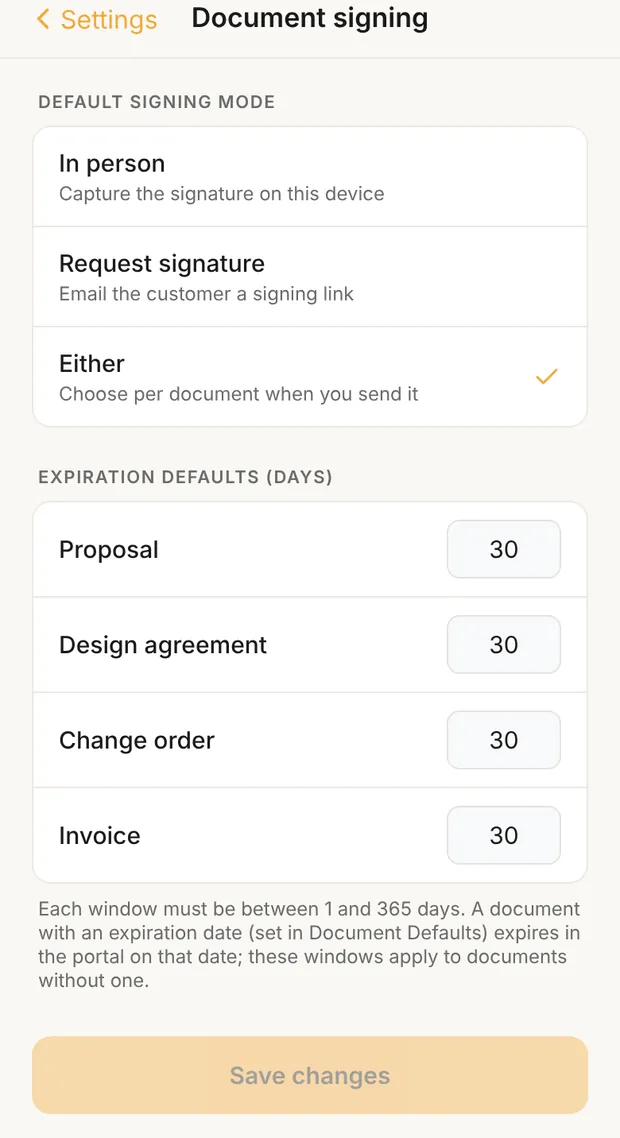
Settings › Document signing has two parts:
- Default signing mode: In person, Request signature or Either (the default). It decides which options the send sheet offers.
- Expiration defaults (days): how long a signature request stays open for each Proposal, Design agreement, Change order and Invoice. Each is 30 days unless you change it, and can be 1 to 365.
A proposal, design agreement or change order prints its own expiration date, which comes from Settings › Business & Documents › Defaults when you create it. That printed date wins: the request expires in the portal at the end of that day, at the job's address, so the document, the email and the portal all name the same day. The windows here apply only to a document without a printed date, or with one that's already past or more than 365 days out. A resend keeps the original deadline.
If you're signed out of your Clamp account, Document signing asks you to sign in.
An unsigned request that runs out shows as Expired, telling the customer to contact you, and moves to Past offers. Invoices never expire in the portal, and the invoice email doesn't mention an expiration.
Give someone access without a document
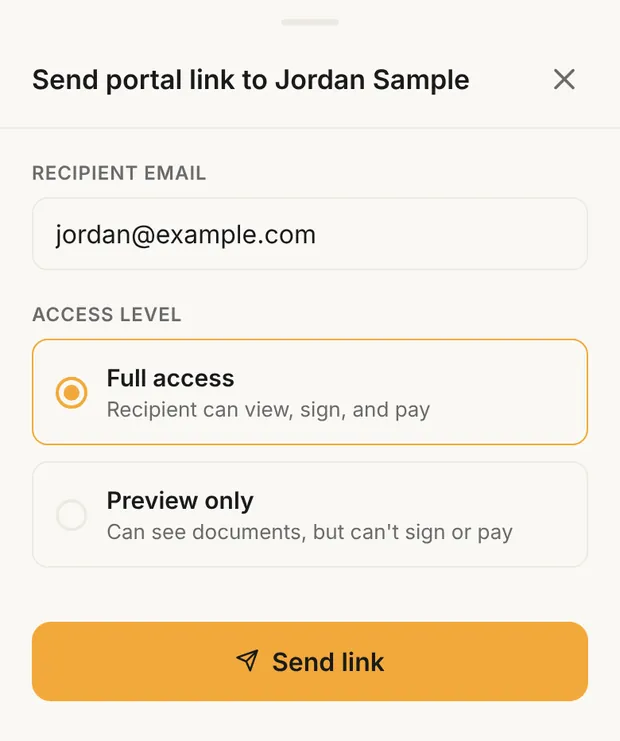
Send portal link emails a sign-in link to any address you type. Choose:
- Full access: can view, sign and pay.
- Preview only: can see documents, can't sign or pay. Use it for a lender, an architect or a family member.
The link works for 7 days.
A customer who loses their link can get a new one from the portal's Get a sign-in link page, sent to the address you have for them. Their side is in the homeowner's guide.
Control who stays signed in
Settings › Customer portal:
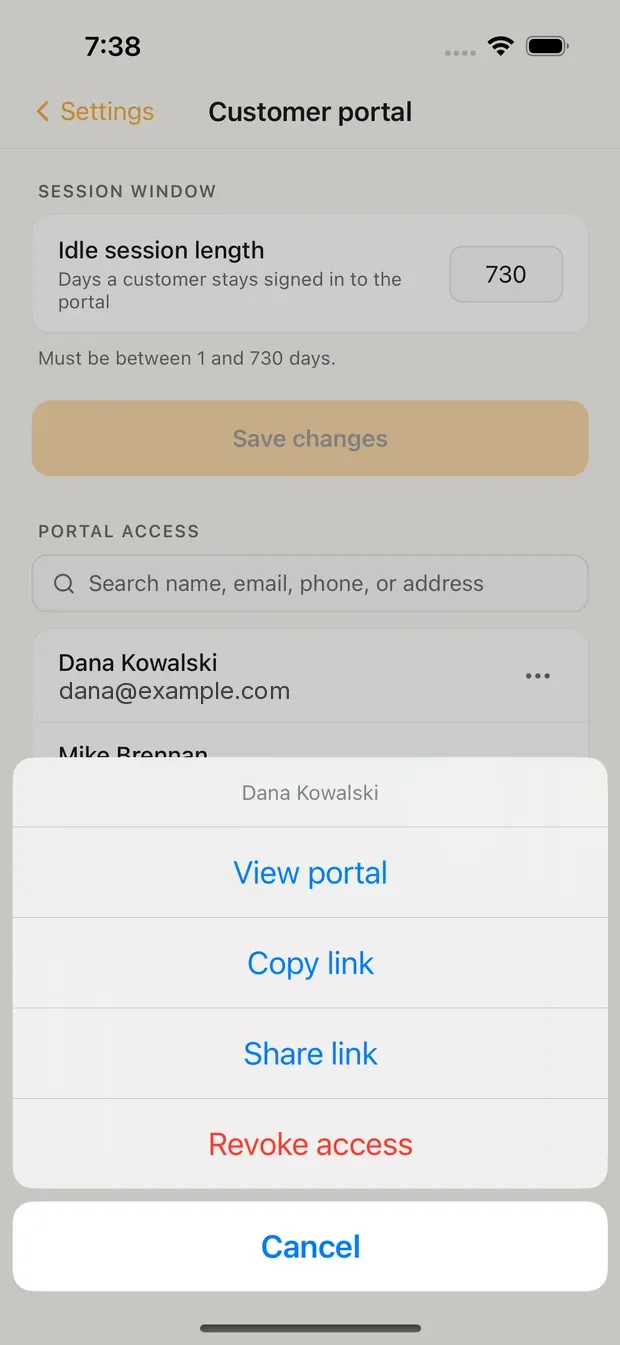
- Idle session length: days a customer stays signed in without a new link. It starts at 730 (two years) and can be 1 to 730. Each visit restarts the count. Tap Save changes.
- Portal access: every customer, with a search bar. Tap ⋯ on a customer for View portal, Copy link, Share link and Revoke access.
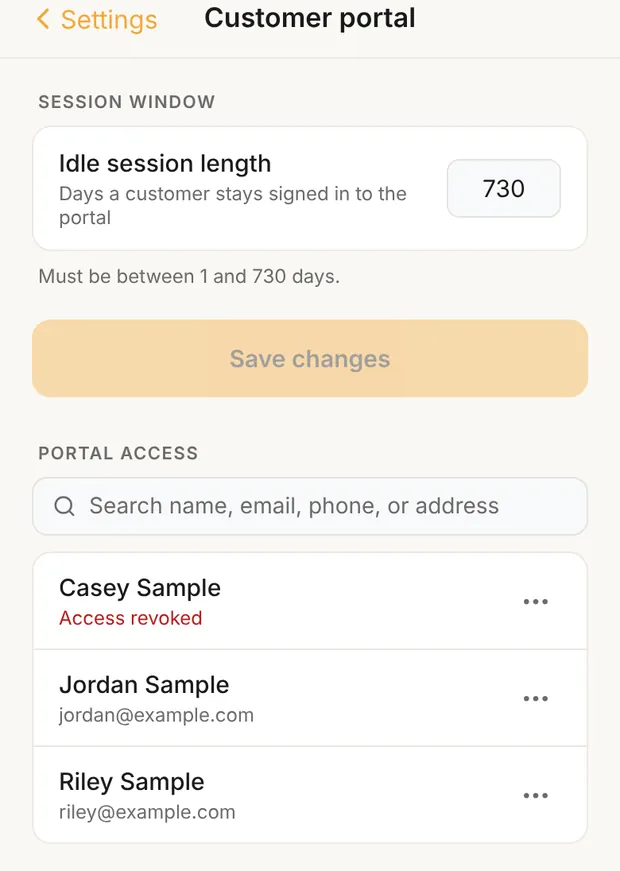
View portal shows you exactly what that customer sees. Copy link and Share link make a full-access link that works for 30 days: anyone holding it can sign and pay, so send it only to the customer. Revoke access closes everything for that customer: their job pages, every document link, its PDF and pay button, and new sign-in links. They see Portal access turned off. It also closes those documents for anyone else signing on that customer's jobs, such as a spouse with their own link. The row then reads Access revoked until you tap Restore access, which opens everything again.
What your customer sees
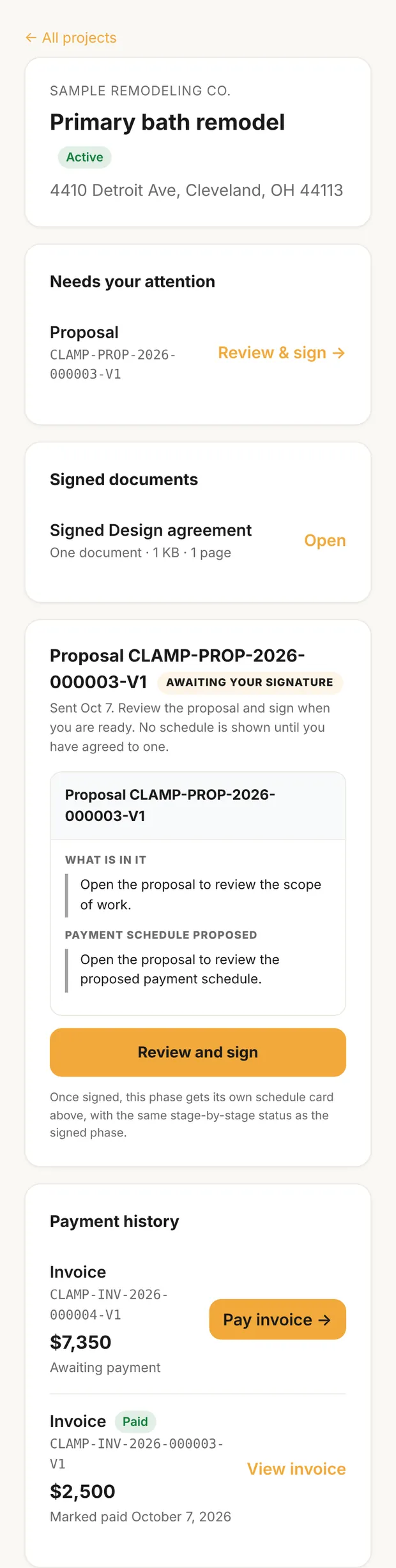
One job goes straight to its page; several jobs show a list. Each job page shows, top to bottom, only what applies:
- Needs your attention: documents waiting for their signature, with Review & sign →.
- Signed documents: each signed copy to open or download.
- Signed proposal: the payment schedule as signed, each stage's status, and your checklist with photos.
- Project updates you post with Post to customer portal, and Decisions needed they can answer right there.
- Estimates (download only) and Past offers (expired).
- Payment history: each invoice, its status and Pay invoice →.
- Project photos and Shared files: only what you share. Long-press a photo in a lead's Attachments and tap Share with customer; Make private takes it back.
The payment schedule comes from the signed proposal: see how to write a proposal.
Payments
Clamp doesn't take payments. When you send an invoice, Add a payment link (optional) takes a link from the service you already use (the sheet suggests Stripe, PayPal or Venmo). It becomes the customer's Pay invoice → button; skip it and there's no button. The portal mirrors the payments you record in Clamp: Paid, Balance due with what's left, or Voided.
What comes back to you
- Signatures. Clamp picks them up when you open or return to the app, or tap refresh at the top of a lead. A signed proposal turns Approved; a design agreement or change order does exactly what signing in person does.
- Several signers. Signers on the document shows who's done, with Remind for the rest. A hand-off to someone new waits for your OK.
- Emails to you. "A document you sent is fully signed" when the last signature lands, and "A project decision was answered through Clamp" when a customer answers.
- Views and payment-link clicks are kept in the document's audit record. Clamp doesn't show them as a status yet.
What these settings change
- Document signing decides which send options you see, and sets the deadline on a signature request for a document with no printed expiration date.
- Idle session length decides how often customers need a fresh link.
- A payment link decides whether an invoice has a pay button.