The Settings menu, section by section
Updated Oct 9, 2026
What it's for. Settings is where you tell Clamp about your business once: your costs, your markup, how your documents read, who's on your team, and what it tracks on its own. Then every lead, estimate and job uses it. This page walks the whole menu top to bottom, says what each row does, and links to the guide for anything that takes more than a minute.
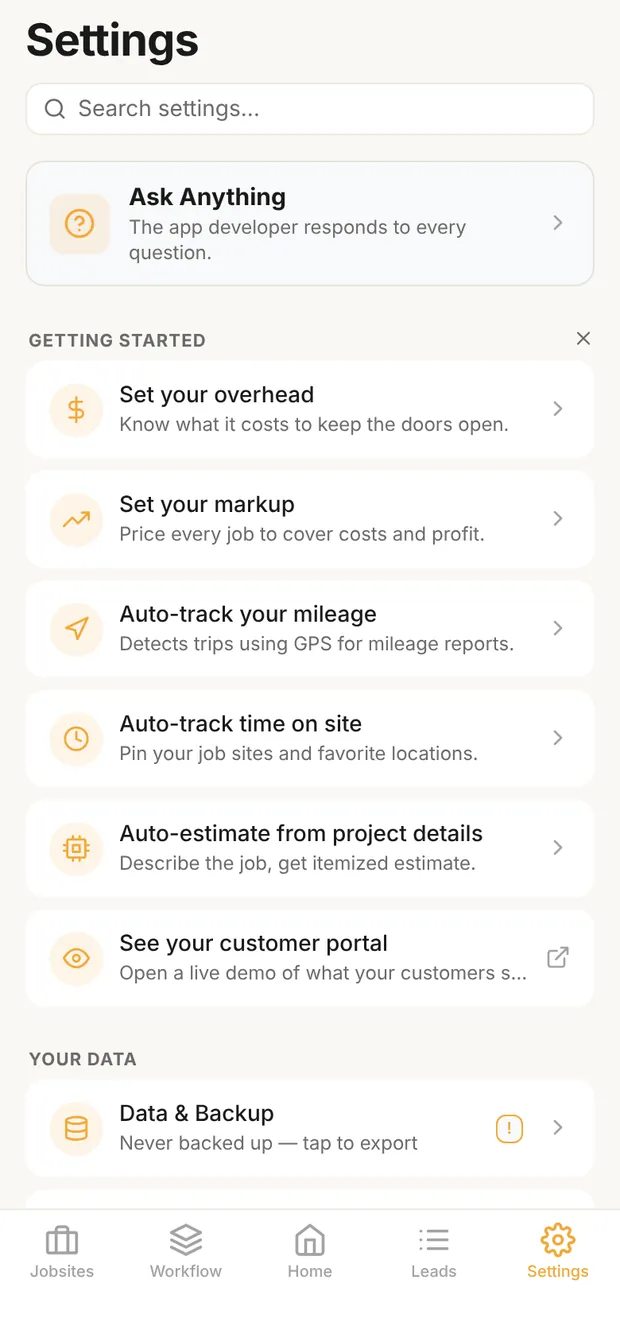
Finding your way around
- Search. The bar at the top finds any setting by name or by what it does: try "mileage", "tax" or "logo".
- Ask Anything. Send a question straight to the developer, who answers every one.
- Getting started. The setup steps that matter most, until they're done. See the six Getting started steps.
- Who sees what. The owner and admins see everything. Staff, contributors and viewers on a team don't see Your business, Sharing or Accountant export. Some rows need a plan, as the tables below say.
Your data
| Row | What it does | Read next |
|---|---|---|
| Data & Backup | Cloud backup and restore, backup files for moving to a new phone, recently deleted leads, importing and exporting leads as CSV, and crash recovery. A ! means a backup is overdue. | Backing up and restoring your data |
| Accountant export | A package of CSV files for your bookkeeper for any period: customer payments, job costs and expenses, bills owed, and a summary that reconciles them, as one .zip. Needs a plan (Solo, Assistant or Teams, including the trial), and on a team it's for the owner and admins. | The accountant export |
| Help improve AI estimates | On by default. Clamp keeps a copy of your estimate descriptions, its drafts, your corrections and the job's ZIP code to make estimates more accurate. Open it to turn that off or delete what it saved. |
Your business
The owner and admins see this section.
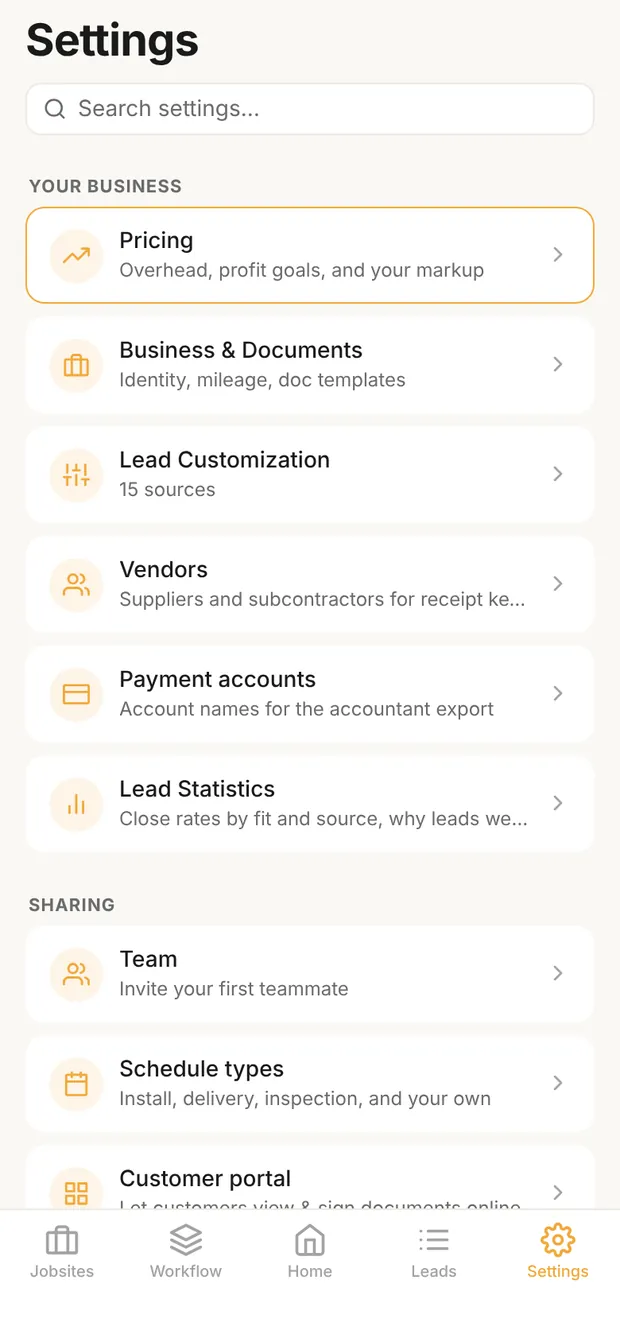
| Row | What it does | Read next |
|---|---|---|
| Pricing | Your overhead, your profit goal and the markups they produce, in that order. Also: Saved Rates, Labor Costs (rates by role) and Owner Labor (your own rate). | Setting your overhead, Setting your markup, Setting labor costs |
| Business & Documents | Business details that print on every document (name, license, address, logo, payment notes), sales tax, payment methods, mileage rates and odometer. Document defaults: expirations, includes and excludes, when stage payments are due, payment schedules, templates, attachments, notices and your default terms and conditions. Also the job cost review schedule. | Your business profile and document defaults |
| Lead Customization | Your lead sources, tab badges, timeline labels, job length presets and how long before a lead counts as not moving. | |
| Vendors | Your suppliers and subs, so receipts and bills file under the right name, and merchants that still need a vendor. | How to track job receipts |
| Payment accounts | The bank and card accounts money comes in and goes out of, named the way your accountant knows them. | The accountant export |
| Lead Statistics | Close rates by fit and lead source, and why leads were lost. Needs a plan. | What close rate you need |
Sharing
The owner and admins see this section.
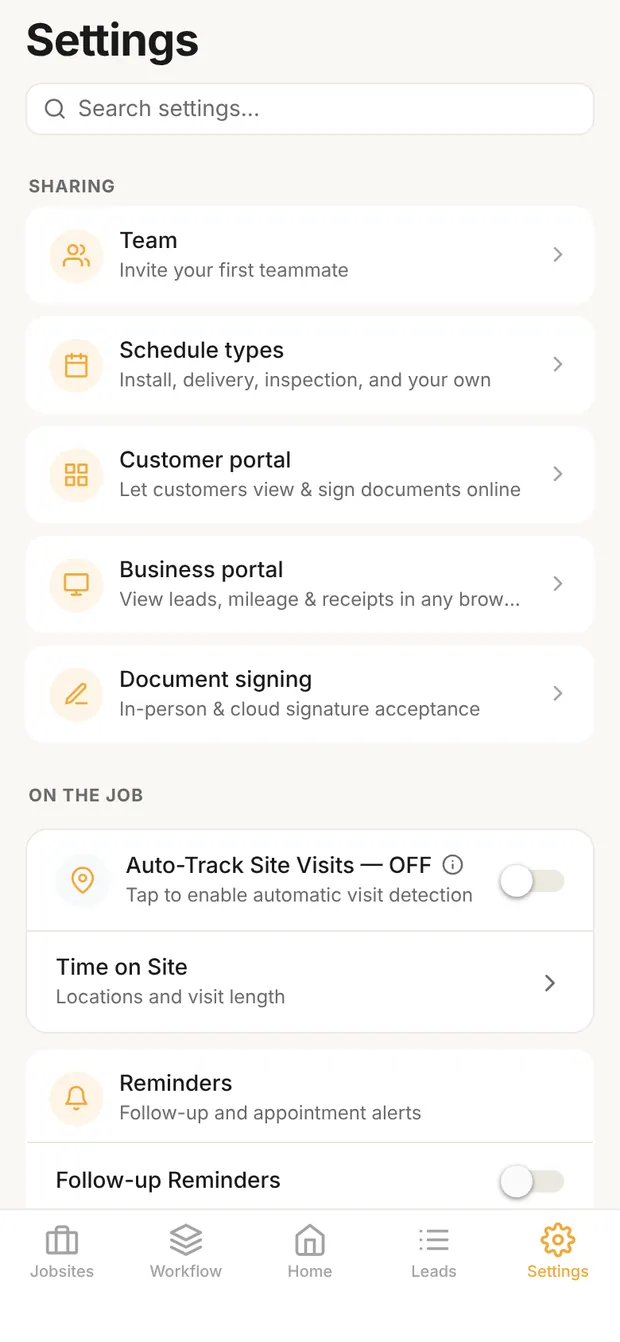
| Row | What it does | Plan | Read next |
|---|---|---|---|
| Team | Invite teammates and set their roles. Your seats and who is using them. | Teams | Teams and sharing |
| Schedule types | The kinds of items on your Jobsites schedule: Install, Delivery, Inspection, Work day and your own. | Teams | How to coordinate a jobsite |
| Customer portal | How long a customer stays signed in, and turning one customer's access off or back on. | Assistant | The customer portal |
| Business portal | Your leads, mileage and receipts in any web browser, and who on your team can open it. | Assistant | Teams and sharing |
| Document signing | How each kind of document is signed by default (in person, by request, or either) and how many days a signature request stays open when the document has no expiration date of its own. | Assistant | The customer portal |
Without Teams, the Team and Schedule types rows don't show; a Bring your team into Clamp card takes their place. The Assistant rows still show without the plan, and tapping one explains what the plan adds.
On the job
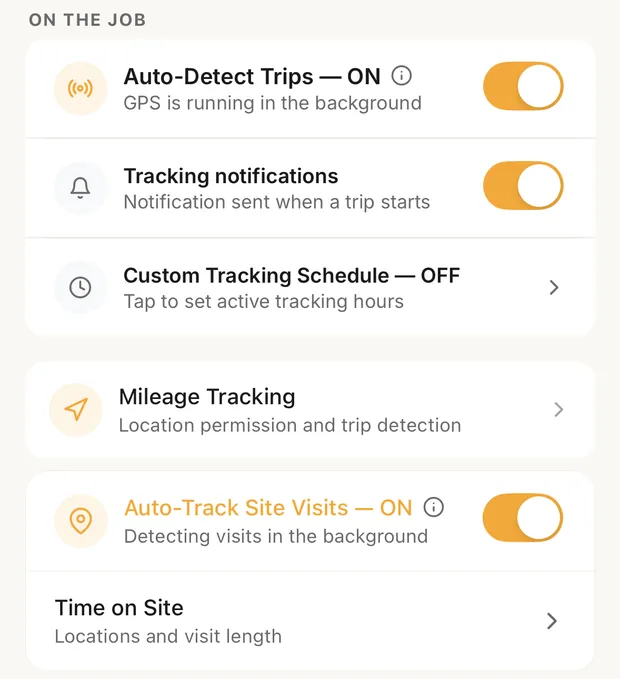
| Row | What it does | Read next |
|---|---|---|
| Auto-Detect Trips | Records trips on its own for your mileage log. Once it's on: tracking notifications and a custom tracking schedule. On the phone app only. | Auto mileage tracking |
| Mileage Tracking | Location permission for trip detection, with Enable if Clamp can't track in the background. On the phone app only. | Auto mileage tracking |
| Auto-Track Site Visits | Logs time at your job sites with no clock in or out. On the phone app only. | Auto time on site |
| Time on Site | Which places are watched (Smart or Favorites only), the minimum visit length, pinned leads and favorite locations. For the owner and admins: Owner Labor (your own rate) and an hours-only view that hides dollar amounts. | Auto time on site |
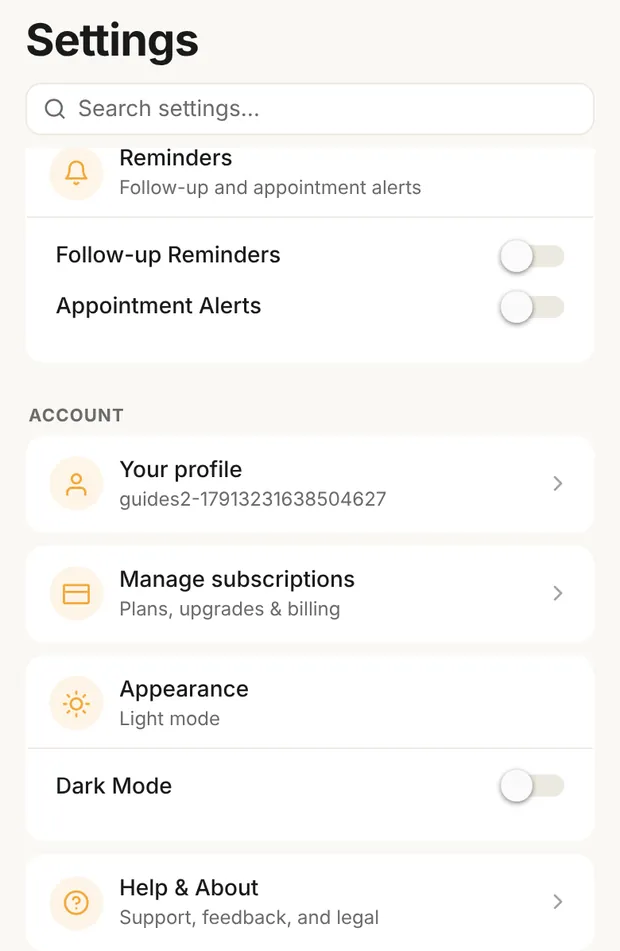
| Reminders | Follow-up and appointment alerts, with a switch for each right on this screen. | How to handle the first call |
Account
| Row | What it does |
|---|---|
| Your profile | Your name and phone, your sign-in email, marketing email, and deleting your account. |
| Manage subscriptions | Your plan, upgrading, switching or canceling, restoring a purchase, and what to do about a charge you didn't expect. |
| Appearance | Light, dark, or follow your phone. Dark Mode also has a switch right here. |
| Help & About | Support and feedback, a replay of the welcome tour, how the app works, guides, the newsletter, the business self-assessment, leaving a review, and the privacy policy and terms. |
Read next
- The six Getting started steps
- The Clamp method, first call to closeout