Backing up and restoring your data
Updated Oct 9, 2026
What it's for. Your leads, documents, receipts, mileage and settings live on your phone. Data & Backup is where you make sure they also live somewhere else, so a lost, broken or replaced phone doesn't take your business with it. It also holds recently deleted leads, lead spreadsheets (CSV) and crash recovery.
Where to find it
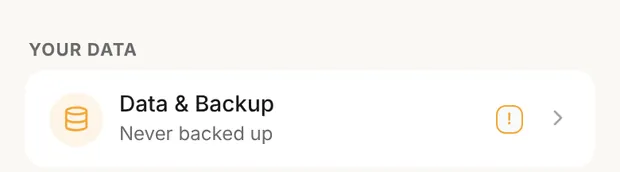
Settings › Data & Backup, the first row under Your data. Everyone on a team sees it.
The row's subtitle tells you where you stand, and a ! means something needs doing:
- Never backed up (with the !): there's no cloud backup and no backup file yet.
- Cloud backup needs attention (with the !): the last cloud backup is more than 7 days old, or the last try failed.
- Backup file is out of date (with the !): your newest backup is a backup file more than 30 days old.
- Backed up · 2 hours ago: the last cloud backup is recent.
At the top of Data & Backup, a card says the same thing in more detail, with one button: Back Up Now if cloud backup is available to you, otherwise Export Backup. In a web browser without cloud backup there's no button, because backup files are made in the phone app.
Turn on cloud backup
Cloud backup copies your business to your Clamp account every day, so you can get it back on any phone by signing in.
What it needs:
- A sign-in. If you aren't signed in, the CLOUD BACKUP section reads Sign in to enable cloud backup. Tap it, enter your email and the code Clamp sends you.
- The Assistant plan (Teams includes it). On Solo or the trial, the section reads Automatic backup is an Assistant feature, with Unlock automatic backup. Backups you already have stay in your account and you can still restore them.
Once both are in place, three rows appear:
- Automatic cloud backup, on by default.
- Back up on Wi-Fi only, on by default. Off the Wi-Fi, the row shows "Waiting for Wi-Fi"; tap Back Up Now to send it over cellular.
- Back Up Now, to run one immediately.
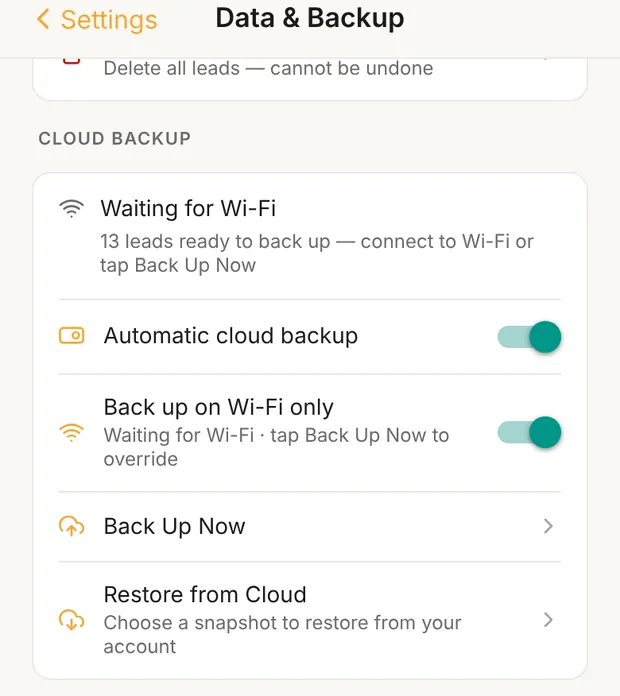
How often it runs. When you open Clamp or come back to it, and at most once every 24 hours. The first backup uploads every photo, so it's best on Wi-Fi; later ones send only what changed. A phone with no business records on it (no leads, receipts, trips, hours, bills, vendors, templates or saved rates) never backs up automatically, so an empty phone can't overwrite a real backup. Your account keeps your 10 most recent backups.
When the first one finishes, Clamp tells you once: Your business is backed up.
What a backup includes
Cloud backups and backup files carry the same things.
| Included | Not included |
|---|---|
| Leads and jobs, with every estimate, proposal, design agreement, change order, invoice and payment on them | In a cloud backup only: any single file over 30 MB, and any lead record over 512 KB. Clamp names them (see below) |
| Leads in Recently deleted. A restore puts them back in Recently deleted | This phone's own settings: cloud backup and Wi-Fi switches, crash reports, Getting started cards, the welcome tour |
| Photos and documents attached to leads, voice notes, and every receipt photo, including overhead and multi-job receipts | |
| Your logo, your terms and conditions PDFs, the attachment PDFs from Business & Documents, and photos added as proof of an approval | |
| Mileage, trips waiting to confirm, odometer and rates | |
| Time on site entries and pins | |
| Overhead, markup history, profit goal, labor roles and saved rates | |
| Vendors, bills, payment and deposit accounts, sales tax, templates and captured signatures |
If something is too large for a cloud backup, the rest still backs up. Back Up Now then says Backed up, except 1 item (or however many) and names each one, and CLOUD BACKUP keeps a note, "Not in your cloud backup (too large): [name].", until a backup goes through with nothing left out. A backup file has no size limit, so export one too.
PDFs of your documents aren't stored; Clamp rebuilds them from the document.
Keep a backup file too
A backup file is a copy you hold yourself, in Files, iCloud Drive or your email. Under BACKUP FILES:
- Export Backup saves everything listed above into one
.lsbfile and opens the share sheet. Save it somewhere off the phone. - Import Backup opens a
.lsbfile and shows what's in it. Restore replaces everything on this phone with it. This can't be undone.
Backup files work in the phone app only; in a web browser, BACKUP FILES doesn't appear. They don't need a plan or a sign-in, so on Solo they're how you protect your business.
Restore to a new phone
With cloud backup. Install Clamp, then sign in with the same email you used on the old phone (Settings › Your profile). Backups belong to your sign-in, not to a phone. On a phone with nothing on it, Clamp asks Restore your backup? and lists your backups, newest first. Tap one, then Restore. Not now stops the question until there's a newer backup.
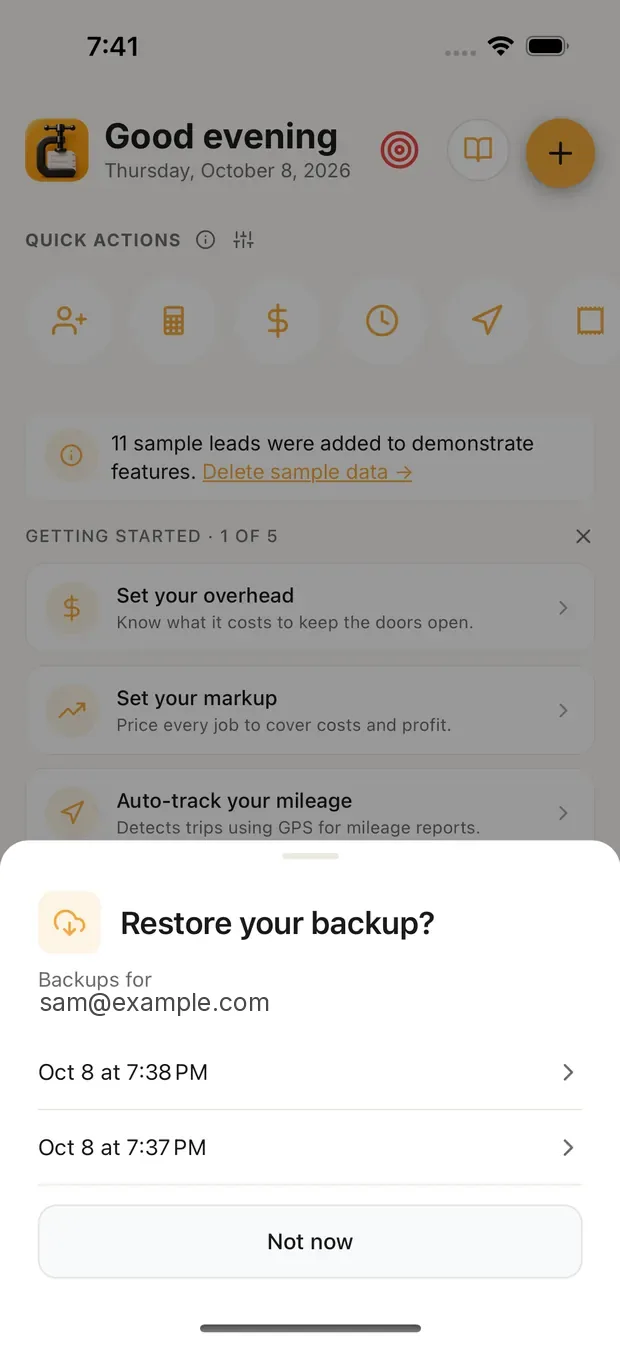
You can also restore at any time from Restore from Cloud under CLOUD BACKUP. It replaces everything on the phone with the backup you pick, so in the phone app it offers Export Backup First. A backup marked "Empty" has nothing in it.
With a backup file. On the old phone, Export Backup and save the file. On the new one, Import Backup and pick it.
Cloud backup paused
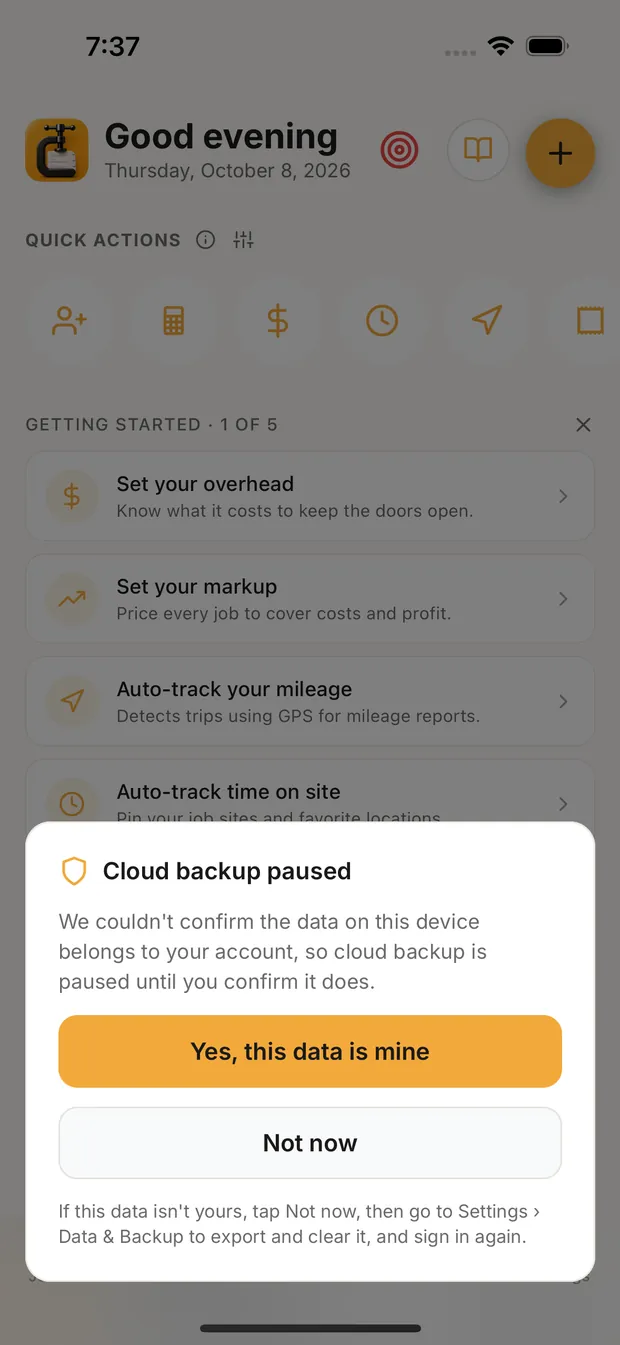
If you sign in on a phone that holds another business's data, or data Clamp can't match to your account, Clamp asks what to do with it. Start fresh clears the phone. Keep this data keeps it, but pauses cloud backup so one business's data can't land in another's account. Clamp then shows Cloud backup paused. If the data is yours, tap Yes, this data is mine and backup picks up again. If it isn't, tap Not now, then go to Settings › Data & Backup to export and clear it, and sign in again. Clamp asks again the next time you open it.
Get back a deleted lead
Deleting a lead moves it to Recently deleted, under LEAD DATA. It stays there for 30 days with everything attached: photos, documents, receipts and voice notes. Tap Restore to put it back exactly as it was. Each lead shows how long it has left. After 30 days it's gone from this phone the next time you open Clamp, but a backup made before then still has it.
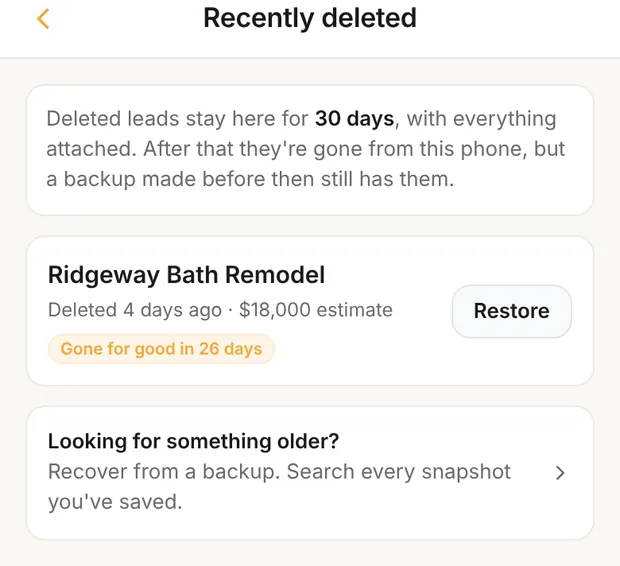
For anything older, tap Looking for something older? at the bottom. Clamp compares every cloud backup you have with what's on the phone and lists leads that are in a backup but not here. Restore adds back just that lead with its files, on your lead list. Nothing else changes. If you're signed out, the screen asks you to sign in under Settings › Your profile; restoring doesn't need a plan.
Leads as a spreadsheet (CSV)
Under LEAD DATA:
- Export All Leads (CSV) makes a spreadsheet of your leads: contact, source, dates, price range, the five fit scores, notes, and won, inactive or lost with the reason. It's a list, not a backup: no documents, receipts or photos.
- Download Import Template gives you the columns Clamp reads, with three example rows.
- Import Leads adds leads from a CSV. It needs Name, Email and Phone columns; rows with no name are skipped. Importing adds to what you have, so importing the same file twice makes two of each lead. Before it imports, Clamp says how many rows are already in Clamp (same name, email and phone).
Clear All Data deletes everything on this phone. Your cloud backups stay in your account.
Crash recovery
If the phone app crashes, it saves a recovery snapshot on the phone, and keeps the last 5. They show at the top of Data & Backup under CRASH RECOVERY. Restore puts that moment back, and its alert says how many leads and photos and documents the snapshot has. If it has no photos or documents, restoring removes the ones on the phone. The × deletes a snapshot. Send crash reports (on by default) sends crash details to the developer, never lead data.
What this changes
- The ! on Settings clears when there's a recent backup.
- Every new phone starts from your latest backup instead of empty.
- Recently deleted catches a wrong delete for 30 days. Backups catch the rest.
- The accountant export in the business portal is built from your latest cloud backup, so it's only as current as that backup.