Your business profile and document defaults
Updated Oct 9, 2026
What it's for. Business & Documents holds two kinds of settings. Some print on what your customer sees: your name, license, address and logo, how to pay you, sales tax, standard notices and attachments. The rest are defaults that start every new document the way you usually write it, plus a few settings only you see. Set them once; every new estimate, proposal, change order and invoice picks them up.
Where to find it
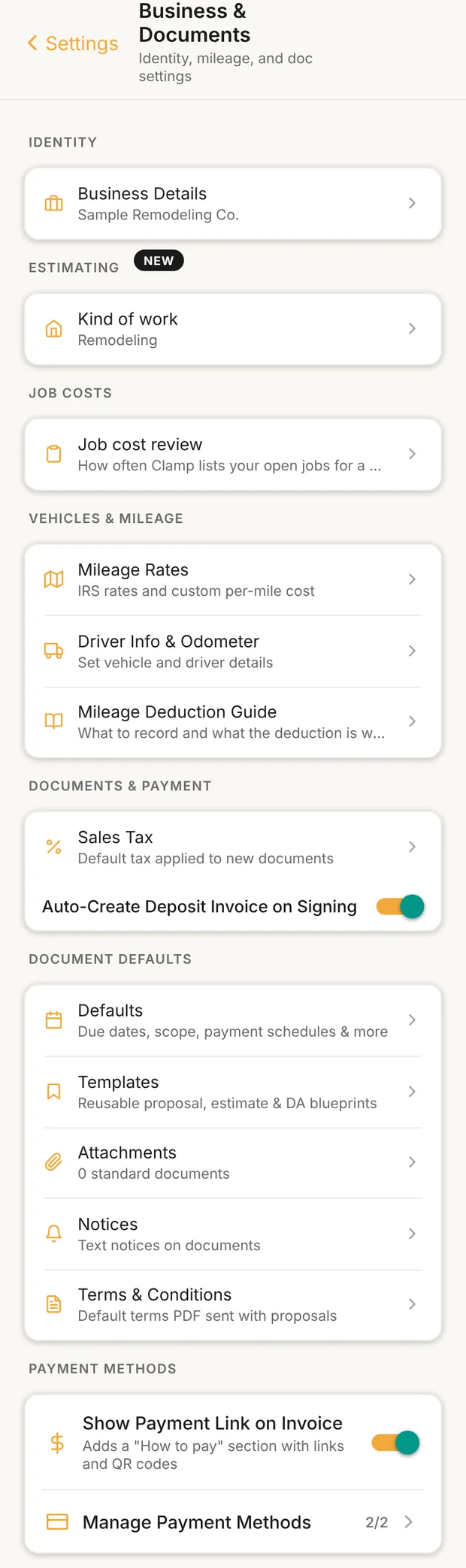
Settings › Business & Documents, under Your business. The owner and admins see it. The screen reads top to bottom:
- IDENTITY: Business Details.
- ESTIMATING: Kind of work.
- JOB COSTS: Job cost review.
- VEHICLES & MILEAGE: Mileage Rates, Driver Info & Odometer, Mileage Deduction Guide.
- DOCUMENTS & PAYMENT: Sales Tax and Auto-Create Deposit Invoice on Signing.
- DOCUMENT DEFAULTS: Defaults, Templates, Attachments, Notices, Terms & Conditions.
- PAYMENT METHODS.
This page takes them in a different order: what prints first, then what only starts a document, then what stays private.
What prints on your documents
Business details
Tap Business Details. Each field saves when you leave it; Save at the top also saves and closes.
| Field | Where it shows |
|---|---|
| Business Name, Business Contact, Phone, Email, Website, License # | The "from" block on your documents. License prints as "Lic. #". |
| Business Address | Under your name on documents. |
| Business Logo | Invoices, proposals and agreements. Up to 2 MB; Clamp resizes it to 400px. |
| Payment Notes | The notes area on invoices and change orders. |
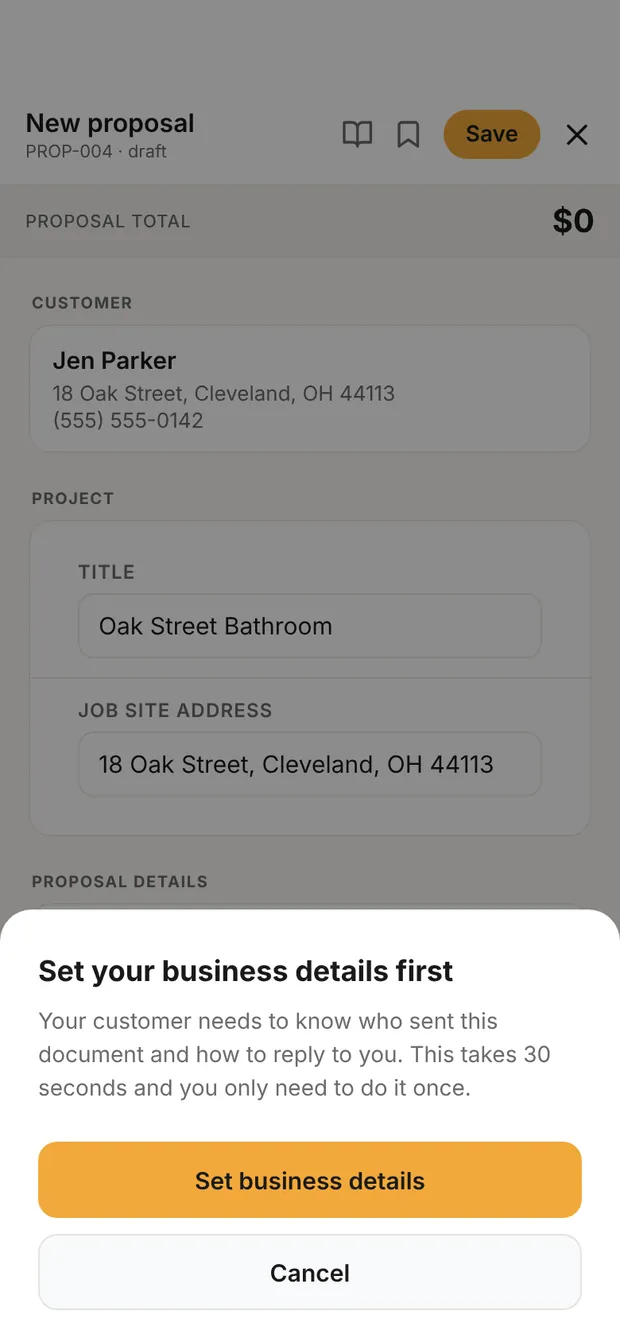
Business name and email are required to send. Until both are set (and the email is valid), tapping Preview or Send on an estimate, design agreement, proposal, change order or invoice opens Set your business details first. Tap Set business details, fill in the two fields marked Required, and save. Clamp takes you straight back to the document and carries on with the preview or send. Cancel leaves the document as it was.
Payment methods
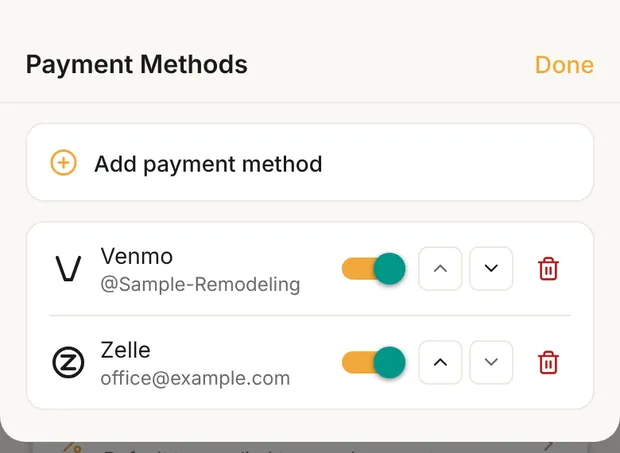
Under PAYMENT METHODS, tap Manage Payment Methods and Add payment method. Choose a type (Venmo, Zelle, PayPal, Stripe, Cash App or Other), enter the handle, and keep it Enabled. You can save up to five. With Show Payment Link on Invoice on, invoice PDFs get a "How to pay" section with a link and QR code for each method. You can turn it off on a single invoice.
Sales tax
Tap Sales Tax and pick a Tax type: None, Rate (%) or Flat ($), then the amount. Tap Save. The default fills in on every new document as its own line, and you can change or remove it on any document before you send it. Below, COLLECTED shows the tax your customers have paid this quarter and this year. That money belongs to the state; it isn't your revenue.
Notices
Notices are blocks of your own text printed on your documents, such as a required state notice or a warranty statement. Clamp supplies no wording; paste your own (up to 2,000 characters). For each block choose:
- Where it prints: First page, Above signature or After terms;
- How it prints: Plain, Bold or All caps, and Boxed;
- What it collects: Nothing, or the customer's Initials;
- Use it on: estimates, design agreements, proposals, change orders, invoices.
Add by default on the list puts the block on new documents automatically. Off, it waits in your library until you add it to a document.
Attachments
Attachments are PDFs that go out with your documents, such as your certificate of insurance or a lead-safe pamphlet. Tap Add a standard document (on the phone app), then tick which document types it attaches to. You can give it an expiry date; the list shows it, in red once it has passed. Once it has expired, Clamp stops attaching it to new documents and says so on the document: "[name] has expired, so it was not attached." Upload a current copy. If you add an expired one to a document by hand, Clamp asks Attach an expired document? first, with Attach anyway. Replacing a file changes future documents only; documents already sent keep their copy. A proposal's attachments together are capped at 10 MB.
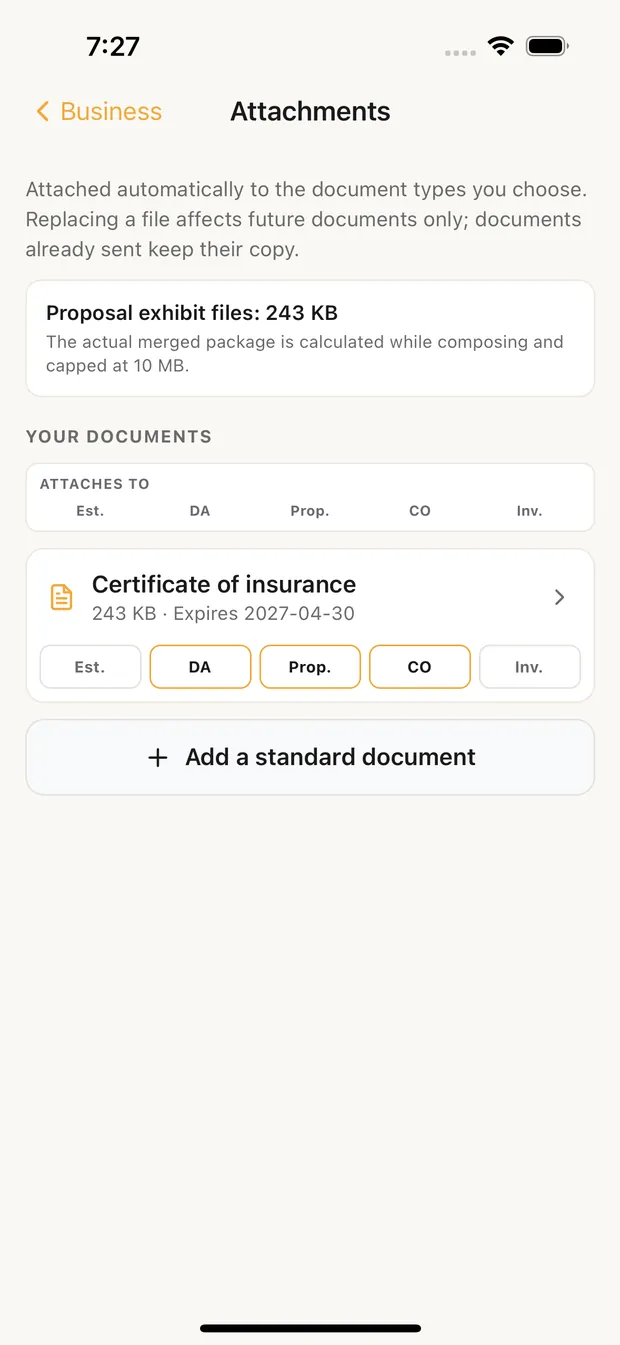
Terms & Conditions, the last row under DOCUMENT DEFAULTS, shows whether you have a default terms PDF for proposals. You upload it from the proposal editor.
Defaults that start each new document
Tap Defaults to open Document Defaults.
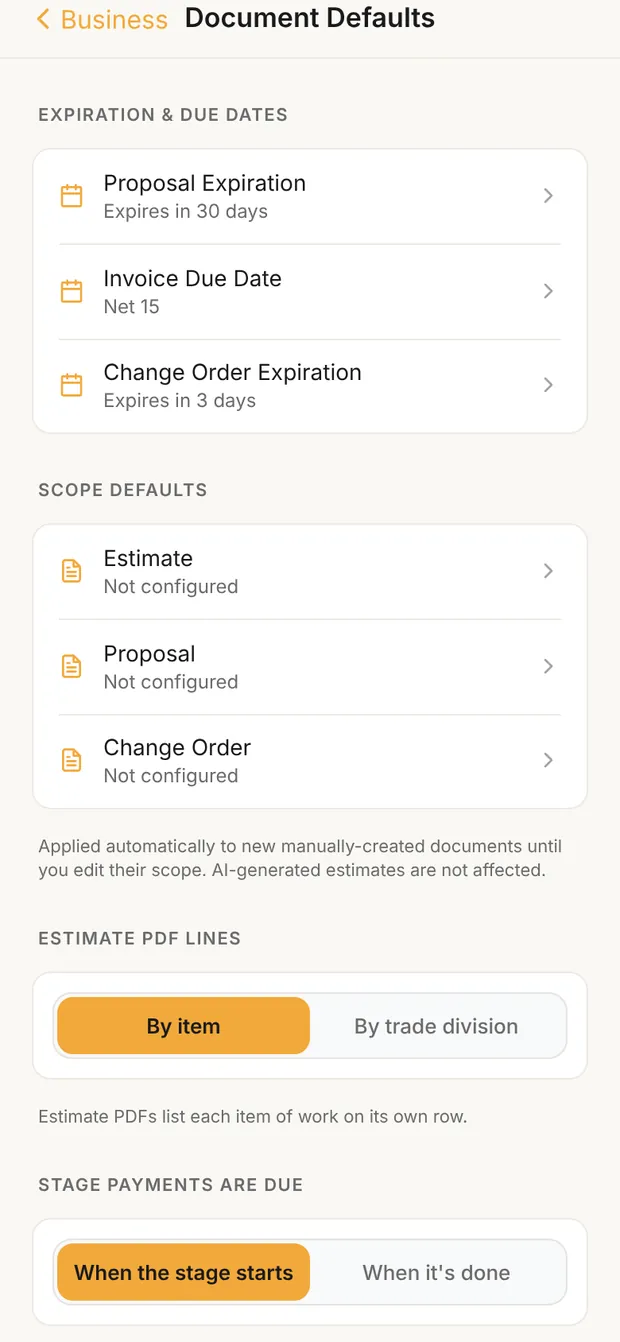
DUE DATE DEFAULTS. How long each document stays open, counted from the day you create it:
| Row | Starts at | Read next |
|---|---|---|
| Proposal Expiration | Expires in 30 days | The proposal |
| Invoice Due Date | Net 15 | The invoice |
| Change Order Expiration | Expires in 3 days | The change order |
For the two expirations, tap a row to choose 3 days, 7 days, 15 days, 30 days or Custom. For Invoice Due Date, choose Due on receipt, Net 7 days, Net 10 days, Net 15 days, Net 30 days or Custom. A custom number counts days after the document is created, or for an invoice, days after the invoice date.
SCOPE DEFAULTS. For estimates, proposals and change orders, the Includes, Excludes and Assumes lines every new one starts with. Estimates also have a CONCEALED CONDITION DISCLOSURE; leave it blank to use Clamp's built-in wording, which the editor shows. These apply to documents you build by hand, not to AI estimates. See how to write an estimate.
STAGE PAYMENTS ARE DUE. When the stage starts (the default) means the customer pays before the work; When it's done means after. You can change any single payment in a schedule.
PAYMENT SCHEDULE LIBRARY. Schedules you saved from a proposal's payment schedule with Save as template. Set default copies one into every new proposal. Rename, Duplicate and Delete are on each row; Delete asks first. Editing a proposal never changes the library or a signed schedule.
Auto-Create Deposit Invoice on Signing (on the hub, on by default). When a customer signs a proposal, Clamp drafts an invoice for each payment due on signing, ready for you to check and send.
DESIGN AGREEMENT. Deliverable Default fills the Scope of Work on each new design agreement. See the design agreement.
SCOPE FAVORITES and AI PROMPTS are libraries, not defaults. Star an item or a prompt on a document to save it; nothing here is added unless you pick it.
Templates (on the hub) lists the proposals, estimates and design agreements you saved with Save as template, to rename, duplicate or delete.
Settings that never print
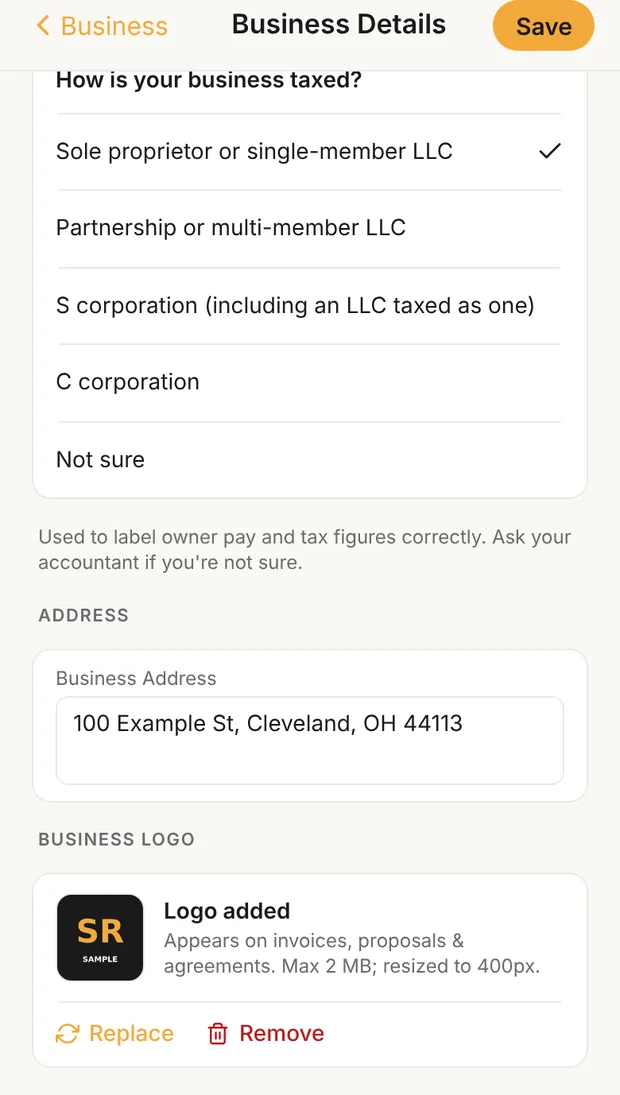
- Tax classification. In Business Details, under TAX: How is your business taxed? Clamp uses it to label owner pay and tax figures. Ask your accountant if you're not sure.
- Mileage Rates. The IRS rate for each year and type of trip, with YOUR RATE to override it and Reset to IRS schedule to go back. Check the rate for your tax year.
- Driver Info & Odometer. Driver name and, for each vehicle and year: Year / Make / Model, Business Use Began, and the odometer at the start and end of the year. Both are covered in auto mileage tracking.
- Job cost review. How often Clamp lists your open jobs for a cost review: Weekly, Every 2 weeks, Monthly (the default and the recommendation), Quarterly or Off. Only jobs with new costs or signed work since their last review come up. See job costing.
What this changes
- Business details, logo, payment methods, notices and attachments are what your customer sees on every document.
- Business name and email must be set before anything can be previewed or sent.
- Sales tax and due dates fill in on each new document; you can change them per document.
- Scope defaults, stage timing and the default schedule shape each new proposal.
- Tax classification, mileage and job cost review stay inside Clamp.