Follow-up and appointment reminders
Updated Oct 9, 2026
What it's for. A lead you meant to call back on Tuesday is easy to lose by Thursday. Reminders put the follow-up and the appointment on your lock screen in the morning, so the day starts with the calls you promised.
Where to find it
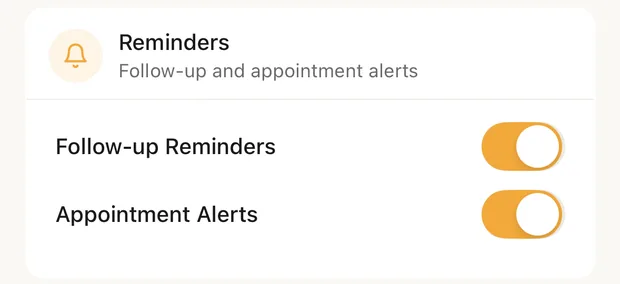
Settings › On the job › Reminders. The two switches are right on the card, so you can turn them on without opening it. Every role sees this card: reminders are per phone, so each teammate sets their own.
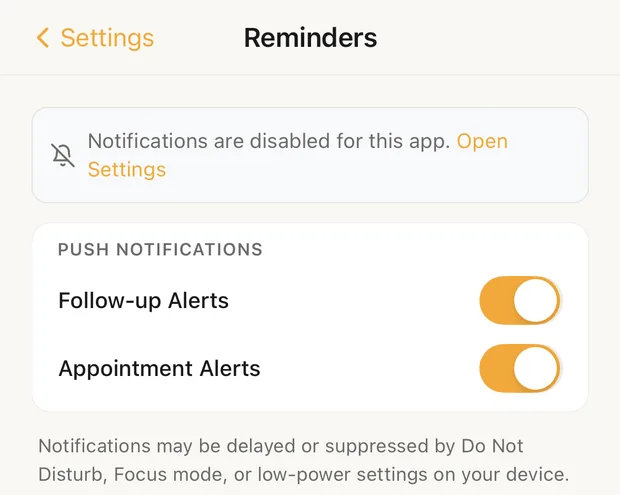
Tap the card for the Reminders screen, which has the same two switches under PUSH NOTIFICATIONS.
What each one sends
| Switch | When | What it says |
|---|---|---|
| Follow-up Alerts (Follow-up Reminders on the Settings card) | Every morning at 8:00 AM, only when you have flagged leads | "You have 3 flagged leads to follow up with in Clamp." |
| Appointment Alerts | 8:00 AM on the day of an appointment | "You have an appointment for [lead] today" |
Separately, a lead with a follow-up date gets its own reminder at 9:00 AM that day: "Time to follow up with [lead]!" That one comes from setting the date on the lead, not from these switches.
The times are fixed. Both switches start off.
Phone permission
Your phone asks to allow notifications the first time Clamp schedules one. If you said no, the Reminders screen shows Notifications are disabled for this app. Open Settings; tap it to turn them on in the phone's settings.
Do Not Disturb, Focus modes and low-power settings can delay or hide notifications. That's the phone, not Clamp.
What this changes
- Nothing goes to customers. These are notifications on your own phone.
- Flag the leads you owe a call. The morning alert counts flagged leads, so it is only as good as your flags.
- Other alerts aren't controlled here: a payment stage starting tomorrow, and Site visit detected from auto time on site.