Recording payments, credits and refunds
Updated Oct 9, 2026
What it's for. An invoice says what the customer owes and a bill says what you owe. Recording each payment against it keeps both balances true, so the job's cost, what you're owed and what you owe never get mixed up. Clamp doesn't move money: you record what happened, by check, card, transfer or cash.
A customer payment
- Open the invoice and tap Record payment. (Or use the invoice row's ⋮ › Update status.)
- Under WHAT HAPPENED?, pick Paid in full or Partial payment received.
- For a partial payment, enter Amount received, the Payment date and, if you like, the method (Check, Cash, Card, ACH, Zelle, Venmo, Financing or Other) and a reference number. Tap Save.
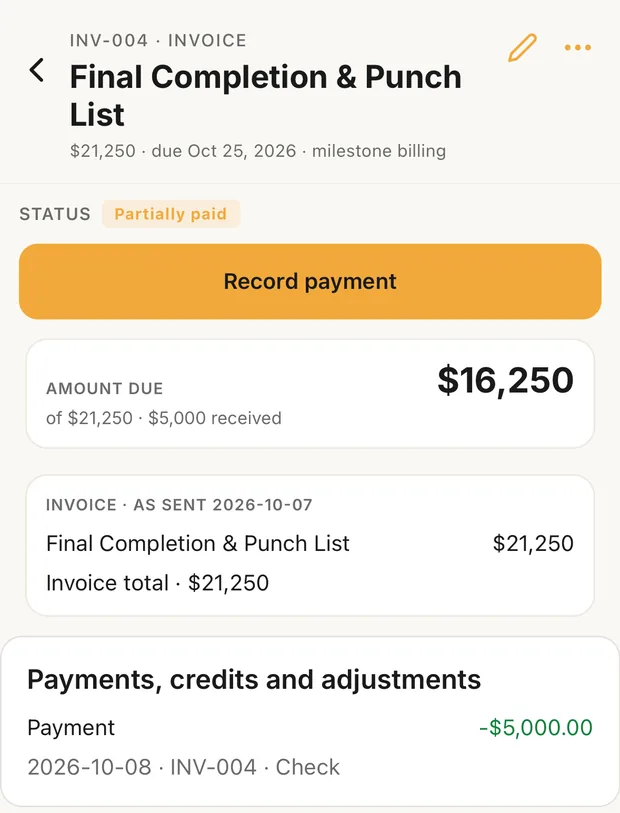
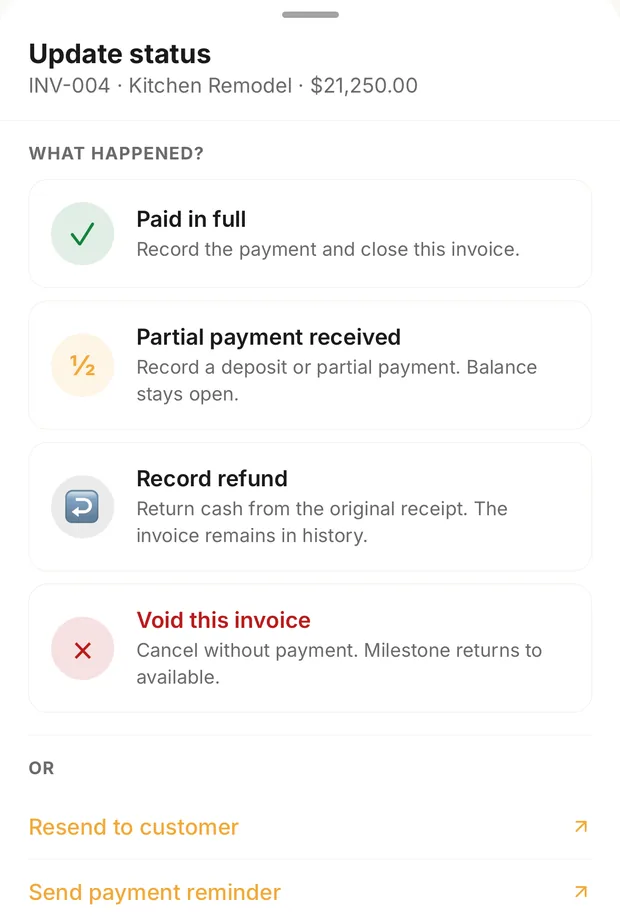
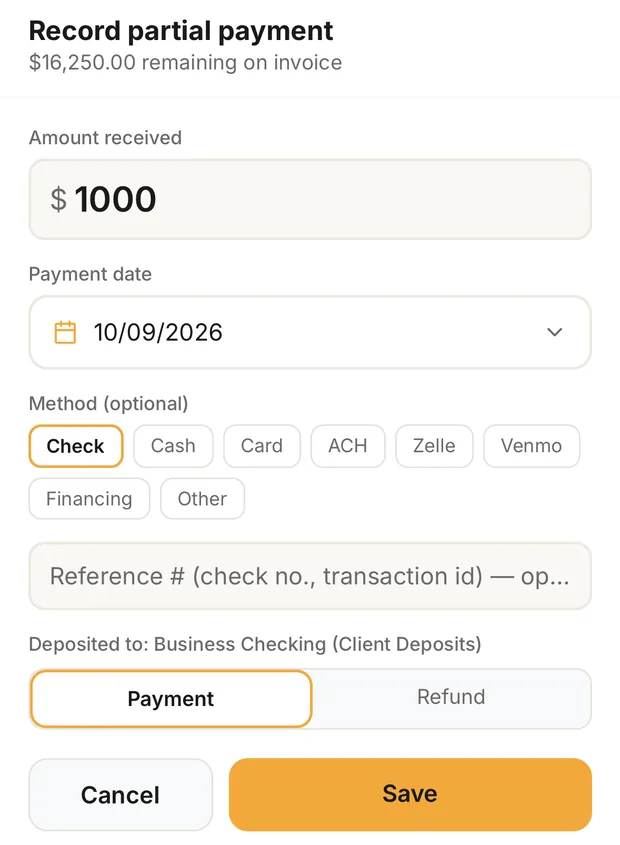
The invoice moves to Partially paid or Paid. A payment can't be more than the balance, and a recorded payment can't be deleted; if one was wrong, record a refund for it. When Paid in full pays the last open invoice on a job, Clamp asks whether to close the job.
If you added a payment link when you sent the invoice, the customer portal shows Pay invoice →. The money still isn't recorded until you record it here; after that the portal shows the invoice as paid.
A customer credit or refund
- The customer owes less (a goodwill credit, a missed item): the invoice's ⋮ › Record obligation credit. Give a reason; it stays private, and the customer sees "Adjustment". It lowers what's owed; it isn't a payment.
- Money back to the customer: Update status › Record refund, from the payment you're refunding.
- A deduct change order becomes a credit you apply to an open invoice, or refund if nothing is open.
The Job billing card on the job's Details shows the revised contract, invoiced, paid, credits, adjustments and the job balance. Something's off? Adjust the balance covers the three other cases: the customer owes less, you paid the customer back, or the customer owes more (a custom invoice).
To void an invoice that has payments on it, refund them first. Clamp won't void money you've collected.
The final bill
New invoice › Final balance bills everything left on the contract, line by line, after change orders and credits. If nothing is left, Clamp says Nothing left to bill and offers the credit actions instead. The closeout guide covers what to send with it.
Paying a vendor bill
- Open the bill. It shows the bill total, paid, retainage held and owed.
- Tap Record payment. The amount starts at the balance; change it for a partial payment.
- Pick the Date, the Method and PAID FROM, the account the money left. Add a payment account in Settings first if you have none.
- Tap Record.
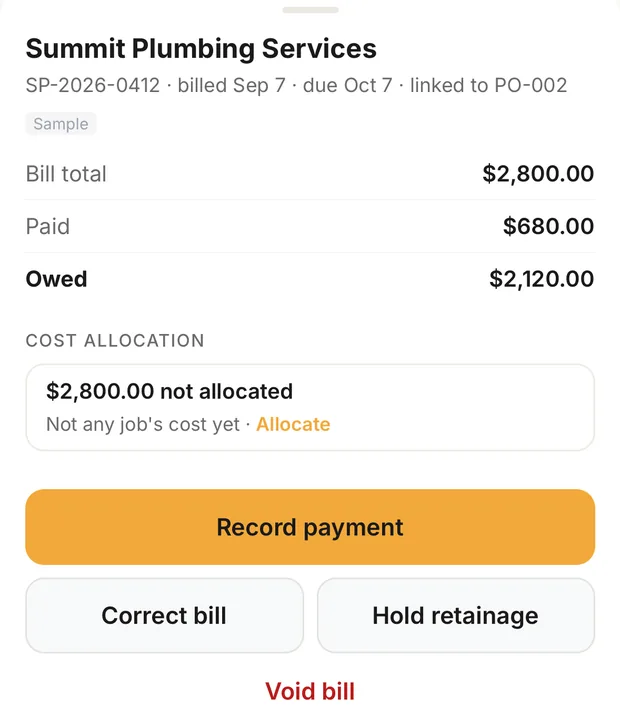
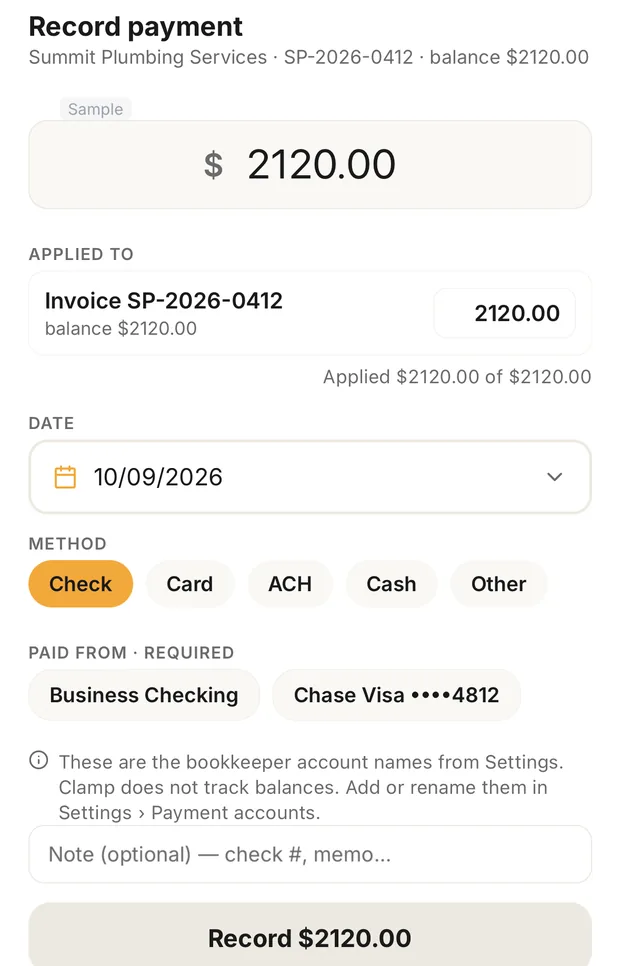
One payment can cover several bills from the same vendor with + Apply to another invoice. Paying a bill never adds job cost. The bill counts against the job once its Cost allocation puts it there; until then it shows as not any job's cost yet. Hold retainage records an amount held back under the subcontract until you release it.
Vendor credits and returns
- A return on something you paid for: tap the ⋮ on the receipt's row and choose Record a return. Enter the amount returned and the date. It records a negative receipt for the amount returned, which lowers the job cost.
- A vendor credit or refund: Settings › Vendors › the vendor › Credits & refunds, then + Credit or + Refund. Apply a credit to Payable to lower what you owe on the bill, and to Actual to lower the job's cost. A credit for returned material usually needs both.
What this changes
- Job costing counts receipts (less returns) and bills, never the payments on them.
- Workflow › Overview counts an invoice as PAID only once it's paid in full.
- The accountant export puts customer payments and refunds, job costs, bills owed and vendor credits in separate files, so nothing is counted twice.