Lead Customization
Updated Oct 9, 2026
What it's for. Clamp ships with sensible defaults for leads. Lead Customization lets you match them to how your business actually gets and follows work: the sources you track, the words you use for a customer's timeline, the job lengths you sell, and how long a lead can sit before Clamp calls it out.
Where to find it
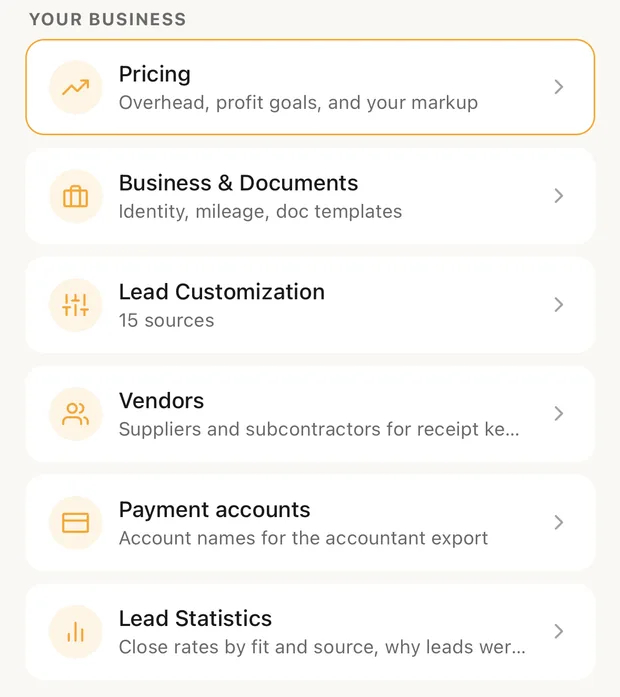
Settings › Your business › Lead Customization. The row shows how many lead sources you have. Your business is only shown to the owner and admins, so teammates don't see it.
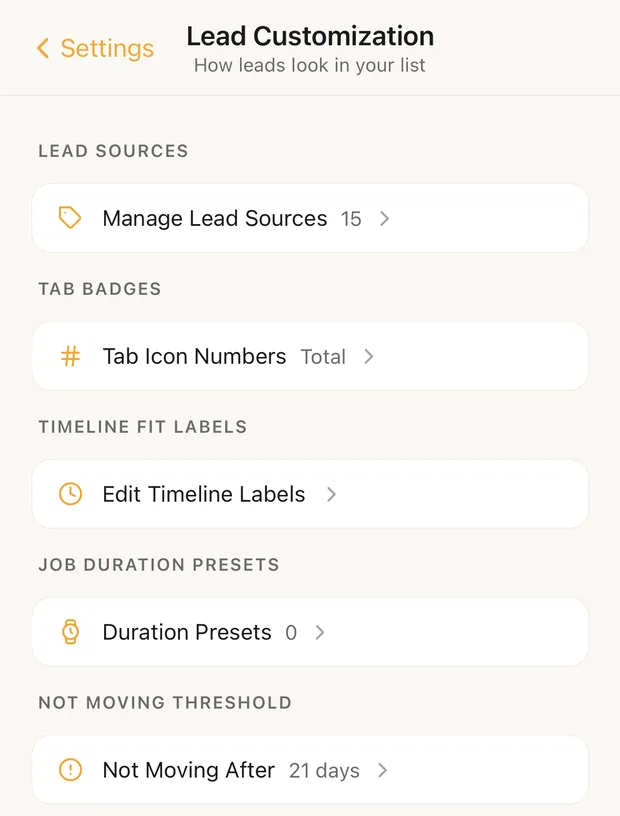
The screen has five rows, one per section. Each opens a sheet with a Done button, except Duration Presets, which opens its own screen.
Lead sources
Manage Lead Sources is the list you pick from when you add a lead and when you mark one won or lost. Clamp starts you with 15 common sources, from Referral to Nextdoor, plus Other.
- Type a name in New source name... and tap + to add one. A name you already have is refused.
- Use the arrows to put the sources you use most at the top.
- The trash icon deletes a source straight away, with no confirmation. Leads that already used it keep it.
Keep the list short and real. The close rate and lead counts by source are only useful when every lead gets an honest source.
Tab Icon Numbers
Choose what number shows on the Leads tab's filter chips:
- Total, the running total. This is the default.
- New, leads added in a period: Today, Last 7 days, Last 30 days or Last 90 days.
- Hidden, no numbers.
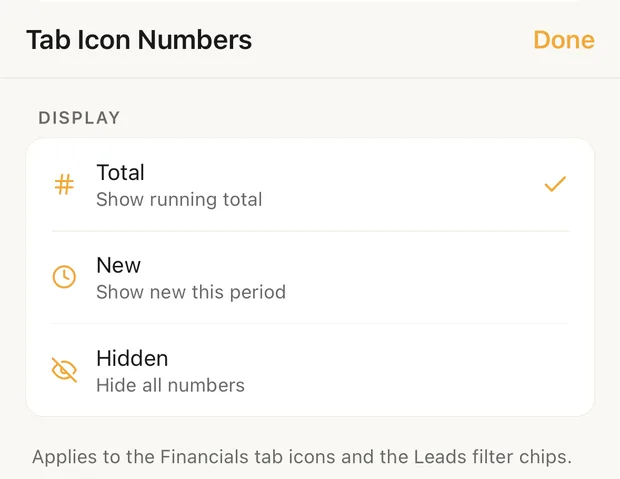
Changes save as soon as you tap.
Timeline Fit labels
When you score a lead, Timeline Fit has three answers. Edit Timeline Labels renames them to the words you use on the phone. Out of the box they read as six months or more out, three to six months, and ready soon, for -1, 0 and +1.
Tap Done to save. A blank field goes back to its default. The scores don't change, only the words.
Duration presets
Duration Presets are the job lengths you can pick on a new lead, like "2 weeks" for a bathroom. Tap Add preset to make one, tap a preset to edit it, and use the arrows to order them. Names can be up to 40 characters.
Only the first four show on the lead form; the rest sit under Not shown on the form. Deleting a preset doesn't change leads that already use it. You can also save one from a new lead with + Save preset.
Not Moving After
A lead or job with no notes, appointment or follow-up for this many days shows as "not moving" on the Home screen. Pick 7, 14, 21, 30, 45 or 60 days; the default is 21. At twice that number it escalates.
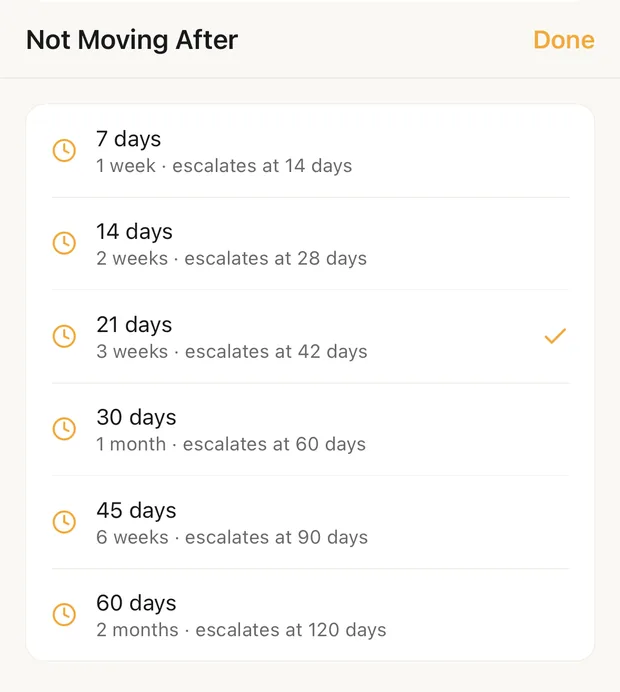
Pick the gap that is too long in your business. A lead you haven't touched in three weeks is usually a lead someone else is getting.