Auto time on site
Updated Oct 9, 2026
What it's for. Clamp can log how long you're at a job site with no clock in or out. You choose which places it watches. When you arrive at one, a visit starts; when you leave, it asks you to confirm the job and the hours. Short stops are ignored. Confirmed hours go on the job as labor. It works in the iPhone and Android apps, not in a web browser.
Where to find it
Settings › On the job has:
- Auto-Track Site Visits, with its switch right on the row. It reads ON or OFF. Tap the ⓘ for a short summary. In a web browser this row is hidden, and Time on Site says "Works in the iPhone and Android apps, not in a web browser."
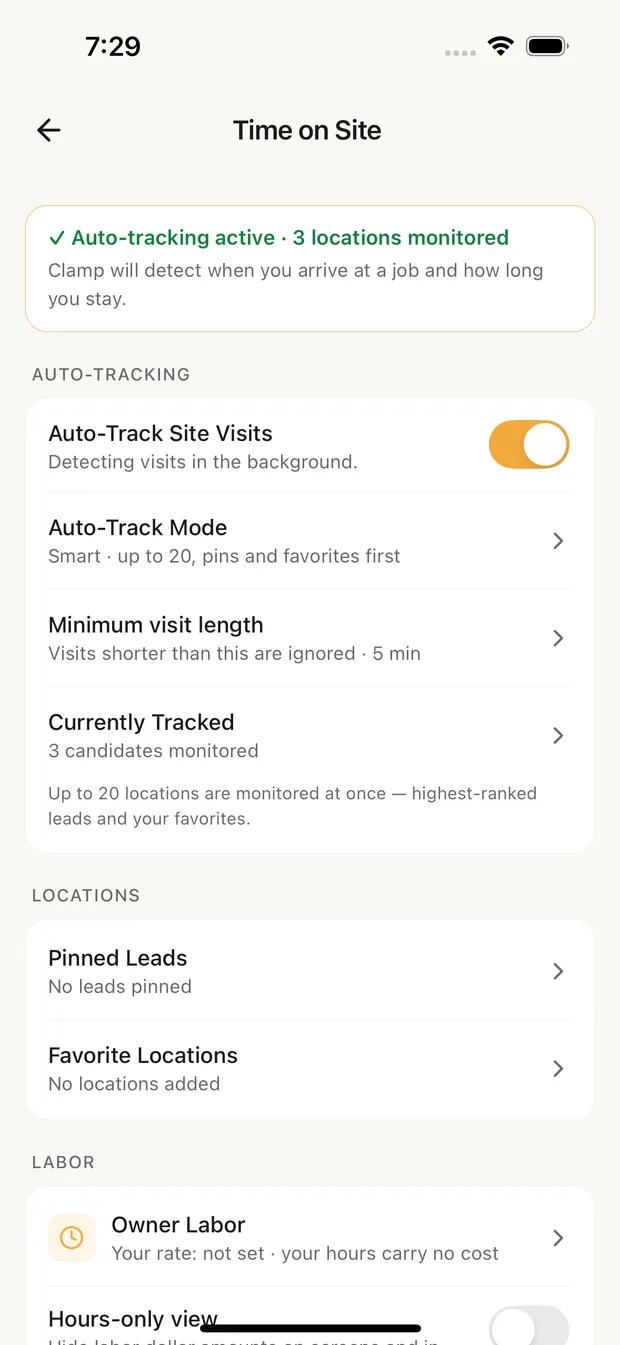
- Time on Site ("Locations and visit length"), the screen this guide walks through, top to bottom.
Turn it on
- Turn on Auto-Track Site Visits, in Settings or under Auto-tracking on Time on Site.
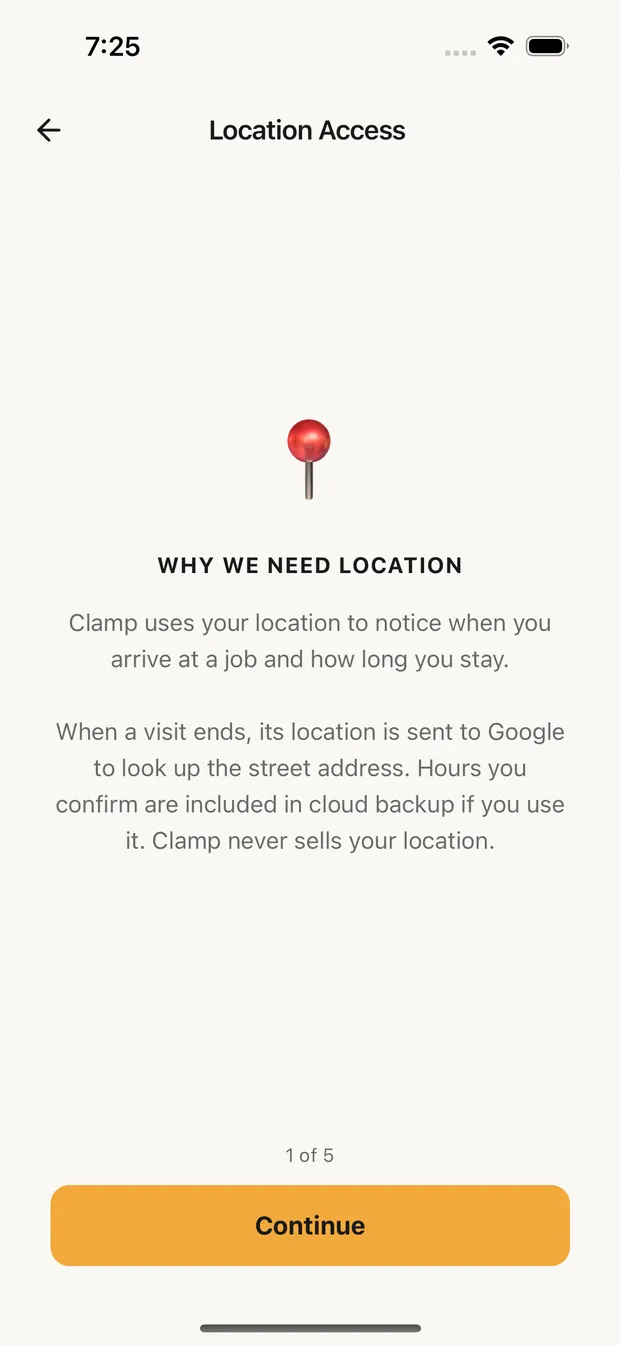
- If Clamp can't use your location all the time yet, it opens Location Access, five short steps. Tap Grant Location Access, then Grant Always Access, and pick Always when your phone asks (Allow all the time on Android).
- Step 5 asks to send you a notification when you leave a job site. Tap Allow Notifications. You can Skip; visits still wait for you in the app.
- Tap Done. If tracking isn't on yet, Clamp asks Enable auto-tracking now? Tap Enable.
The card at the top of Time on Site shows where you stand:
| The card says | What it means |
|---|---|
| Auto-tracking active · 12 locations monitored | Tracking is on and watching that many places. |
| Location permission granted | Location is fine. Turn on Auto-Track Site Visits. |
| Background tracking unavailable | Location isn't set to Always. Tap Enable to go through Location Access again. |
The card reads your phone's setting each time you open Time on Site, so a change you made for mileage or in your phone's Settings shows up right away.
Choose which places are watched
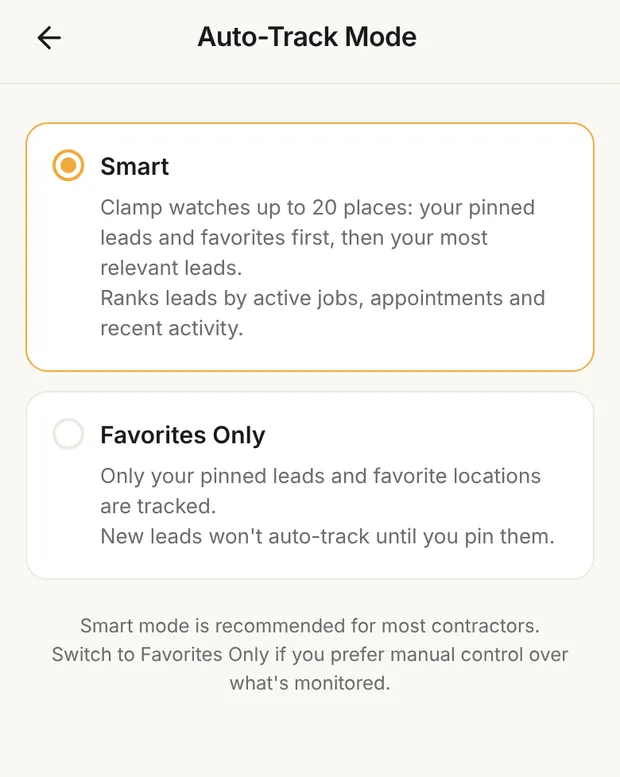
A phone can only watch so many places at once, so Clamp watches up to 20. Pick how it fills them under Auto-Track Mode. On Time on Site, Smart reads Smart · up to 20, pins and favorites first.
- Smart (recommended). Your pinned leads first, then your favorite locations, then your leads ranked by what's likely to have you on site: an active job, an appointment in the next 7 days, activity in the last 30 days, a follow-up due in the next 14 days. Leads with no activity in over 90 days drop down.
- Favorites Only. Only your pinned leads and favorite locations. New leads aren't watched until you pin them.
A lead is only watched once Clamp has found its address on the map. Archived, closed and bad-fit leads are left out unless you pin them.
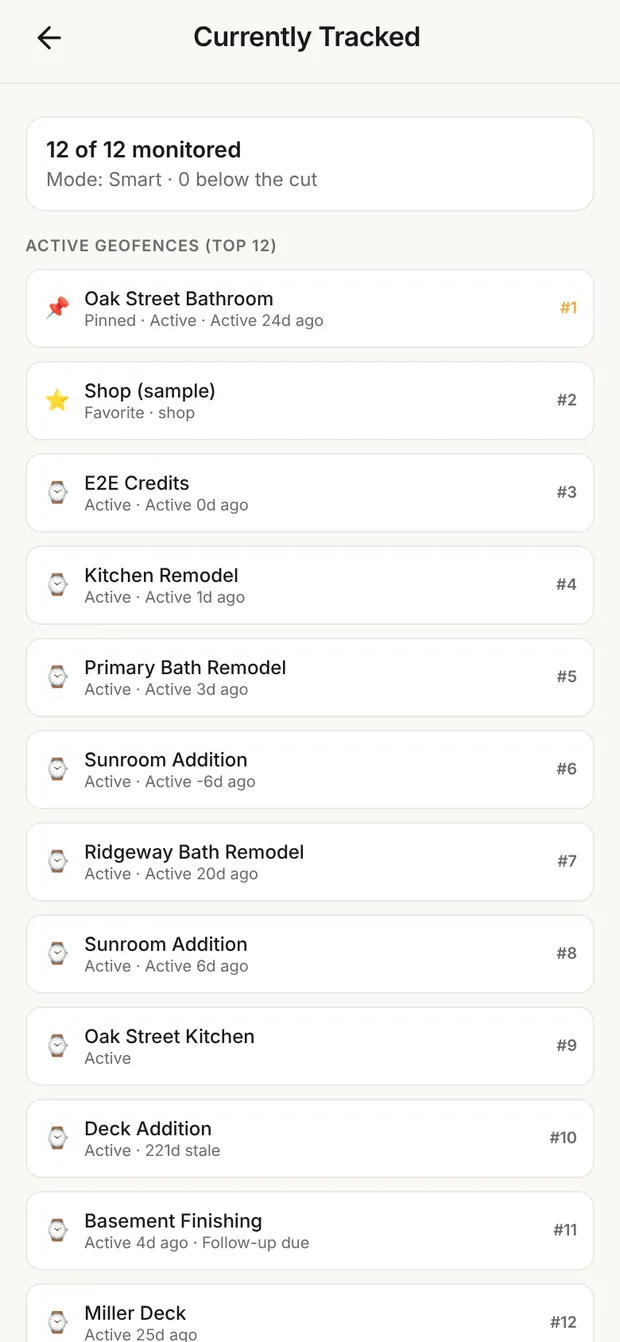
Currently Tracked shows the list Clamp is using right now: how many places are watched, why each one made the list, and anything below the cut. Pinned leads that still need an address are listed at the bottom; tap one to add it.
Set the minimum visit length
Minimum visit length decides how short a stop is ignored:
- 3 minutes catches quick stops, and may log slow drive-bys.
- 5 minutes (Recommended) is the default.
- 10 minutes suits longer jobs only and misses quick visits.
A visit shorter than this is dropped without asking you.
Pin leads and add favorite locations
Pin a lead to make sure it's always watched. Open the lead and tap the map-pin button at the top of the screen, or tap the pin next to its name in the Leads list. Your pins are listed under Pinned Leads. A new pin watches a 500 ft circle, the same as a new favorite. Tap one to Adjust Radius (300, 500, 1000 or 1500 ft), Open Lead or Unpin. A bigger circle catches more arrivals; a smaller one is more accurate.
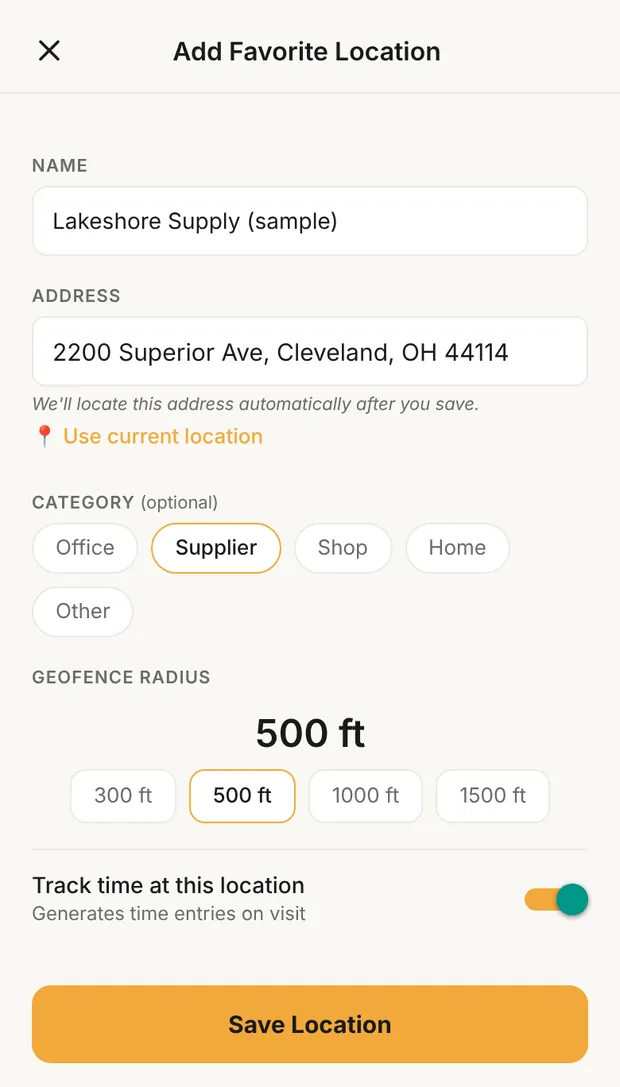
Add a favorite location for places you work that aren't a lead: your shop, the office, a supply house you load at. On Favorite Locations, tap + and fill in:
- NAME, and the ADDRESS (or Use current location while you're standing there).
- CATEGORY (optional): Office, Supplier, Shop, Home or Other.
- GEOFENCE RADIUS. New favorites start at 500 ft.
- Track time at this location. On means visits here are logged. Turn it off and Clamp doesn't watch the place at all.
Tap Save Location.
When you leave a site
Clamp checks your location about every 30 seconds in the background. Arriving inside a watched circle starts a visit. Leaving it ends the visit, and Clamp sends Site visit detected with the place and how long you were there. If two watched places overlap, a lead wins over a favorite.
If tracking was stopped while you were on site, the visit ends when you next open Clamp and is marked "Duration estimated" for you to check. A visit recovered this way is capped at 16 hours.
Confirm a visit
- On Home, under Needs Attention, tap Review on the unlogged visits card. This opens Workflow › Time on Site, where DETECTED VISITS lists each one.
- Tap Log. The visit opens with the job it suggests, marked "suggested".
- Check Lead. Pick a different one, or Overhead (no job) for time that isn't on a job.
- Check Hours. It's filled in from the visit; Edit start / end times shows when you arrived and left.
- Pick a Role (required), and add Notes if you like.
- Tap Log Hours.
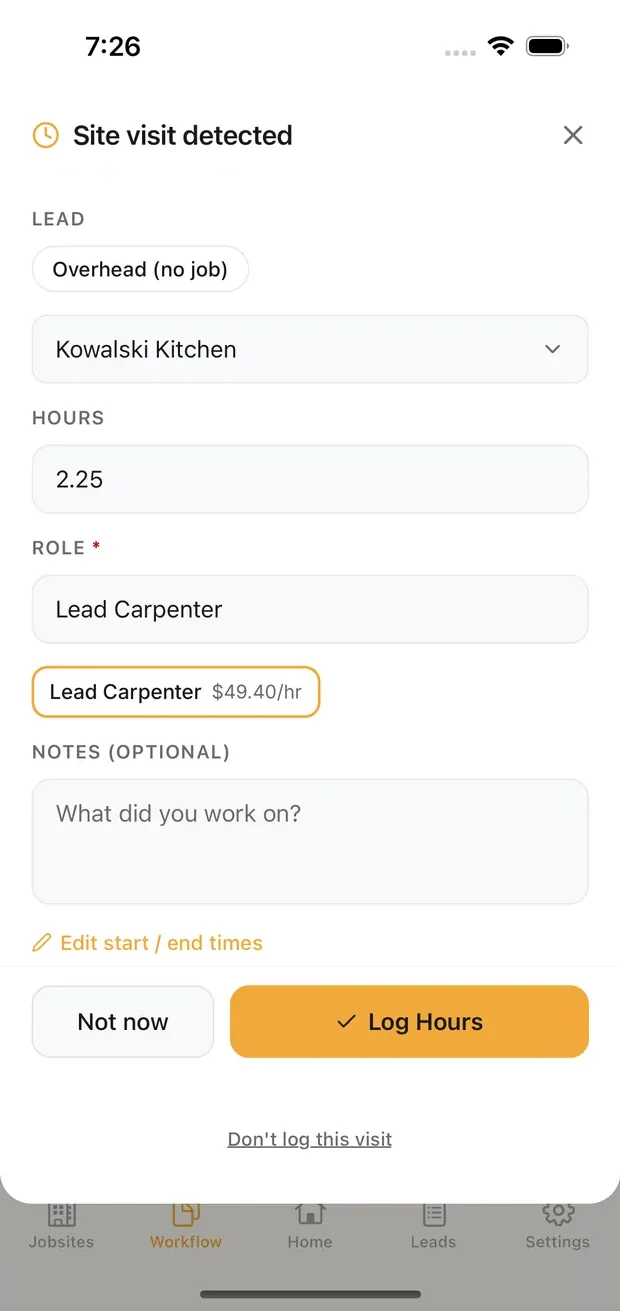
Not now sets the visit aside under SNOOZED VISITS to log later. Don't log this visit removes it for good. The × on a detected visit snoozes it.
What each time entry should show is in how to track time on a job.
Owner Labor and the hours-only view
The owner and admins see a Labor section:
- Owner Labor sets the rate your own hours are costed at, and shows your team's. Until you set your rate, the row reads "Your rate: not set · your hours carry no cost". Rates never appear on anything a customer sees. See setting labor costs.
- Hours-only view hides labor dollar amounts on screens and in the Timesheet PDF, so you can share hours without costs.
Teammates who can't see rates always get the hours-only view.
Diagnostics
Copy diagnostics copies a log of recent tracking events, up to 500, so you can send it to support if visits aren't being detected. The log doesn't record where you've been: for each check it notes only how far you were from each watched place (when within about 1 km) and that place's radius. It stays on your phone and isn't backed up. Clear diagnostics erases it. Leave this section alone unless support asks.
Privacy and battery
- Clamp watches only the places on your list, and saves each visit you confirm: when you arrived and left, and the job.
- When a visit ends, its location is sent to Google to look up the street address.
- Confirmed hours are part of cloud backup if you use it.
- On iPhone, the location indicator shows in the status bar while tracking is on. On Android, a standing "Time on Site tracking active" notification shows; Android requires it.
- Time on site checks your location less often than mileage tracking (about every 30 seconds, against every 5 to 15), but it runs all day. Turn off Auto-Track Site Visits when you don't need it.
What this changes
- Job cost. Each confirmed visit becomes a time entry on the job, costed as labor at the role's rate.
- Overhead. Hours logged to Overhead (no job) are kept as time off the job. Whether they carry a cost depends on your choice under Owner Labor, "When you work but not on a job".
- Home shows visits waiting to be logged under Needs Attention, and the job you're at under Now on site.