Scheduling installs, deliveries and inspections
Updated Oct 10, 2026
What it's for. A date in your head, a text to the electrician and a sticky note for the inspector are three schedules. Clamp keeps one per job: you add the item, the person doing it confirms or suggests another day, and everyone on the job sees the same dates. It's part of Teams.
Where to find it
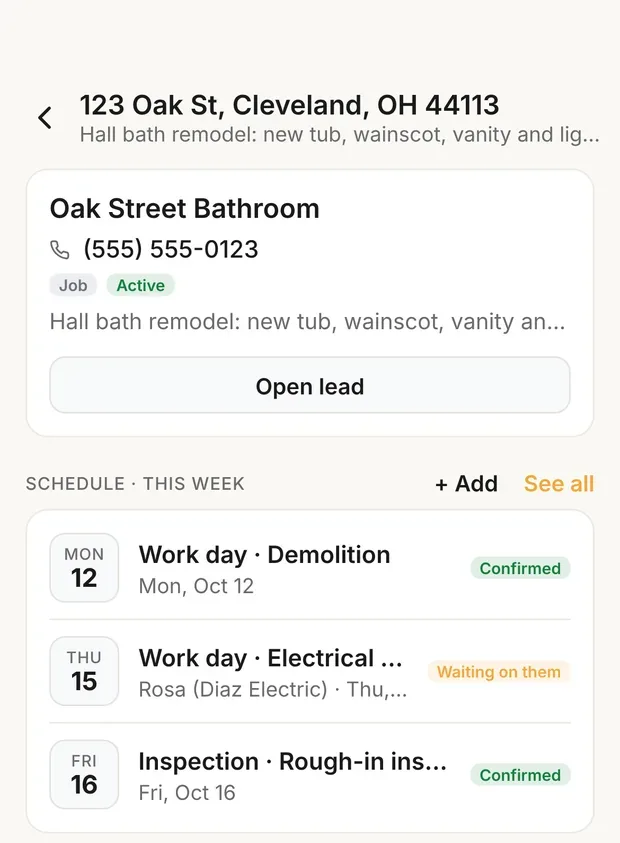
- On a job: the SCHEDULE · THIS WEEK card, with + Add and See all. On a lead, the Schedule section.
- Every job at once: the Jobsites tab, switched from Jobs to Schedule.
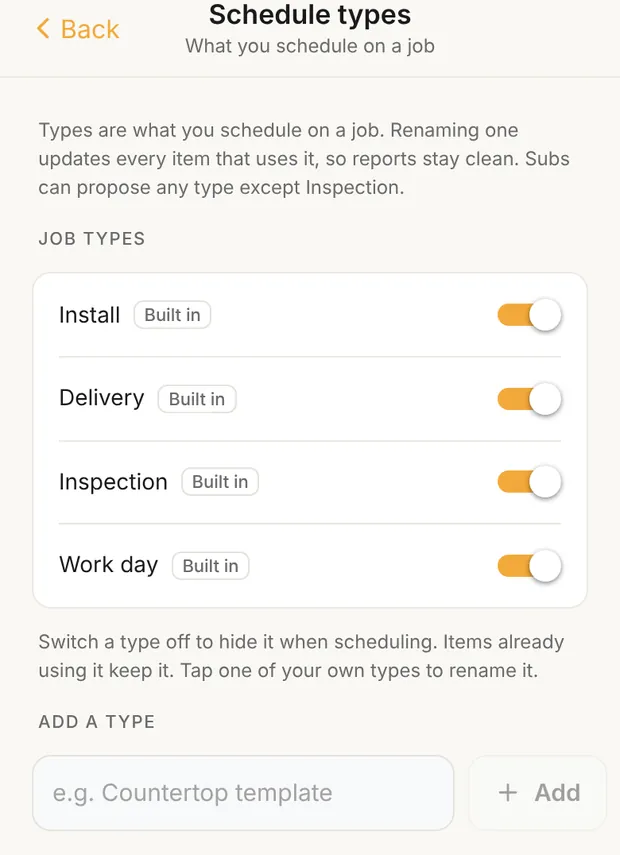
- The kinds of items: Settings › Sharing › Schedule types.
Without Teams, the job shows "The shared schedule is part of Teams" and the Jobsites schedule shows only your own appointments and follow-ups. You also need to be signed in.
Add an item
- On the job, tap + Add (or Add to schedule on See all).
- What: Install, Delivery, Inspection, Work day, or one of your own types. Add a Description, like "Cabinets" or "Rough electrical".
- Who: You, a teammate on the job, a sub who has accepted the job, a Supplier (type their name), or Nobody yet.
- Days: tap the first and last day on the calendar. Items are whole days, up to four months long; there are no start times.
- Add a Note if they need to know something ("Use the side door"), set reminders, and tap Add to schedule.
If the job has payment stages, you can link the item to one. Move the item later and Clamp asks whether to Move both or Schedule only.
Who has to confirm
| You scheduled | It starts as | What happens next |
|---|---|---|
| Yourself, a supplier, or nobody yet | Confirmed | Nothing to wait for |
| A teammate or a sub | Waiting on them | They get an email: "[Your business] scheduled you for [days]" |
The person confirms with one tap, in the app or from the email, with no sign-in needed. Or they Suggest another day. A sub can also Propose your dates on their own. Either way the item comes back to you as Proposed: you Confirm it or suggest back.
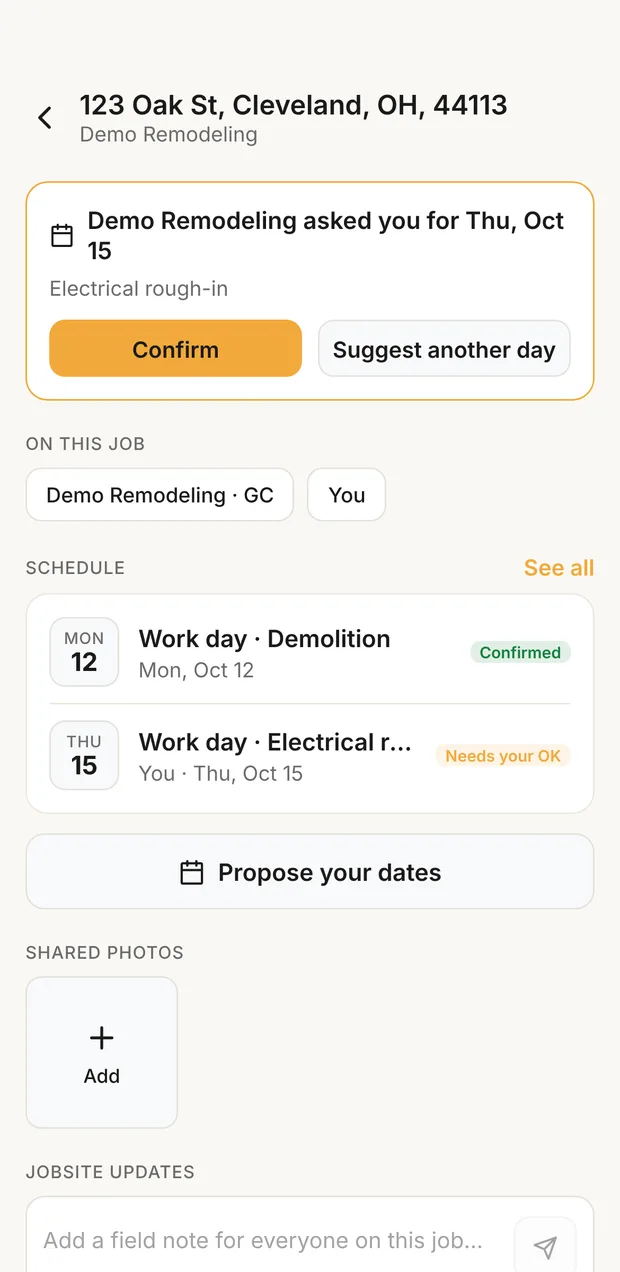
Changing the days or the person on an item someone else has confirmed sends it back to Waiting on them. Every change is written in the job's updates, so the thread shows who agreed to what.
Reminders
- Send reminders to: the person doing it, you, and anyone else on the job. Default: them and you.
- When: Morning of, 1 day before, 2 days before or 1 week before. Reminders go at 7:00 AM in the job's time zone.
- Follow up if unconfirmed: if they haven't confirmed 2 days before, Clamp emails them again ("Still need your OK") and tells you.
Reminders are emails, and need Assistant or Teams. Your phone still reminds you on any plan. Customers never get job schedule emails; their appointment reminders are set on the lead's appointment.
The Schedule view
Jobsites › Schedule shows every job's dates. A two-week strip at the top marks each day green when everything is confirmed and amber when something is waiting. Under it:
- This week, Next week, This month, Next month or All
- Needs a reply, to find what's still waiting
- Filters by type and by person
- A clash note when someone is booked on two jobs the same day, like "Marco is booked on two jobs Wed, Oct 14". It warns; it doesn't stop you.
Teammates see the jobs they can see. Subs see only their own dates, across every contractor who uses Clamp.
Change, finish or remove an item
- Tap an item to see it, then Edit.
- Mark done when the work is done.
- Remove from schedule deletes it, after "Remove from the schedule?". Everyone on the job sees it was removed.
Clamp doesn't link items to each other: if the drywall moves, move the paint yourself.
Schedule types
Settings › Sharing › Schedule types lists Install, Delivery, Inspection and Work day, plus any you add, like "Countertop template". Switch a type off to hide it when scheduling; items that already use it keep it. Your own types can be renamed, and the new name applies to every item. Subs can propose any type except Inspection. Only the owner and admins can change the list.