Using Clamp as a sub
Updated Oct 9, 2026
Who this is for. A contractor has invited you to one of their jobs. You get the job's address, the schedule, the shared photos and the job thread in one place, and you agree dates without phone tag. You stay your own business: your hours, miles and receipts are yours, and the contractor never sees them.
Accept the invite
- The email reads "[Business] invited you to their jobsite". Tap ACCEPT INVITATION. The link is good for 7 days.
- Enter your email and tap Continue.
- Add your name and business name if you like, enter the 6-digit code Clamp emails you, and tap Accept invitation.
That sets up a free Clamp account: no password and no card. You land on Jobsites, and the same account works in the Clamp app on your phone. An expired or revoked link says so; ask the contractor for a new one.
Your jobs
Jobsites groups your jobs by contractor, with Jobs and Schedule at the top. Schedule shows your dates across every contractor who uses Clamp. A job marked Finished is done; Updates paused means it's read only.
On a job
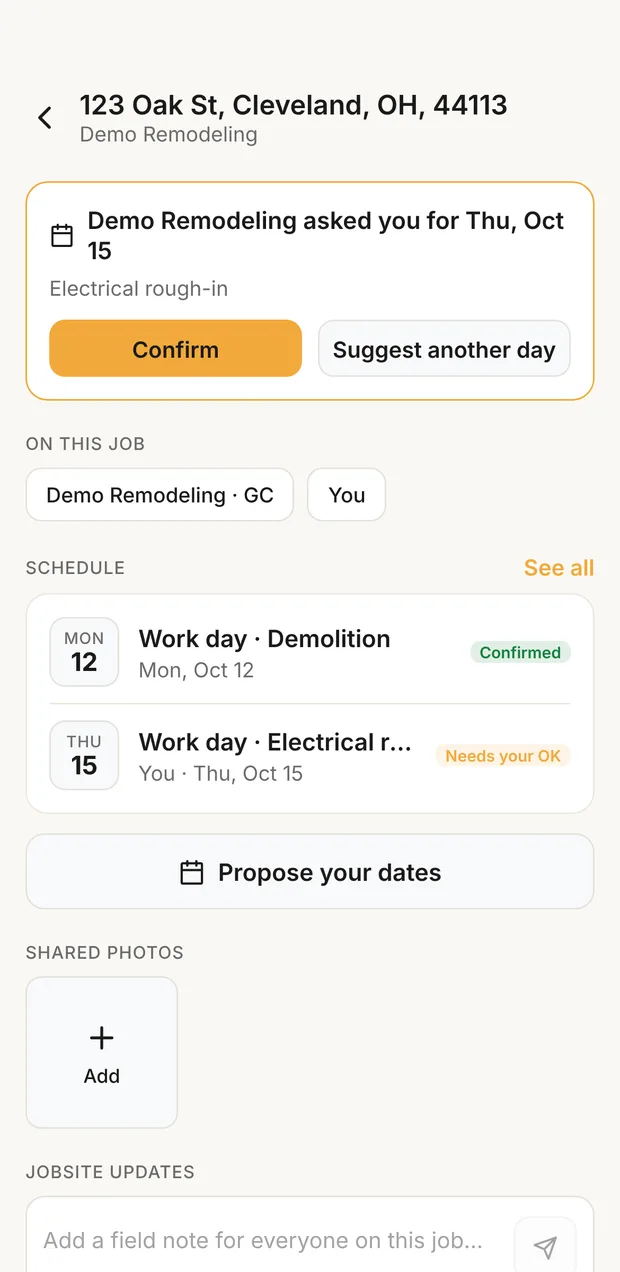
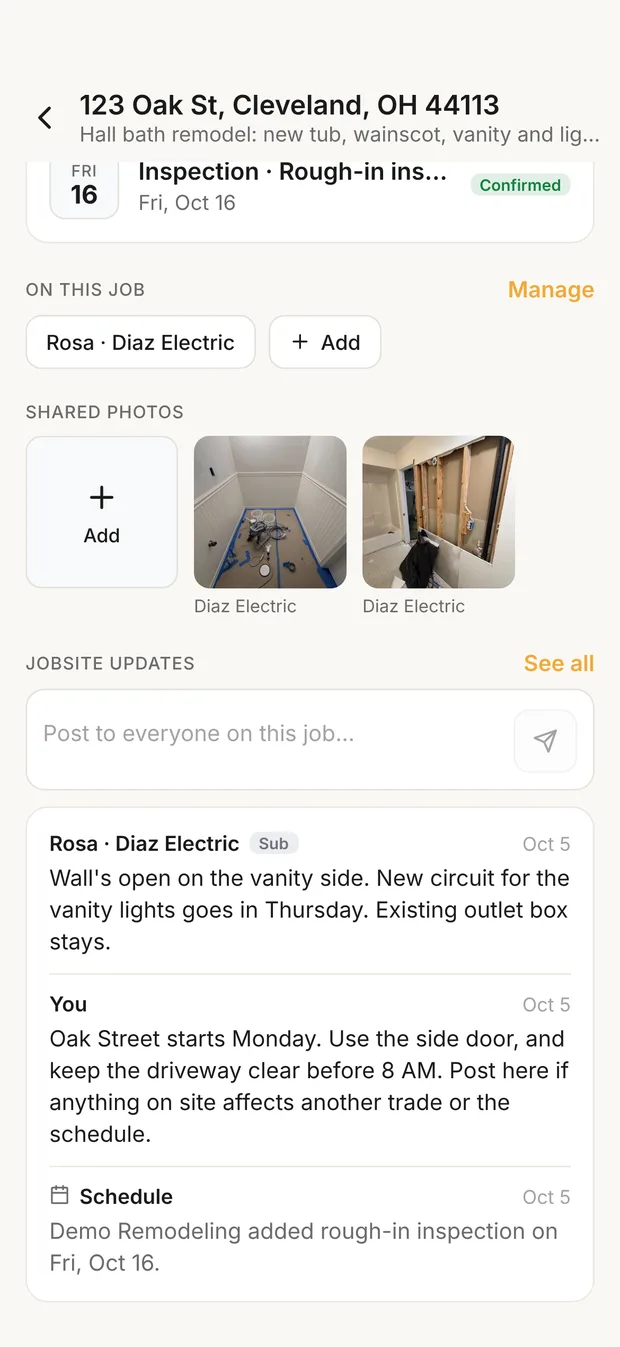
- On this job: the contractor and the other subs, by name or business, never their email.
- Schedule: your dates. When the contractor asks for a day, you'll see "[Business] asked you for [day]" with Confirm or Suggest another day. Propose your dates sends your own (install, delivery or the contractor's types).
- Shared photos: what the contractor shared, plus yours. Tap Add to share more.
- Jobsite updates: the job thread. Post a field note everyone on the job sees.
- Log for this job: Time, Mileage and Receipt open your own logs, already on this job.
What stays private
| Who sees it | |
|---|---|
| Your hours, miles and receipts | Only you. The job says "[Business] doesn't see these." |
| The contractor's documents, prices and customer contact details | Not you |
| The contractor's private notes on the lead | Not you |
| Your notes and photos on the job | Everyone on the job |
When the job ends
- The contractor removes you: the job leaves your list. Notes and photos you posted stay on their job.
- Their plan lapses: the job turns read only, "Updates paused". What you logged stays in your Workflow.
- To leave a job yourself, ask the contractor to remove you.
The rest of Clamp is yours to use for your own business, from leads to invoices. Your first own lead starts a free trial.