Auto mileage tracking
Updated Oct 9, 2026
What it's for. Clamp can notice when you drive and record each trip on its own, with the start and end address, the time and the miles. You don't start or stop anything. Each trip waits for you to say whether it was business or personal and which job it was for, then goes into your mileage log. It works in the iPhone and Android apps, not in a web browser.
Where to find it
Settings › On the job has two rows for mileage:
- Auto-Detect Trips, with its switch right on the row. It reads ON or OFF. Once it's on, two more rows open under it: Tracking notifications and Custom Tracking Schedule. Tap the ⓘ for a short summary.
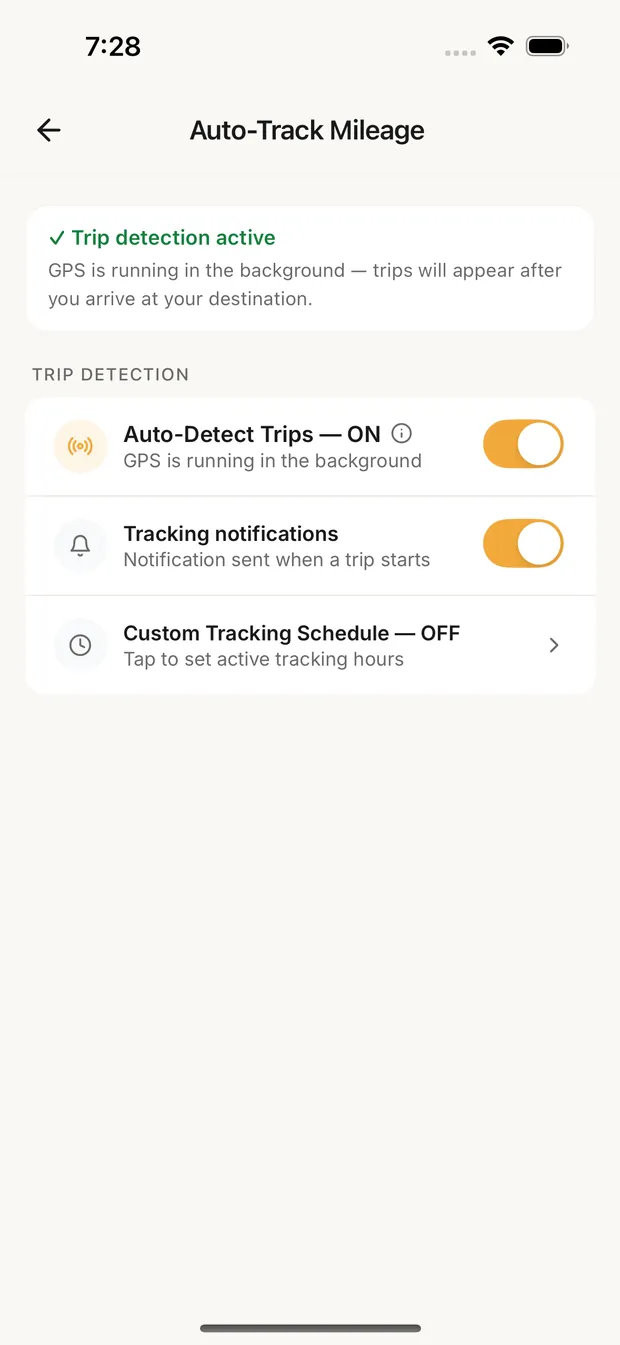
- Mileage Tracking ("Location permission and trip detection") opens the Auto-Track Mileage screen: a location card on top, then the same switches.
Turn it on
- Turn on Auto-Detect Trips.
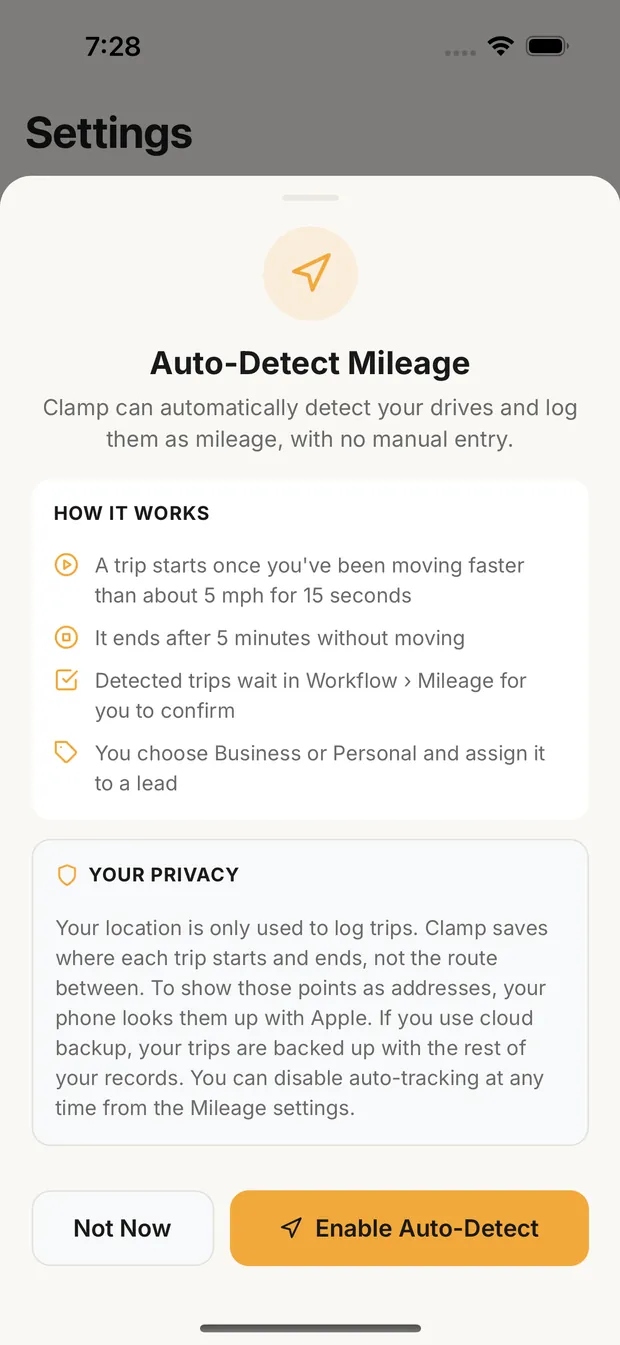
- The first time, the Auto-Detect Mileage sheet explains how it works and what's kept: "A trip starts once you've been moving faster than about 5 mph for 15 seconds", "It ends after 5 minutes without moving", and detected trips wait in Workflow › Mileage for you to confirm. Tap Enable Auto-Detect, or Not Now to leave it off.
- Your phone asks for location twice. Allow it while using the app, then allow it all the time: Always Allow on iPhone, Allow all the time on Android. Trips can't be detected with Clamp closed without the second one.
If you only allow it while using the app, Clamp shows Background Location Required with Open Settings. In your phone's Settings, find Clamp, then Location, and pick Always (on Android: Clamp, then Permissions, then Location, and Allow all the time).
If the card at the top says Background tracking unavailable, tap Enable on it. Clamp asks for location right there, first while using the app and then all the time, and you stay on Auto-Track Mileage. The card reads your phone's setting again when you come back from Settings.
The card at the top of Auto-Track Mileage shows where you stand:
| The card says | What it means |
|---|---|
| Trip detection active | Location is set to Always and Auto-Detect Trips is on. You're done. |
| Location permission granted | Location is fine. Turn on Auto-Detect Trips. |
| Background tracking unavailable | Location isn't set to Always yet. The line under it says why: not asked yet, denied, or "While Using App". |
How a trip is recorded
- Start. A trip starts when you're moving at about 5 mph or faster and keep moving for 15 seconds. Red lights and stop signs don't reset it. If you stop for 30 seconds before then, Clamp drops it, so pulling out of a driveway and parking again isn't a trip.
- End. A trip ends after 5 minutes without moving. The end time is when you stopped.
- Too short. Trips under 0.2 miles aren't kept.
- Miles are rounded to a tenth. You can correct them when you confirm the trip.
These numbers are set in the app and can't be changed.
Tracking notifications
On by default. When it's on, you get one notification when a trip starts: Clamp is tracking your drive, "After you've stopped for 5 minutes, the trip waits in Workflow › Mileage for you to review." Turn it off and the row reads No alert when a trip starts.
On Android you'll also see a standing notification whenever Auto-Detect Trips is on, even when you're parked: Clamp trip detection is on, "Watching for drives." Android requires it for any app that uses location in the background, and the switch doesn't hide it. With the switch off, the row on Android says so.
Custom tracking schedule
Use this if you drive the same truck on weekends or after hours and don't want those trips detected.
- Tap Custom Tracking Schedule and turn on Enable Custom Schedule.
- Under Active Days, tap the days you work. Under Active Hours, set START and END. The schedule starts at Monday to Friday, 8:00 AM to 6:00 PM.
- Tap Done.
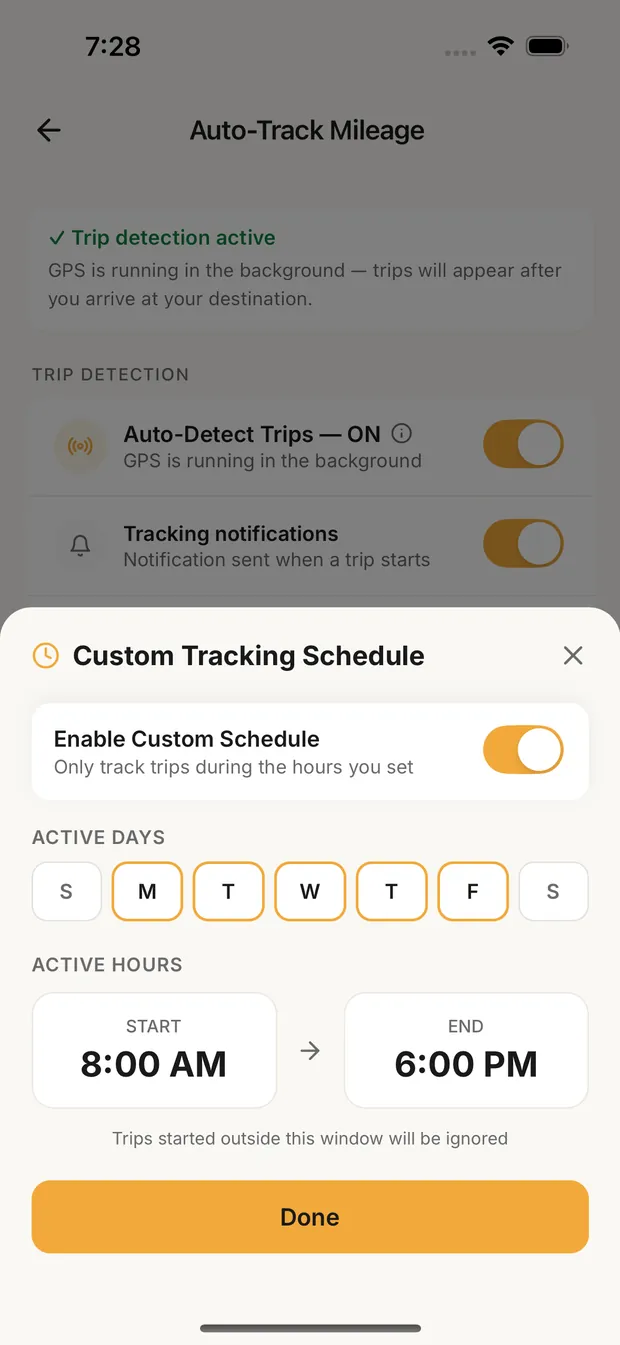
Trips that start outside these hours are ignored. A trip that starts inside them keeps recording until you stop, even past the end time. The schedule doesn't turn off location checks, so it won't save battery. To stop tracking completely, turn off Auto-Detect Trips.
Confirm your trips
Detected trips aren't counted until you review them.
- On Home, under Needs Attention, a card shows how many trips were detected and their miles. Tap Review. This opens Workflow › Mileage, where DETECTED TRIPS lists each one: miles, times, start and end address, and "Not counted until you review it".
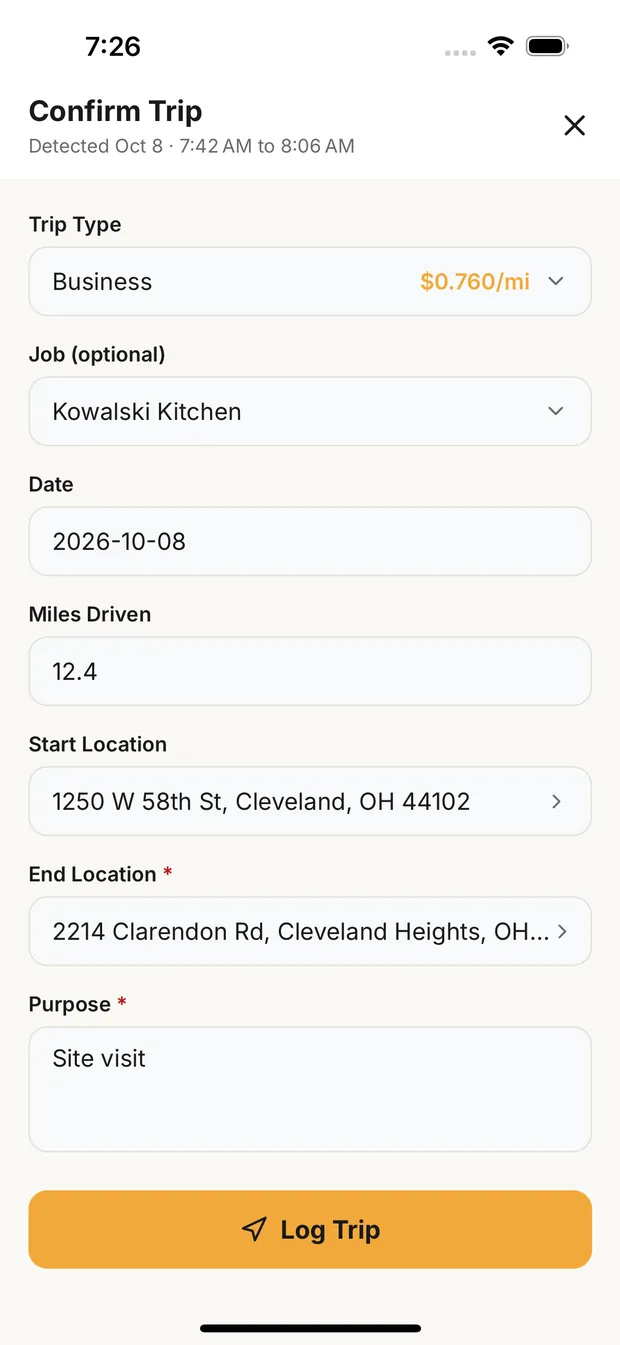
- Tap Review on a trip. Confirm Trip opens with the date, times, miles and addresses filled in.
- Pick the Trip Type: Business, Personal, Medical, Charity or Moving.
- Under Job (optional), pick the lead or job the trip was for.
- Fill in Purpose (required), such as "Site visit" or "Material pickup". Business trips also need an End Location.
- Tap Log Trip.
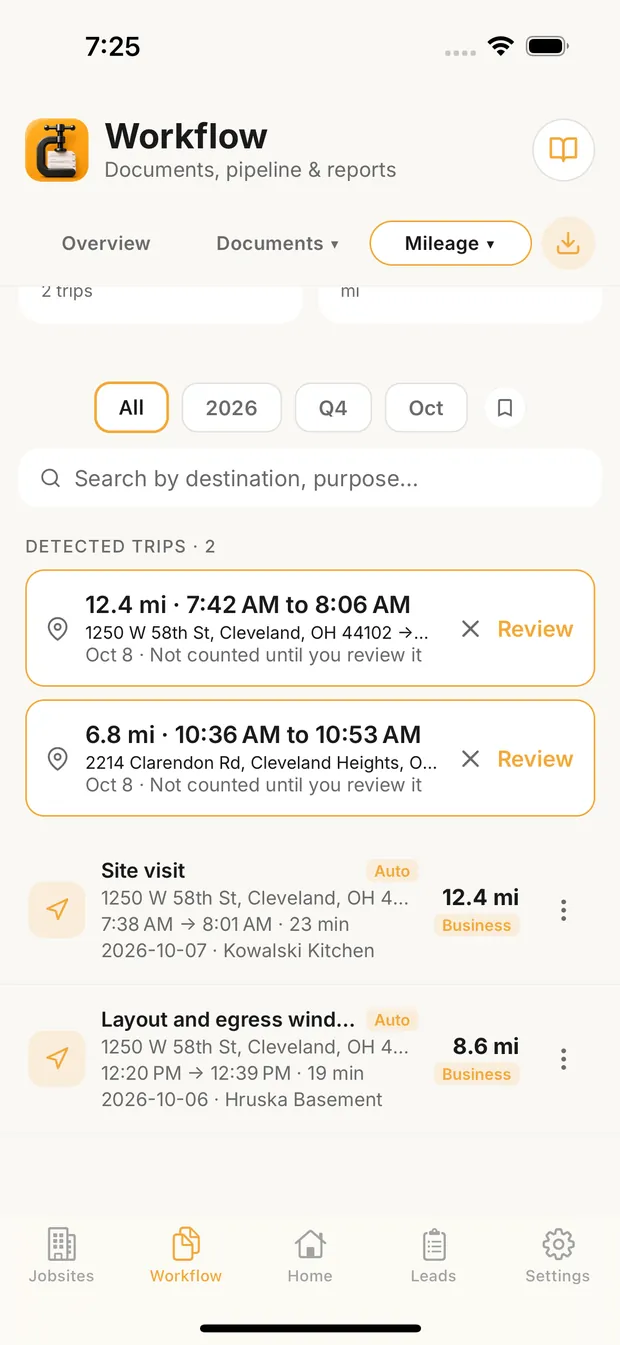
To throw a trip away, tap × on its card. It's removed right away, with no undo. Personal trips are logged but carry no deduction.
What a mileage log has to show to hold up is in how to keep a mileage log.
Mileage rates
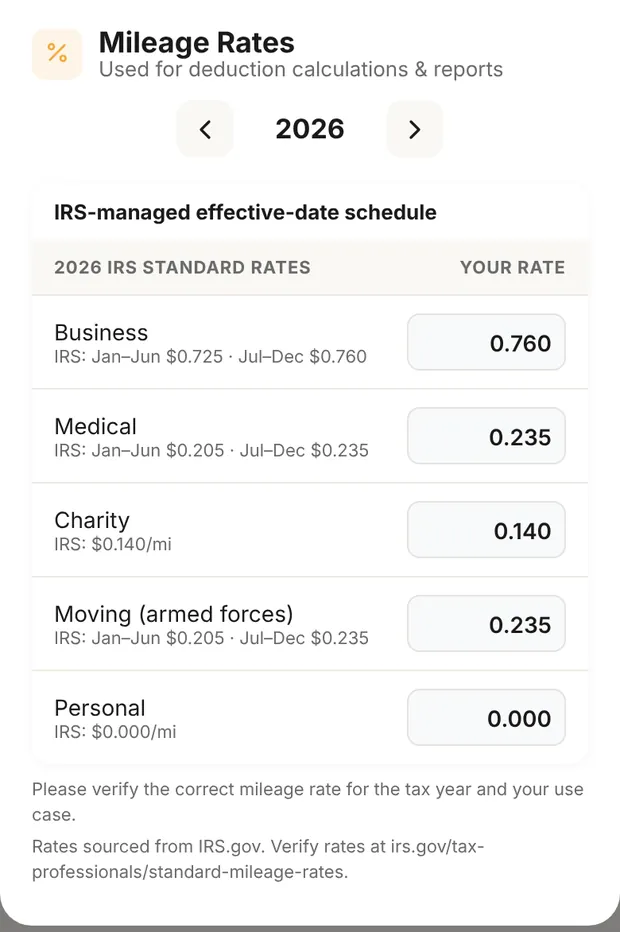
The rate per mile is set in Settings › Business & Documents, under Vehicles & Mileage: Mileage Rates ("IRS rates and custom per-mile cost"). Clamp starts with the IRS standard rates and prices each trip at the rate for the day you drove it. In 2026 the business rate is 72.5 cents a mile through June and 76 cents from July 1. Driver Info & Odometer next to it holds your vehicle and odometer readings. Both are covered in your business profile and document defaults.
Privacy: what Clamp keeps
- Your location is used only to log trips.
- Clamp saves where each trip starts and ends, not the route between.
- To turn those two points into addresses, your phone looks them up with Apple (iPhone) or Google (Android).
- If you use cloud backup, your trips, including ones waiting for review, are backed up with the rest of your records.
- On iPhone, the location indicator shows in the status bar while tracking is on.
Android and battery
- Two permission steps. Android asks "While using the app" first, then "Allow all the time". Both are needed.
- Battery settings. With tracking on, Android shows an Android Support Tip: for trips to detect reliably on a low battery, set Clamp's battery use to Unrestricted (Settings › Apps › Clamp › Battery). Some phones stop background apps otherwise.
- How often it checks. Android checks location every 5 seconds using GPS, because some phones throttle less precise location. iPhone checks every 15 seconds or 10 meters. Background GPS uses battery on either phone; turning off Auto-Detect Trips stops it.
Turning off Auto-Detect Trips stops tracking right away. A trip in progress at that moment isn't saved.
What this changes
- Your mileage log fills with confirmed trips.
- Each job shows the miles you assigned to it.
- Your deduction uses the rates in Mileage Rates. Personal trips count as zero.
- Home shows trips waiting for review under Needs Attention.